
Print a QR label for a machine
Print a sticker with the machine's number, a QR code and a barcode, in the size your printer takes, and see who has printed labels.
A QR label on the machine lets anyone with a phone camera see what the machine is and report a problem with it, without logging in. Solmex draws the label for you, ready for a thermal label printer, a sheet of labels or a large site sign.
Before you start
- You need Equipment: View to open the machine, and Labels: Print to print.
- Set your company name and logo under Settings > Company Settings first. They print at the top of every label. See Set up your company.
- Know what your printer takes: a roll of thermal labels, or A4 or Letter sheets of sticky labels.
Print the label
- In the sidebar, open Assets > Equipment and open the machine.
- In the header, press QR label (the button with the QR code icon). The Generate Label window opens with a preview.
- Under Print Format, choose the size. See the table below.
- Under Copies, set how many to print. On a sheet format it starts with a full sheet.
- Click Print Label. Your browser's print dialog opens.
- In the print dialog, print at 100% scale ("Actual size", not "Fit to page"), or the label will come out the wrong size.
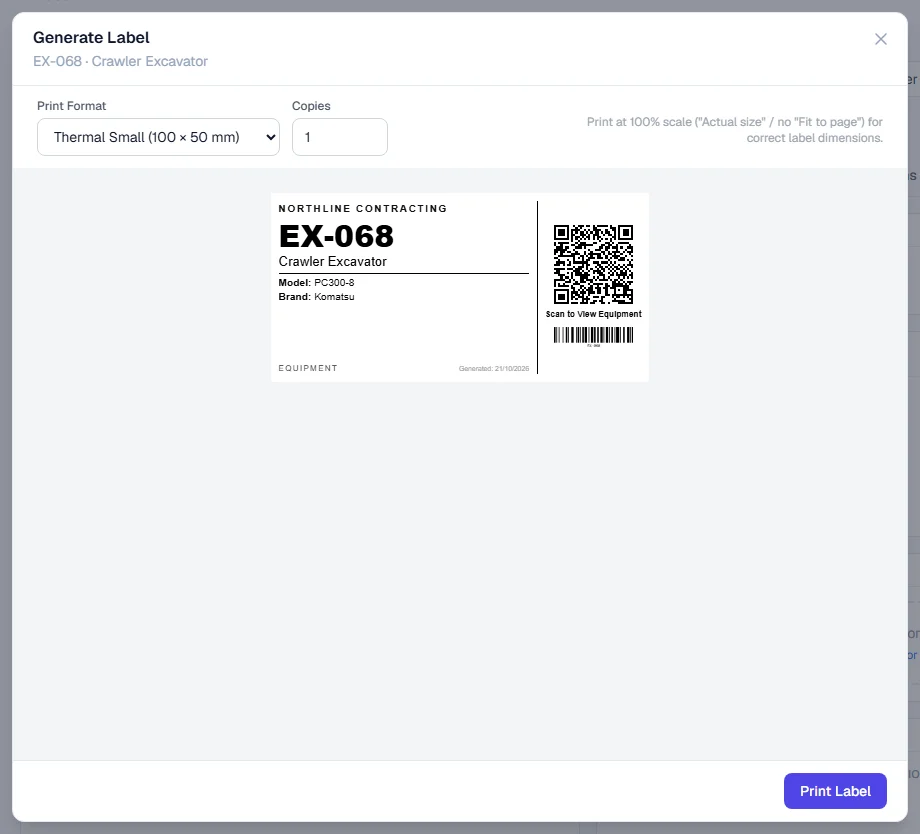
Print formats
| Format | Use it for |
|---|---|
| Equipment Label (90 × 60 mm) | The usual sticker for a machine. |
| Thermal Small (100 × 50 mm) / Thermal Large (150 × 100 mm) | Thermal label printers. |
| QR Only (50 × 50 mm) | Just the QR code, for a small space. |
| Barcode Only (60 × 30 mm) | Just the barcode of the machine's number, for a barcode scanner. |
| A3 Site Sign (420 × 297 mm) | A large sign for a site entrance or a machine parked in one place. |
| A4 Sheet (multiple labels) / Letter Sheet (multiple labels) | Sheets of sticky labels on an ordinary printer. The window shows how many fit on a sheet. |
The other sizes in the list (Bin Label, Shelf Label) are meant for warehouse labels.
What is on the label
- Your company name and logo.
- The machine's Equipment No. and its type.
- Its model, brand and serial number, when they are recorded and the label size has room for them.
- A QR code with "Scan to View Equipment" beside it.
- A barcode of the equipment number.
Scanning the QR code opens the machine's public card. See The public equipment card.
Print history
Every print is recorded before it happens. To see the record, open Settings > Label Service. You need Labels: View.
- Templates lists the label sizes available for each kind of object.
- Print History lists every print: what was printed, the Template, the number of Copies, who printed it (Printed By) and when (Printed At).
Rules worth knowing
- The QR code never changes. It points at a permanent code for the machine, not at its number. If you renumber a machine, its old QR label still opens the right card, but the printed number and the barcode are out of date, so print a new label.
- The QR code does not reveal anything internal. It holds a long random code, not a number anyone could guess to look up other machines.
- At most 100 copies per print. Print again if you need more.
- The label is only as good as the record. A model or serial number that is not recorded is simply left off.
Troubleshooting
| What you see | What to do |
|---|---|
| "No company name is configured, so these labels print without one." | Add your company name under Settings > Company Settings, then open the label again. |
| "You need the Labels: Print permission." | Your role does not include Labels: Print. Ask an administrator. |
| "copies must be between 1 and 100" | Enter a number of copies from 1 to 100. |
| The printed label is too small or too large | Print again at 100% scale, with "Fit to page" switched off. |
| "Unable to print labels right now." | Check your connection and try again. |