
Resolve a breakdown
Mark a breakdown as repaired and the machine as back in service, either by closing its work order or by resolving it directly, and record the downtime.
Resolving a breakdown says the failure happened and has been fixed. The machine comes back into service, and the breakdown counts in your downtime and reliability figures.
Before you start
- You need the Breakdowns: Close permission.
- The machine must really have failed. If the breakdown was logged by mistake, cancel it instead: see Cancel a breakdown logged in error.
The usual way: close the work order
If the repair was done on a work order raised from the breakdown, you do not need to resolve the breakdown yourself. When the work order is closed (see Close, cancel or reopen work), the breakdown is resolved automatically, and the work order's completion notes become its resolution notes.
A work order that is only Finished, awaiting closure does not resolve the breakdown yet. Someone still has to close it.
Resolve it directly
Use this when there is no work order, for example a quick fix done on the spot.
- Open the breakdown from the Breakdowns page.
- Click Resolve Breakdown. It is the main button once there is nothing else to plan; otherwise it is in the More actions menu.
- In Resolution Notes, say what was done to fix the machine.
- Optionally, enter the Total Downtime (hours).
- Optionally, set Resolved At if the machine was back in service earlier. Left blank, it is now.
- Click Mark Resolved.
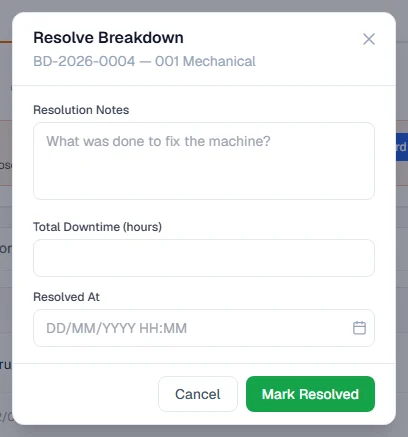
You can also click Resolve on the breakdown's row in the machine's Breakdowns tab. It asks for the same details, and is shown only if you have Breakdowns: Close.
What happens next
- The breakdown's status becomes Resolved and its stage Breakdown Closed.
- If the machine has no other open breakdown, its status goes back to what it was before the breakdown, such as Active or Standby.
- Resolution Evidence photos can now be added on the Evidence tab, to confirm the repair.
- The breakdown can no longer be diagnosed, given a blocker or a new work order. Its breakdown code can still be changed.
If a work order is still open
Normally you finish and close the work order first, and that resolves the breakdown. If you resolve the breakdown while its work order is still open, the form warns you and offers a Resolve anyway box, on the breakdown's page and on the machine's Breakdowns tab alike. Mark Resolved cannot be clicked until you tick it. Tick it only when you are sure, for example when the machine is back in service and the work order will be closed later. The override is written to the breakdown's Activity tab.
Rules worth knowing
- How long the machine was down is measured from the reported time to the resolved time. The Breakdowns page shows it as days down. Get both times right: if the reported date is wrong, see Correct a breakdown's reported date.
- A resolved breakdown cannot be reopened. If the machine fails again, log a new breakdown. If that happens within 30 days, Breakdown Analysis counts it as a repeat failure.
- A resolved breakdown can still be cancelled if it turns out it never happened.
Troubleshooting
| What you see | What to do |
|---|---|
| A message saying the breakdown cannot be resolved because a work order "is still open" | Close the work order first, or tick Resolve anyway in the resolve form. |
| "Breakdown is already resolved" | Nothing to do. It was resolved already, perhaps by closing its work order. |
| "This breakdown was cancelled as logged in error, so there is nothing to resolve. Log a new breakdown if the machine has genuinely failed." | The breakdown was withdrawn. If the machine really has failed, report a new breakdown. |
| No Resolve Breakdown action | You do not have Breakdowns: Close. Ask your administrator. |