
Import routine maintenance history
Bring a paper logbook or an old spreadsheet into Solmex as daily maintenance records, one row per job, checked in full before anything is saved.
If your crews have kept a greasing or washing log on paper or in Excel, you can bring it in so each machine starts with its real history. Each row of the spreadsheet becomes one job done on one machine on one day.
Before you start
- You need Routine Maintenance: Edit.
- The machines must be on the Equipment Register. See Add equipment.
- Every job your logbook names must be on your job list, under its name or one of its other spellings. See Set up your job list.
- Any Sublocations the file names must already exist.
Step 1: Prepare the file
- In the sidebar, open Maintenance > Daily Maintenance and click the Record tab.
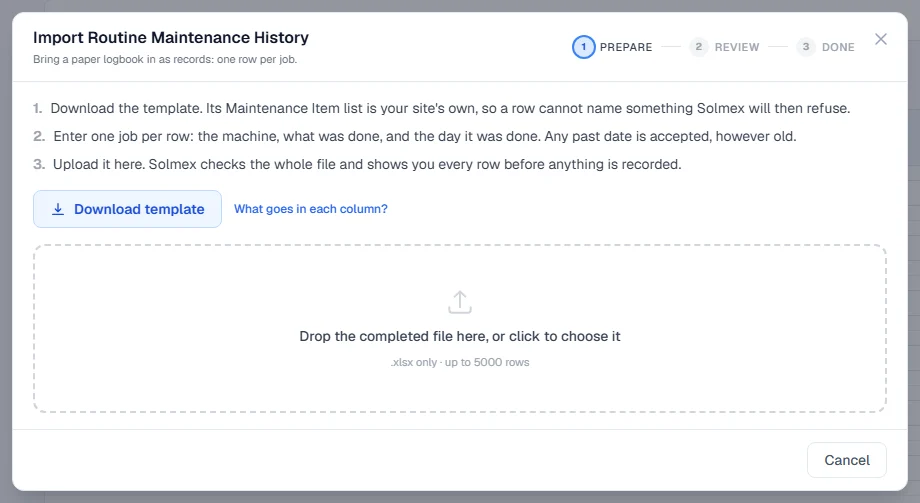
- Click Import history. The Import Routine Maintenance History dialog opens.
- Click Download template. The template's Maintenance Item list is your company's own list, so a row cannot name a job Solmex will refuse.
- Enter one job per row. Leave the example row alone or overwrite it; the example is ignored.
- Save the file as Excel (.xlsx).
| Column | Notes |
|---|---|
| Equipment No. * | Written exactly as on the register. Upper and lower case are ignored. |
| Maintenance Item * | Pick from the list, or write any name or other spelling the job answers to. |
| Date Performed * | The day the work was done. Any past date is accepted, however old. Use a real Excel date, or type the date as day, month, year, such as 14/03/2026. |
| Hourmeter (hrs) | Optional. Recorded with the job and added to the machine's meter history. |
| Odometer (km) | Optional, and separate from the hour meter. |
| Sublocation | Optional. Where the work was done. |
| Done By | Optional free text. Never matched to a user. |
| Note | Optional, up to 500 characters. |
A file can hold up to 5,000 rows.
Step 2: Review
- Drop the completed file into the dialog, or click to choose it.
- Solmex checks the whole file and shows every row. Nothing is recorded yet.
- If any row needs fixing, the dialog lists each problem with its row number and column. Nothing has been recorded: correct the spreadsheet and upload it again.
- When every row is ready, check the list and click Record (the button says how many jobs, such as "Record 240 jobs").
Step 3: Done
The dialog says how many jobs were recorded. They count on the Status and Dashboard tabs straight away.
Rules worth knowing
- All or nothing. One bad row records nothing, so you never end up with half a logbook.
- The same job twice in one file is an error. One spreadsheet stating the same job on the same machine and day twice is almost always a copy and paste slip. The message names the other row.
- A job already on record is only a warning. If the same job is already recorded for that machine and day, the row is marked "Already logged" and is still imported, because the work may genuinely have been done twice. Remove the row from the spreadsheet if it is the same job.
- Meters must move forward through the file. For each machine, a later date cannot carry a lower reading than an earlier row of the same file.
- A past place does not move a machine today. A Sublocation moves the machine only if this is the most recent record of where it has been.
- Imported work cannot be undone from the Record tab. The Undo banner is only for the last batch saved on the Record tab. To take back an imported entry, withdraw it on the History tab.
Troubleshooting
| What you see | What to do |
|---|---|
| "That is not an .xlsx file." | Open the file in Excel and use Save As, Excel Workbook (.xlsx). |
| "Missing required column(s): ..." | Download a fresh template to get the correct headings. |
| "No machine in the asset register has the number ..." | Check the spelling against the register, or register the machine first. |
| "... is not one of this site's jobs." | Add the job to your job list, or add this spelling as one of its other spellings, then upload again. |
| "... has been archived from the job list" | Restore the job on the Archived tab of the job list, or use a different job. |
| "Date Performed is not a valid date." | Use a real Excel date, or type the date as day/month/year. |
| "No Sublocation named ... is registered." | Leave the column blank, or add the Sublocation first. |
| "... is recorded as having no meter" | Leave the meter columns blank for that machine. |
| "Something changed while you were reviewing, so nothing was recorded." | Check the rows again and import again. |