
Documents on a machine
Keep a machine's insurance and inspection certificates, manuals and other papers on its record, see which are about to expire, and download them when someone asks.
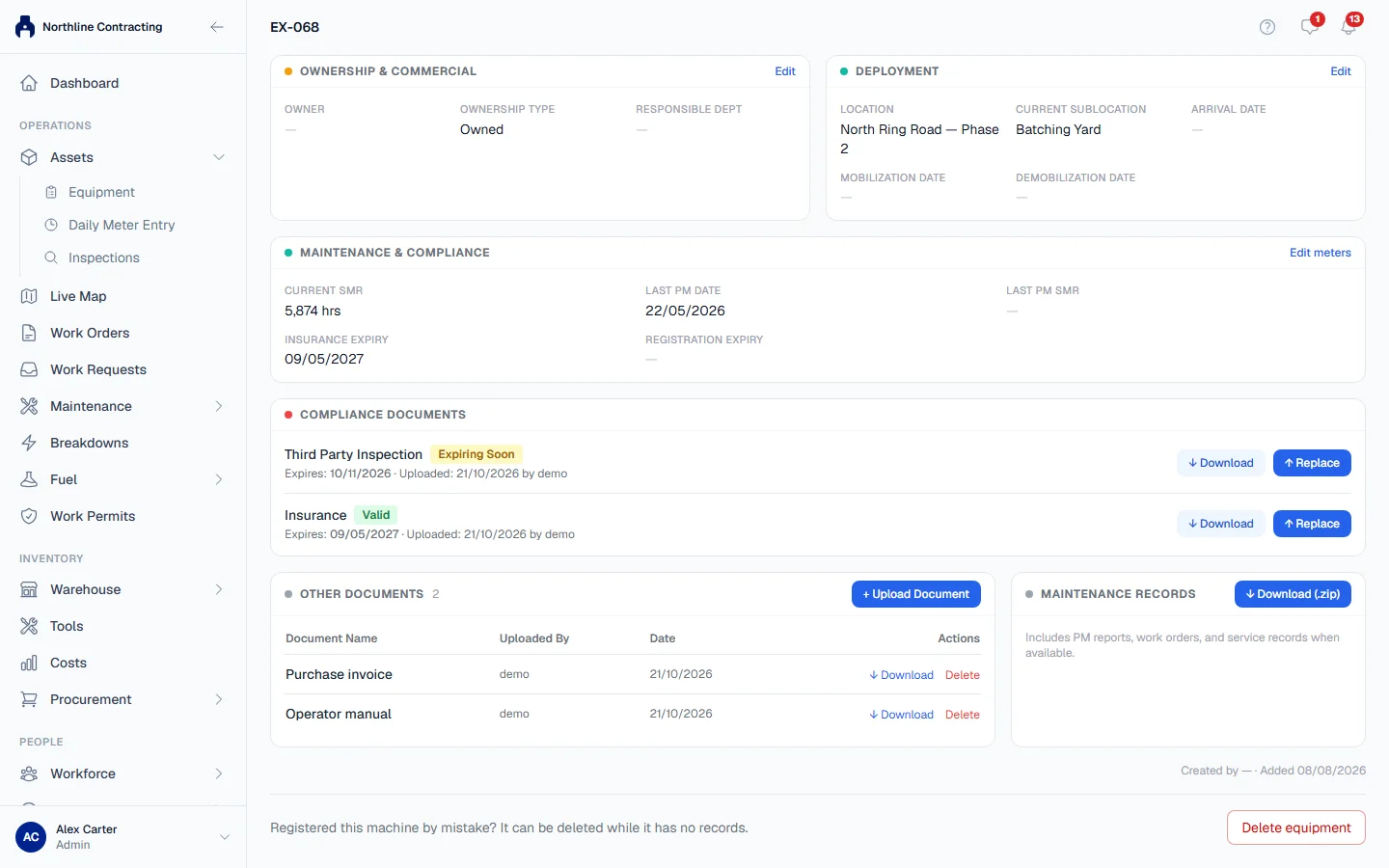
Every machine has a place for its paperwork on its Overview tab. Insurance and third party inspection certificates sit under Compliance Documents, where Solmex shows whether each one is still valid; anything else, such as a manual, a purchase invoice or a rental agreement, goes under Other Documents.
Before you start
- You need Equipment: View to see and download a machine's documents.
- You need Equipment: Edit to upload, replace or delete them.
- Files can be PDF, images (JPG, PNG, WebP, HEIC), Word, Excel, PowerPoint, CSV or plain text. The largest size allowed is set by your administrator under Settings > Company Settings, in File Upload Limits.
Add a compliance certificate
- In the sidebar, open Assets > Equipment and open the machine.
- On the Overview tab, find Compliance Documents. It has two rows: Third Party Inspection and Insurance.
- On the row you need, click ↑ Upload. The Upload Insurance (or Upload Third Party Inspection) form opens.
- Check the Document Name. It is filled in for you, for example "Insurance Certificate".
- Enter the Expiry Date. It is required for both certificates. The Issue Date is optional.
- Under File, choose the certificate.
- Click Upload.
The row now shows the expiry date, who uploaded the file and when, and a status badge:
| Badge | Meaning |
|---|---|
| Valid | Expires more than 30 days from today. |
| Expiring Soon | Expires within the next 30 days. |
| Expired | The expiry date has passed. |
| Missing | No certificate has been uploaded. |
Replace a certificate
When the new certificate arrives, click ↑ Replace on its row and upload it the same way. The new file becomes the one on display. The old one is not deleted: Solmex keeps it on file and shows only the newest.
Add any other document
- On the Overview tab, find Other Documents and click + Upload Document.
- Type a Document Name, such as "Operator manual". It is required.
- Optionally click Add a description, and enter an Issue Date or Expiry Date if the document has one.
- Choose the File and click Upload.
The document appears in the table with its name, who uploaded it and the date. Upload as many as you need.
Download or delete
- To download any document, click ↓ Download on its row.
- To delete a document under Other Documents, click Delete on its row, then Confirm beside Delete?. Compliance certificates have no delete button: replace them instead.
Download the maintenance records
The Maintenance Records card downloads one zip file of the machine's maintenance paperwork that Solmex generated, such as PM completion reports and work order documents. Click ↓ Download (.zip). Anyone who can see the machine can download it.
Rules worth knowing
- Documents belong to the machine. There is no separate documents permission: if you can edit the machine, you can manage its paperwork.
- The certificate and the expiry date on the record are separate. The Insurance Expiry date in the machine's details (see Add equipment) is not changed when you upload an insurance certificate. Where both carry a date, the machine's page, its dossier and its public QR card show the later of the two, so a renewal recorded in either place is not contradicted by the other.
- Photos have their own place. Pictures of the machine go in the photo gallery on the same tab. See Photos of a machine.
Troubleshooting
| What you see | What to do |
|---|---|
| "Unsupported file type. Allowed: images, PDF, and Office documents (doc/docx/xls/xlsx/ppt/pptx/csv/txt)." | Save the file as a PDF or one of the listed formats and upload it again. |
| "PDF too large: 22.4 MB (limit 20 MB)" | The file is over your company's limit. Compress it, or ask an administrator to raise the limit in File Upload Limits. |
| "File content does not match the expected format for .pdf" | The file's contents do not match its name, often because it was renamed by hand. Export it again in the right format. |
| "Upload failed." | Check your connection and try again. |
| No upload buttons on the cards | Your role does not include Equipment: Edit. |