
Permit documents, printing and QR codes
Attach risk assessments, method statements and photos to a work permit, print it or download it as a PDF with its QR code, and print a QR label for the work site.
A work permit usually travels with other paperwork: a risk assessment, a method statement, photos of the isolation points. Attach them to the permit so everything is in one place, then print the permit for the work site. Every printed permit carries a QR code that opens the permit on a phone.
Before you start
- To attach or delete documents you need Work Permits: Edit.
- To print, download or scan a permit you need Work Permits: View.
- To print a QR label you also need Labels: Print.
Attach a document
- Open the permit from Work Permits in the sidebar.
- Click the Attachments tab.
- Type a Document Name.
- Choose the Type: Photo, Risk Assessment, Method Statement or Other Attachment.
- Choose the File.
- Click Upload.
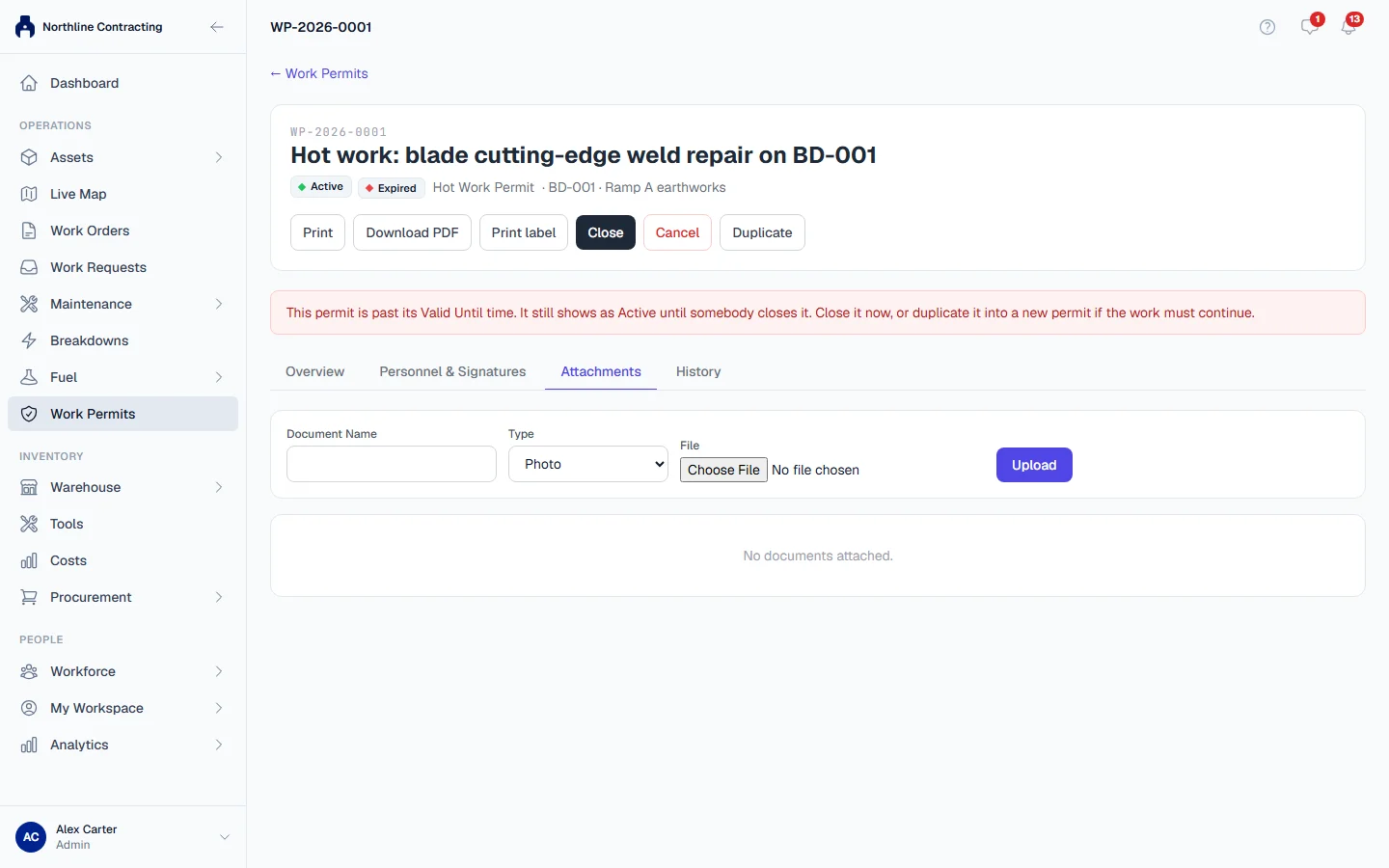
The document appears in the list below, where anyone who can see the permit can Download it. People with Work Permits: Edit can Delete it while the permit is still open.
Photos are reduced to a sensible size when they are stored, so uploading straight from a phone camera is fine.
A permit template can carry an Attachment Checklist: a reminder of which documents to attach for that kind of work. It is a reminder only. Solmex does not stop a permit being saved or activated without them.
The signed permit PDF
When a permit is closed, Solmex creates a PDF of the signed permit and attaches it automatically, with the type Signed Permit PDF. It is the permanent copy of the permit as it was when the work ended.
Print or download the permit
At the top of the permit:
- Print opens the permit as a PDF ready to print.
- Download PDF saves the same PDF.
You can print a permit at any status, for example to take a draft to a site meeting. The printed permit includes the permit's details, people, hazards and precautions, blank lines for signing by hand, and a QR code.
Every print and download is recorded on the permit's History tab, with who did it and when.
The QR code
The QR code on the printed permit, and on the permit label, opens a quick view of the permit on a phone. It shows:
- What the permit Applies To and its Scope
- The Linked Work Order, if any
- The Equipment Covered
- The Validity Period and shift
- The Supervisor and Workers
Click Open Full Permit Record for the whole permit.
Print a QR label
- On the permit, click Print label.
- Check the preview and print it on your label printer.
Stick the label at the work site, on the isolation point or on the permit board, so anyone with access can scan it and check the permit is still active.
Troubleshooting
| What you see | What to do |
|---|---|
| "Name and file are required" | Fill in Document Name and choose a file. |
| A note that the permit is closed or cancelled and attachments are read-only | Duplicate the permit to continue the work, and attach documents to the new one. |
| "Upload failed" | Try again. If it keeps failing, the file type or size may not be allowed. |
| "Failed to load PDF." | Try again. If it keeps failing, contact your administrator. |
| "Permit not found." after scanning | Check that you are signed in to the company that raised the permit. |