
See what is due
Use the Status tab to see, for every machine, when each daily job was last done and whether it is on time, due soon, overdue or never recorded.
The Status tab answers "which machines need attention?" It shows one row per machine and a column per job, with when the job was last done and its state. Filter it down to exactly the machines a crew should visit next.
Before you start
- You need Routine Maintenance: View.
- Jobs must be on your job list, and work must have been recorded, before there is anything to judge. See Set up your job list.
Open the Status tab
- In the sidebar, open Maintenance > Daily Maintenance.
- Click the Status tab.
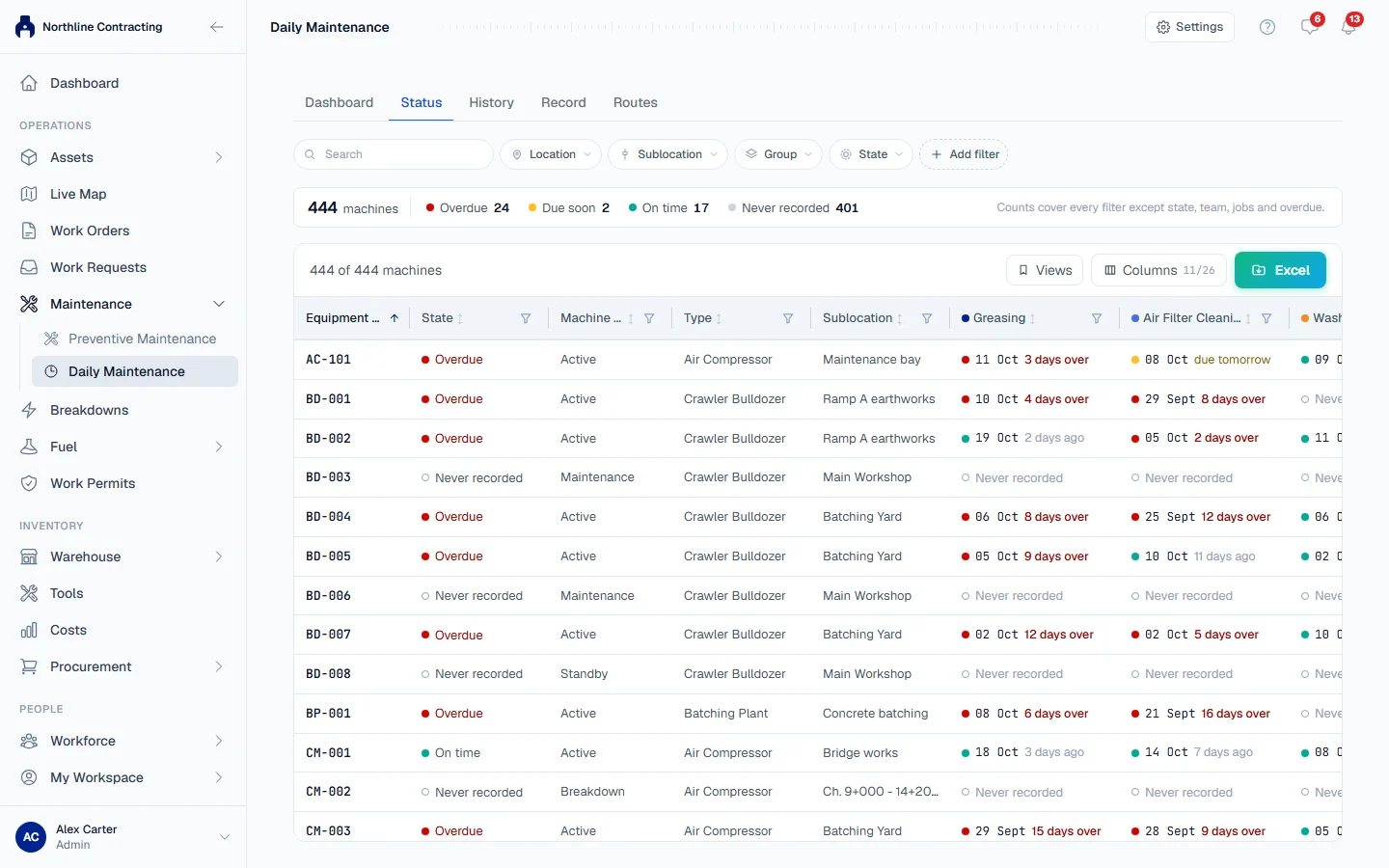
By default the tab lists the machines that are on site. To include others, use the Machine status filter.
Read a row
| Column | What it shows |
|---|---|
| Asset No. | The machine. Click a row to open the machine on its Prev. Maintenance tab, where its Routine Maintenance card shows its full history. |
| State | The machine's worst state across all its jobs. |
| A column per job | When the job was last done, such as "3 days ago", coloured by its state, or Never recorded. |
| Machine status, Type, Sublocation | Details from the machine's record. |
More columns are available from the column picker: Group, Department, Operator, Location, Jobs overdue, Last job, and for each job its team ("Greasing: team") and next due date ("Greasing: next due"). You can show, hide, reorder and resize columns. Your choice is remembered in this browser.
The states
| State | Meaning |
|---|---|
| On time | Done recently enough, or the job has no interval. |
| Due soon | In the last two days of its interval. |
| Overdue | More days have passed than the job's interval. The cell says how many days over. |
| Never recorded | No one has recorded this job on this machine yet. |
Filter the list
The filter bar runs every filter across all your machines, not just the rows loaded on screen.
- State narrows to overdue, due soon, on time or never recorded machines.
- Location, Sublocation and Group narrow by where the machine is and what it is. Type, Machine status, Department, Ownership and Operator are under Machine.
- Team and Jobs overdue, at least are under Work.
- Each job has its own filter under Jobs: choose its state, and when it was Last done (Any time, In the last so many days, More than so many days ago, or Between two dates).
You can also open a filter from the funnel in a column's heading. Both ways change the same filter.
For example, "every excavator in Yard B not greased in the last 5 days" is the Type filter set to excavator, Sublocation set to Yard B, and the Greasing filter set to More than 5 days ago.
The counts at the top cover every filter except state, team, jobs and overdue, so you always see the size of the whole group you are looking at.
Save a view
Click Views, then Save this view, and give it a name. A view keeps the filters and columns so you can come back to them in one click. Views are saved in this browser only. The filters are also in the page address, so you can share a link to exactly what you are looking at.
Export
Click the Excel button to download the list as it is filtered. You can pick which columns go into the file and their order before it is written.
What changes a state
- Recording the job on the Record tab, on the machine's page, or by import.
- Withdrawing an entry: a withdrawn entry never counts, so the machine may become due again.
- Changing a job's Remind after on the job list. This changes the states from that moment; no recorded work changes.
Troubleshooting
| What you see | What to do |
|---|---|
| "No jobs are defined yet. Add them on the Jobs tab." | Add jobs under Settings > Jobs. See Set up your job list. |
| "No machines match these filters." | Remove a filter, or check the Machine status filter if you are looking for a machine that is not on site. |
| Every machine shows Never recorded | Nothing has been recorded yet. Record today's round, or import your past logbook. |
| A job shows No interval for its next due date | The job has no Remind after set, so it is tracked but never flagged. |