
Help CenterManaging Purchases and Stock
Approve, refuse lines, send back or reject
Decide a purchase request when it is your turn: approve it, refuse single lines with a reason, send it back for correction, or reject it.
When a purchase request reaches your step in the approval chain, you decide it. You have three answers, and you can also refuse single lines while approving the rest. This article explains each one and what it does to the request.
Before you start
- You need Procurement: View and must be the approver at the request's current step. There is no separate permission for approving requests: being in the chain is what lets you decide.
- You do not need Procurement: Edit. A manager who never raises requests can still approve them.
- You are notified when a request reaches your step.
Find what is waiting for you
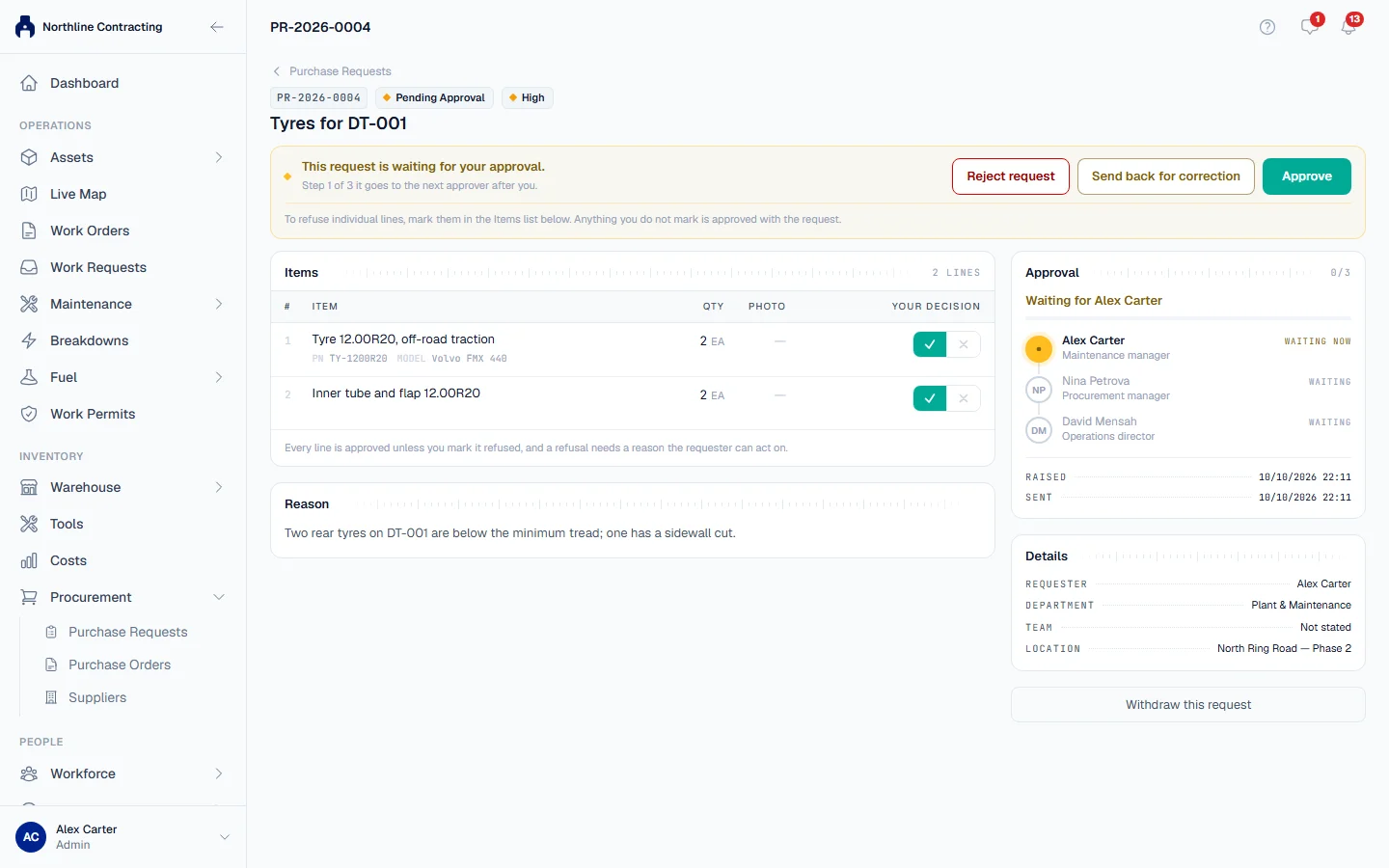
- In the sidebar, open Procurement > Purchase Requests. The Awaiting My Approval tab opens when anything is waiting for you.
- Click the request. A banner at the top says This request is waiting for your approval. and which step you are, such as "Step 2 of 3".
- Read the title, the reason under Reason, and each line under Items. Click a line's photo to see it full size.
Approve the request
- Leave every line as it is. Anything you do not mark is approved with the request.
- Click Approve. In Approve this request?, add a comment if you want: it is optional.
- Click Approve.
The request moves to the next approver, or becomes Approved if you are the last.
Refuse some lines and approve the rest
Use this when most of the request is right but one line is not, for example a quantity that is too high.
- Under Items, find the line in the Your decision column. On a computer, click the cross; on a phone, tap Refuse.
- A box opens under the line. Write why, for example "reduce to 10 pcs". The requester sees this reason.
- Repeat for any other line you refuse. The banner counts how many lines you have marked.
- Click Approve. The confirmation lists Lines you are refusing with your reasons.
- Click Approve.
The refused lines stay on the request, marked Refused with your reason, and the rest move on. Nobody further down the chain is asked about a line you refused.
Send it back for correction
Use this when the request needs changing before anyone can agree to it, rather than ending it.
- Click Send back for correction.
- In Send this back for correction?, write what needs to change. A reason is required.
- Click Send back.
The request goes back to the requester with the status Sent Back. When they correct and resubmit it, it starts again at step 1, so every approver sees the corrected version. See Correct, resubmit or withdraw a request.
Reject the whole request
- Click Reject request.
- In Reject the entire request?, write the reason. It is required.
- Click Reject request.
This ends the request for good. Nothing on it is approved, it cannot be corrected or resubmitted, and nobody after you is asked.
Rules worth knowing
- Only the current step can decide. If it is not your turn yet, you are told whose turn it is.
- A requester who is also an approver still approves. Their step is never skipped, and both their request and their decision appear in the history.
- Every refused line needs a reason. The requester has nothing else to go on.
- You cannot approve and refuse every line. That would approve nothing. Reject the whole request, or send it back.
- Rejecting the whole request ignores line marks. Send it back instead if only some lines are wrong.
- A line only reads Approved once the whole chain has finished. Until then it has cleared your step, not all of them.
Troubleshooting
| What you see | What to do |
|---|---|
| "Line 3 is marked refused but has no reason yet." | Write a reason under that line. |
| "Every line is marked refused, so approving would authorize nothing." | Reject the whole request, or send it back for correction. |
| "Please say why. The requester will see this." | Write a reason before sending back or rejecting. |
| A message starting "It is not your turn yet" | The request is still at an earlier step. It reaches you when that approver decides. |
| "You have already recorded a decision on this request." | You decided it already. Open Approval on the request to see where it is now. |
| "Could not save that decision. Please try again." | Check your connection and try again. |