
Help CenterManaging the Organisation
Add and manage employees
Keep the employee list: add people one by one or from Excel, fill in their profile, link them to a sign-in, and change their employment status.
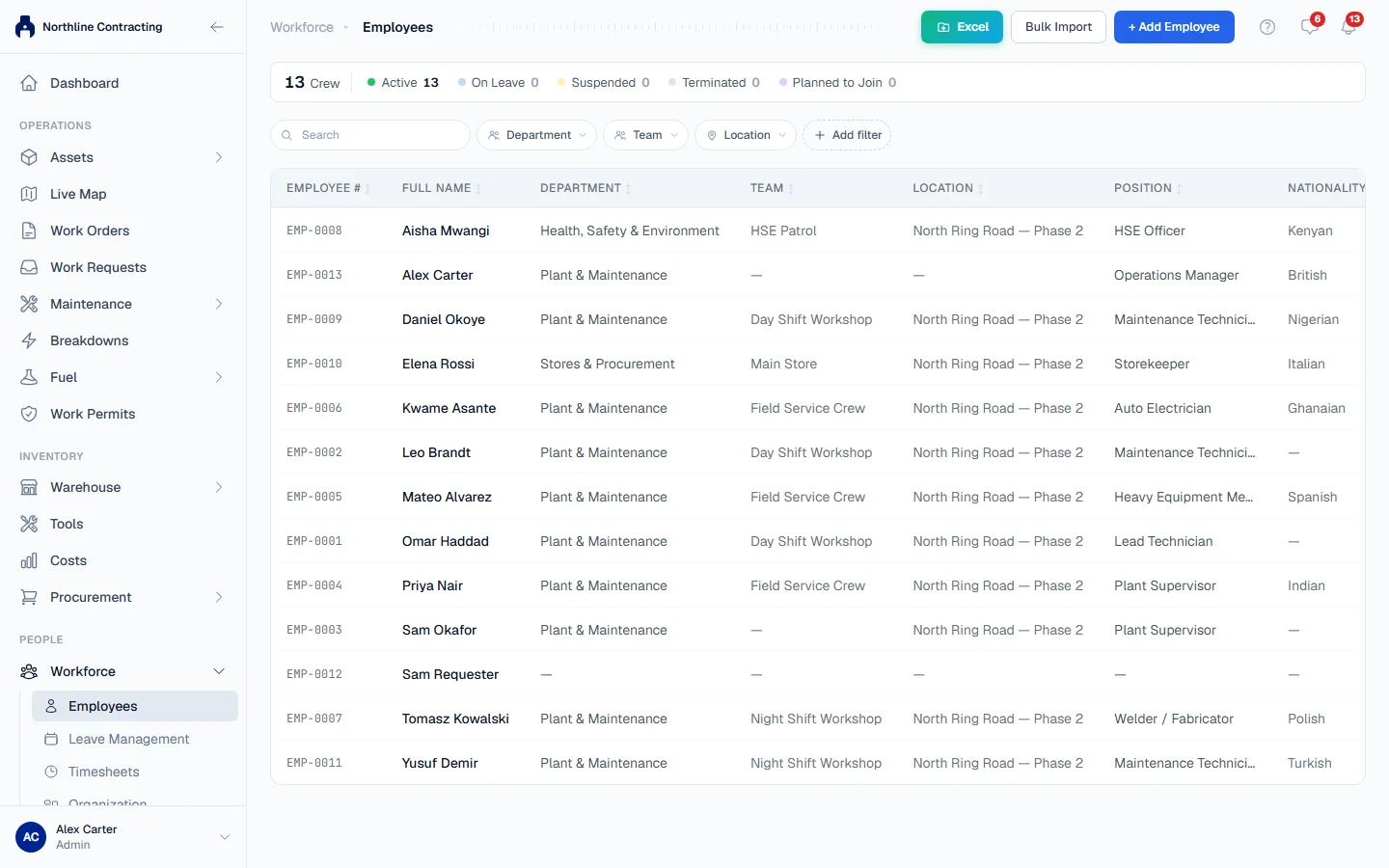
The employee list is your company's record of the people who work for it: their department, team, position, supervisor and contact details. Timesheets, leave, certifications, the organisation chart and the people you name on a work order all read from it.
An employee and a user are two different things. A user is someone who can sign in. An employee is someone on your payroll or site roster, who may never sign in at all. You link the two when an employee needs their own My Workspace.
Before you start
- Employees: View shows the list and profiles. Employees: Edit adds and changes them.
- Set up your departments, teams and positions first, so you can pick them: see Organisation structure.
Add an employee
- In the sidebar, open Workforce > Employees and click + Add Employee.
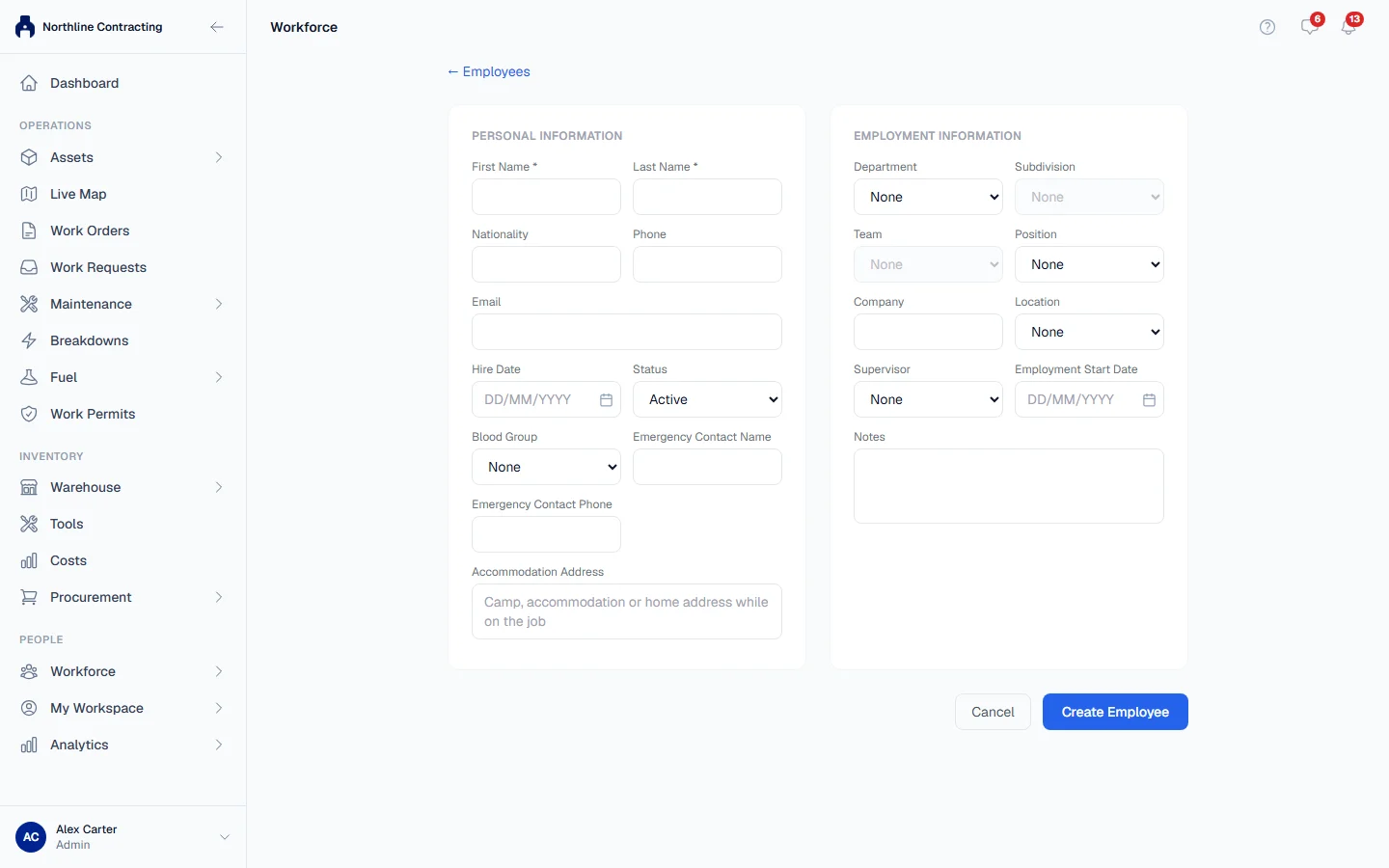
- Under Personal Information, enter the First Name and Last Name (both required), and anything else you have: Nationality, Phone, Email, Hire Date, Blood Group, the emergency contact and the Accommodation Address.
- Choose the Status: Active, or Planned to Join for someone not on site yet.
- Under Employment Information, choose the Department, Subdivision, Team, Position, Location and Supervisor, and enter the Company (useful for subcontractors) and Employment Start Date.
- Click Create Employee. Their profile opens.
Each employee gets a number such as EMP-0001. It never resets and is never reused.
Import many at once
- On Employees, click Bulk Import.
- Choose an Excel (.xlsx) file whose header row has a First Name column and a Last Name column. "Surname" also works.
- Click Import. Solmex tells you how many employees it created, how many blank rows it skipped, and which rows it could not import and why.
Only the names are imported. Add the rest of each person's details from their profile afterwards. A file can hold up to 2,000 rows.
The employee profile
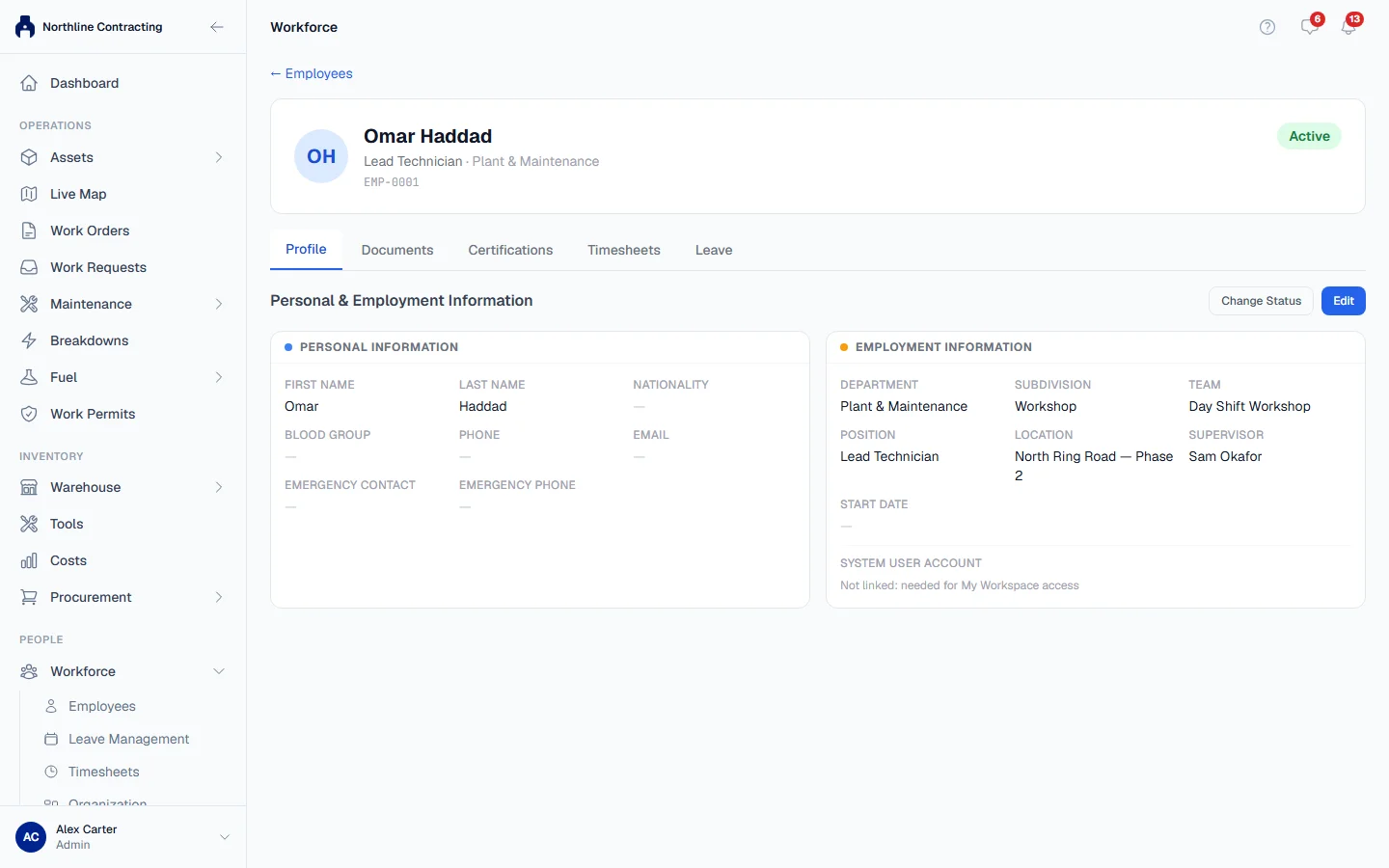
Click a name on the list to open the profile. Its tabs are Profile, Documents, Certifications, Timesheets and Leave. You see only the tabs your role allows. Documents and certifications are in Employee documents and certifications; leave is in Leave types and entitlements.
To change details, click Edit on the Profile tab, make your changes and click Save changes.
Link a sign-in
Under System User Account, choose the user account that belongs to this person and save. Until you do, the profile says the account is not linked, and the person cannot request leave or see their own timesheets.
Change an employee's status
- On the Profile tab, click Change Status.
- Choose Active, On Leave, Suspended, Terminated or Planned to Join.
- Click Confirm.
The list's summary strip counts each status, and clicking a status filters the list to it. You can also filter by Department, Team, Location and Nationality, and search by name.
Rules worth knowing
- Employees are never deleted. Setting Terminated takes a person off the active list but keeps their record, timesheets and leave history.
- Terminated and Planned to Join employees are left off the daily timesheet, since neither is on site.
- An employee cannot be their own supervisor, and a change that would make a reporting line go round in a circle is refused.
- You cannot change which user account is linked to your own employee record. Ask someone else, so nobody can borrow another person's identity to approve their own leave.
- Disabling a user does not change the employee, and the other way round. When someone leaves, do both. See Disable, re-enable and seats.
Troubleshooting
| What you see | What to do |
|---|---|
| "First name and last name are required." | Fill in both names. |
| "Could not find 'First Name' and 'Last Name' columns in the file header row" | Put those two headings in the first row of the sheet. |
| "Employee cannot be their own supervisor" | Choose a different supervisor. |
| "That user account is already linked to ..." | Each account can belong to one employee. Unlink it from the other person first. |
| A department, team or position is missing from the list | It is inactive or does not exist yet. See Organisation structure. |