
Draw Sublocations on a plan
Mark where each Sublocation sits on a site plan, as a point or an outlined area, and give points a radius so GPS positions can land in them.
A plan only places machines in Sublocations you have drawn on it. Each Sublocation can be a point (a single spot, such as a pump house) or an area (an outline traced on the plan, such as a yard). On a map plan, a point can also have a radius in metres, which turns it into a GPS zone.
Before you start
- Live Map is switched on per company, not by plan. If you do not see it, contact Solmex.
- You need Live Map: Edit. Adding a brand new Sublocation from the plan also needs Sublocations: Edit.
- The Location needs a site plan. See Create a site plan.
- Use a computer or a tablet in landscape. On a narrow screen the editor is not offered.
Draw an existing Sublocation
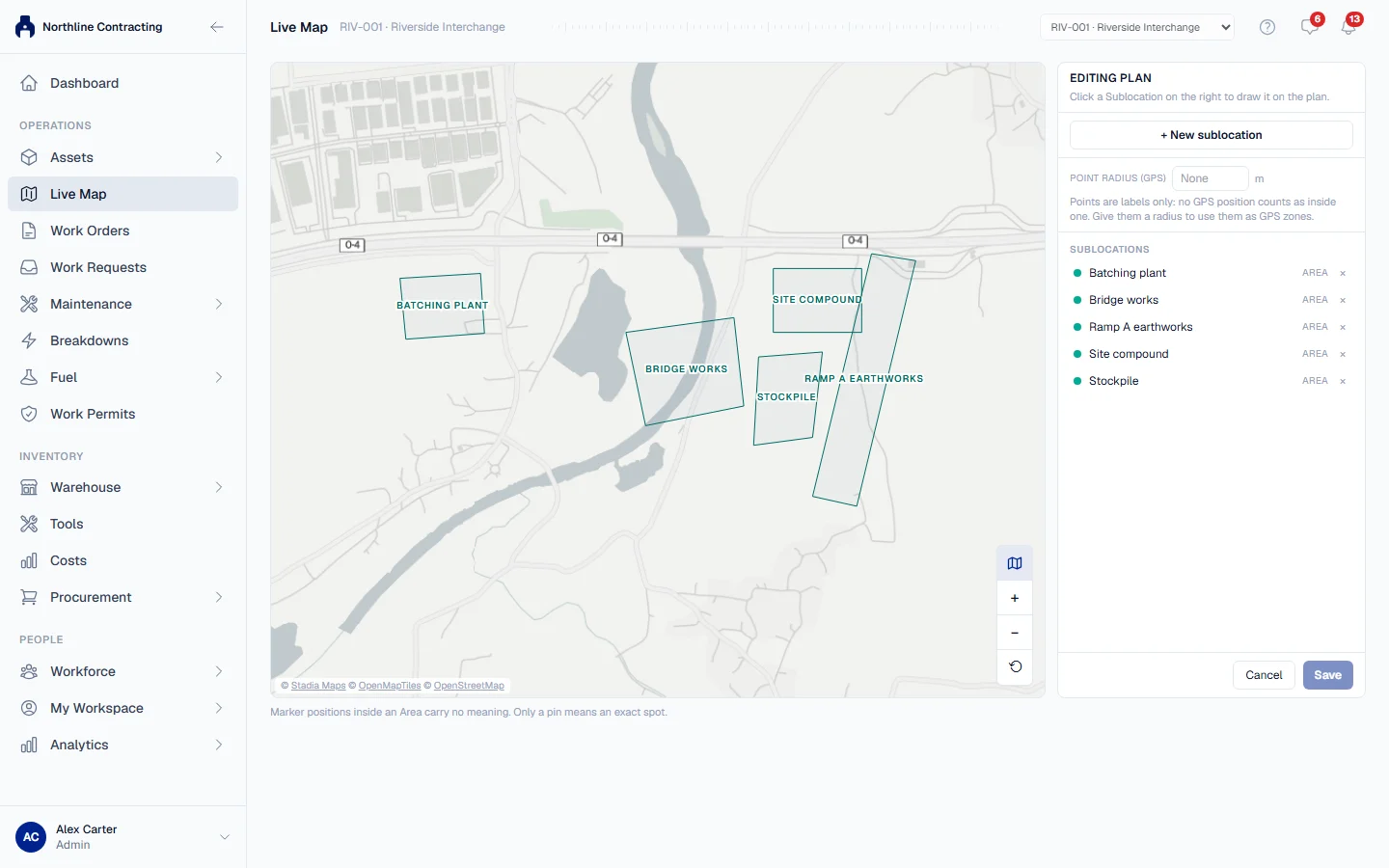
- Open Live Map, choose the Location and click Edit plan. The page shows Editing plan, with the drawing on the left and the Location's Sublocations on the right, each marked Drawn or Not drawn.
- Click the Sublocation you want to draw.
- Choose Place a point or Draw an area.
- For a point, click the plan where the Sublocation is.
- For an area, click its corners in order. To close it, click the first corner again, press Finish area, or press Enter. Undo corner takes back the last click, and Escape cancels.
- Repeat for each Sublocation, then click Save. Unsaved changes shows until you do.
To adjust a shape, select it and drag a corner or the name label. To take it off the plan, click the × beside it or press Delete. To start again, choose Redraw under a drawn Sublocation.
Draw a Sublocation that does not exist yet
- In the editor, click + New sublocation.
- Choose a point or an area and draw it, exactly as above.
- Type its name under Name the new Sublocation and click Add.
The Sublocation is registered as soon as you add it. The shape is saved with the plan when you click Save.
If the name you type already belongs to one of the Location's Sublocations, the shape is attached to that one instead of creating a second with the same name.
Give points a radius
On a map plan, a point is by default only a label: no GPS position counts as inside it. A radius changes that.
- In the editor, set Point radius (GPS) at the top of the pane. This is the default radius for every point on the plan. Leave it at None to keep points as labels.
- To give one point its own radius, select that point in the list and type a Radius in metres.
- Click Save.
A radius under 25 m shows a warning, because GPS wanders about that much and a machine parked inside may still read as outside. It is a warning, not a refusal.
What happens next
Machines filed under the Sublocations you drew now appear inside them, and leave the Not placed on this plan list. Redrawing an area never moves a machine by itself: a machine with a tracker is placed against the new shape at its next GPS position.
Rules worth knowing
- An outline beats a circle. When a GPS position falls inside an outlined area and a point's radius, the area wins. Between two circles, the nearest centre wins.
- A machine is held in its Sublocation near the edge. A position just outside the Sublocation a machine is already in keeps it there, so a machine parked on a shared boundary does not flip between two Sublocations every minute.
- Radius only exists on map plans. A picture has no metres, so the radius controls are not shown on a drawing plan.
Troubleshooting
| What you see | What to do |
|---|---|
| "Editing needs a wider screen." | Use a computer or a wider window. |
| "Wash bay already has an area on this plan. Remove that one first, or draw a different Sublocation." | Each Sublocation has one shape per plan. Remove or redraw the existing one. |
| "That Sublocation could not be created." | You may not have Sublocations: Edit, or the name is not allowed. Check with your administrator. |
| "The drawing could not be saved." | Check your connection and click Save again. |
| + New sublocation is missing | Your role does not include Sublocations: Edit. |