
Bring your existing data in
Every way to load records you already keep in spreadsheets into Solmex, where each importer lives, and which ones check the whole file before saving anything.
Most companies arrive with years of records in spreadsheets, logbooks and other systems. Solmex has an importer for each kind of record that is usually kept in bulk, so you do not have to type history in one entry at a time. This page lists them all and links to the full instructions for each.
Before you start
- Import your machines first. Every other importer refers to machines by their Equipment No., so a row naming a machine that is not on the register is refused.
- Set up your Locations and Sublocations before the machines. See Add Locations and Sublocations.
- The four record importers each give you their own Excel template. Start from it rather than from your own sheet: it carries your company's own lists as dropdowns, so names match.
The importers, in the order to run them
| What you bring in | Where | Permission | Article |
|---|---|---|---|
| Machines | Assets > Equipment, Import Equipment | Equipment: Edit | Import equipment from Excel |
| Each machine's last service | Maintenance > Preventive Maintenance, Assign tab, Import last PM | Preventive Maintenance: Edit | Import each machine's last PM |
| Routine maintenance logbooks | Maintenance > Daily Maintenance, Record tab, Import history | Routine Maintenance: Edit | Import routine maintenance history |
| Fuel fill-ups | Fuel > Daily Fuel Entry, Import fuel log | Fuel: Edit | Import a fuel log |
| Employee names | Workforce > Employees, Bulk Import | Employees: Edit | Add and manage employees |
| Site drawings from Google Earth or a surveyor | Live Map, Import KMZ | Live Map: Edit | Create a site plan |
Preventive maintenance and routine maintenance are on the Growth and Business plans; fuel and employees are on Business. Live Map is switched on per company.
How the importers check your file
The four record importers (machines, last PM, routine history and fuel) all work the same way:
- You download the template, fill it in and upload it.
- Solmex checks every row of the file and shows you the result. Nothing is saved yet.
- Errors name the row, the column and what to fix. While any error remains, nothing can be imported.
- Warnings point at something unusual but possible, such as the same job recorded twice on one day. They never block on their own, but some importers ask you to confirm you have read them before saving.
- When the file is clean, you import it, and every row is saved together.
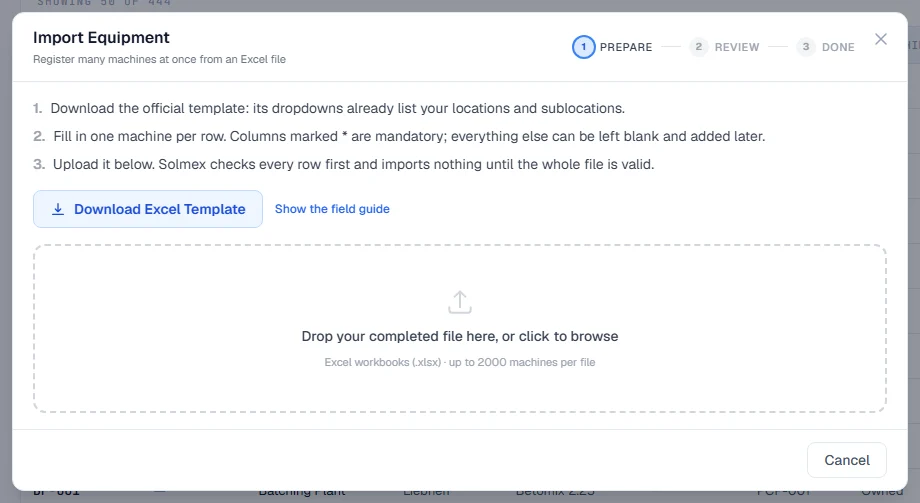
If a single row is wrong, nothing is saved, so you never end up with half a file imported and no way to tell which half.
The employee importer is simpler. It takes any Excel file with a First Name and a Last Name column, creates the employees it can, skips blank rows, and lists the rows it could not create and why.
History you add later
Importing is for the backlog you arrive with. Day to day, use the screens built for it: Daily Meter Entry, Daily Fuel Entry, and Record past services for an occasional service from the past.
Troubleshooting
| What you see | What to do |
|---|---|
| A row is refused because the machine is not found | Import or add that machine first, or correct the Equipment No. in your file. |
| A column is reported missing | Start again from the template. Your sheet's column names must match it. |
| A name from your list is not recognised | Use the template's dropdown, or add the name to your company's list first. |
| A date is refused | Write it as the template's instructions sheet describes. Day first, as DD/MM/YYYY, is always safe. |