
Create and edit a PM template
Build a service programme with intervals, triggers and tasks, then clone, edit or archive it. Explains why a service interval already in use cannot be removed.
A PM template is a service programme you write once and give to many machines. It lists the services (intervals), when each falls due (triggers), and what is done at each (tasks).
Before you start
- To see templates you need Preventive Maintenance: View. To create, edit, clone or archive them you need Preventive Maintenance: Edit.
- Have the manufacturer's service schedule to hand: the service names, their hours, kilometres or months, and the parts and fluids for each.
- If you want parts and fluids issued from stock when a PM is logged, the items should already be in your warehouse with a stock code.
Create a template
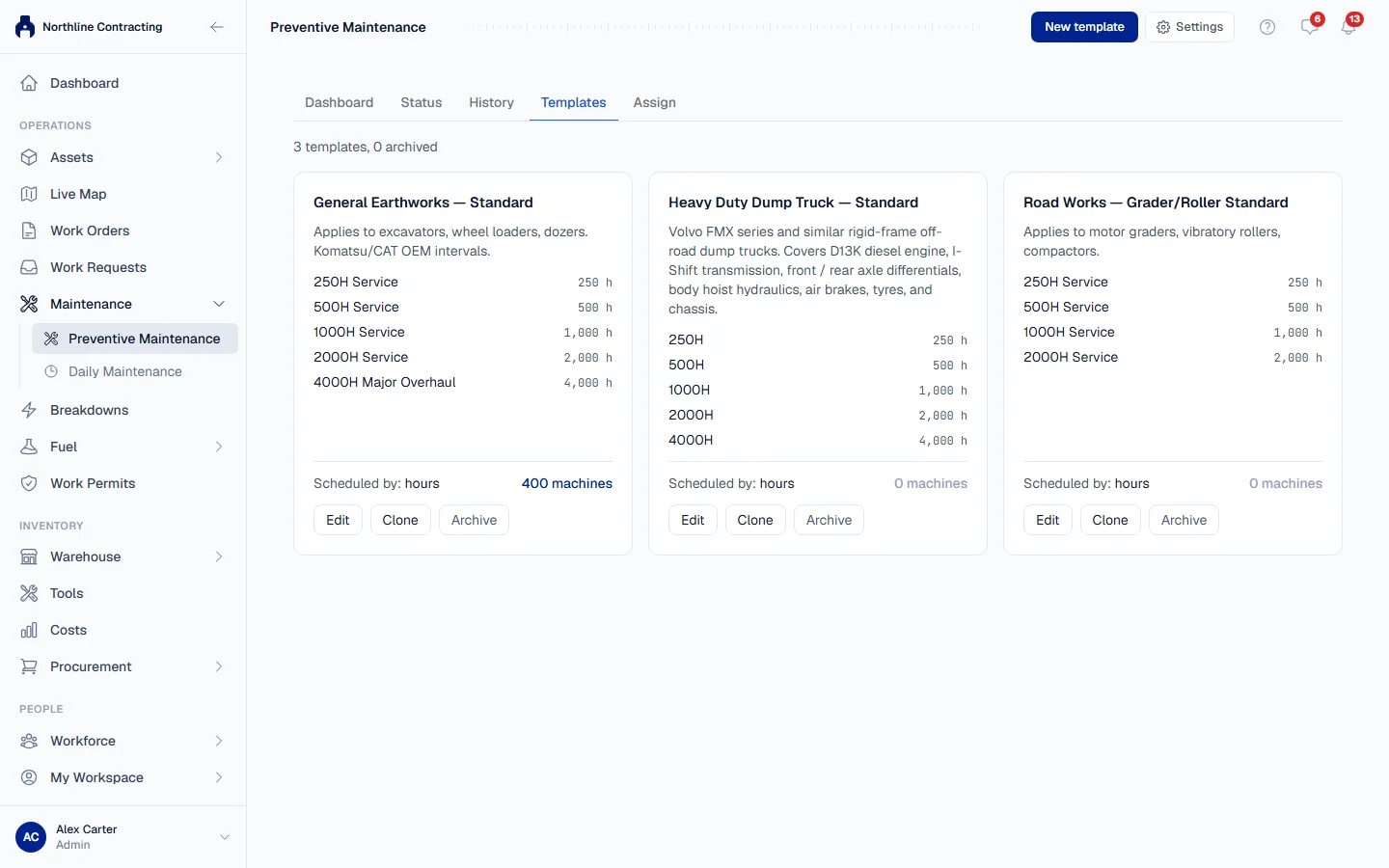
- In the sidebar, open Maintenance > Preventive Maintenance and choose the Templates tab.
- Click New template. The New PM Template form opens.
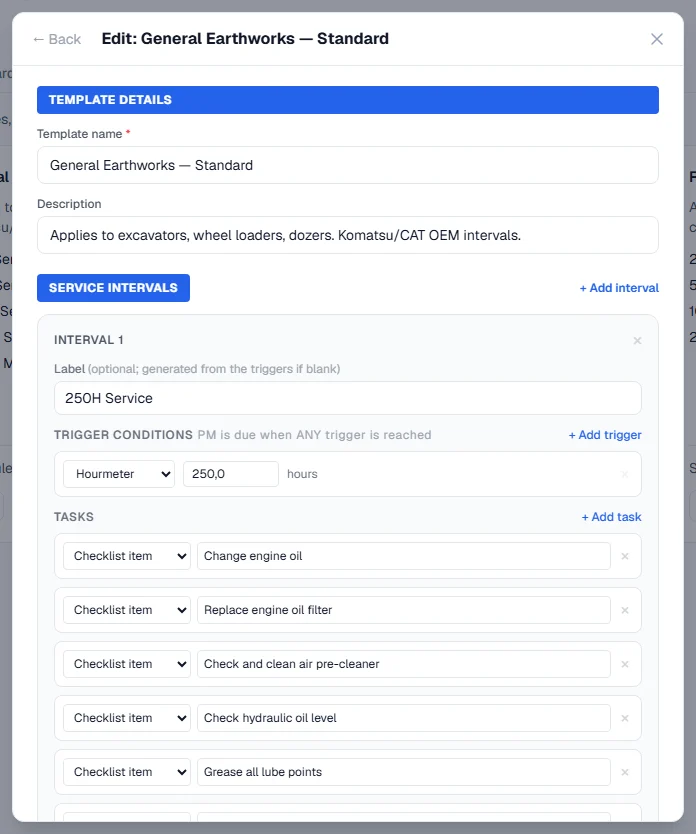
- Under Template Details, enter the Template name, for example "Excavators: Standard". Add a Description if you like.
- Under Service Intervals, click + Add interval.
- In the interval, give it a Label such as "250 h service". You can leave it blank: Solmex names it from its triggers.
- Under Trigger Conditions, choose Hourmeter, Odometer or Calendar and enter the threshold, for example 250 hours, 10000 km, or 6 Months. Click + Add trigger to add a second one.
- Under Tasks, click + Add task for each piece of work. Choose the type (Checklist item, Part / spare or Fluid) and write the Task description. For a part or fluid, enter its Stock Code and Qty.
- Repeat steps 4 to 7 for every service in the programme.
- Click Save Template.
How intervals work together
Enter each service at its own interval: 250, 500, 1,000 and 2,000 hours, for example. You do not need to repeat the 250 h service inside the 500 h one. At 1,000 hours, Solmex knows the 1,000 h service is the one due, not the 250 h. See How PM due dates are worked out.
When an interval has more than one trigger, it falls due when any trigger is reached. "500 hours or 6 months" is one interval with an hourmeter trigger and a calendar trigger.
Edit a template
- On the Templates tab, click Edit on the template's row.
- Change what you need and click Save Template.
Every machine on the template follows the change straight away. Services already logged keep pointing at the interval they were logged against.
You can also reach the editor from a machine's Prev. Maintenance tab with Manage Templates.
Clone a template
To make a variation, such as the same programme with an extra service, click Clone on the row. Give the copy a New template name and click Clone Template. The copy has every interval and task of the original. Edit it, then assign it to the machines that need it.
Archive a template
Click Archive on a template you no longer use. It disappears from the pickers but stays on record. Tick Show archived to see archived templates, and Restore to bring one back.
A template cannot be archived while machines are still on it. Move them to another template first.
See which machines use a template
Each row shows how many machines follow the template, and which meters it is Scheduled by. Click the machine count to open the Status tab filtered to those machines.
Rules worth knowing
- Every interval needs at least one trigger. An interval without one could never fall due, however many tasks it has.
- Two services cannot fall due at the same point on the same meter. Only one of them would ever be scheduled. 500 hours and 500 km are different points and are allowed together.
- A threshold must be greater than zero.
Troubleshooting
| What you see | What to do |
|---|---|
| "... has no trigger, so nothing would ever make it due. Give it an hourmeter, odometer or calendar threshold, or remove it." | Add a trigger to the named interval, or remove the interval. |
| A message beginning "Give ... a trigger", ending "Without one it can never fall due." | The same rule, shown on the form before you save. Add a trigger or remove the interval. |
| "One of ...'s triggers has no threshold. Fill it in, or remove that row." | Enter the number of hours, kilometres, months or days, or remove the empty trigger. |
| "... and ... both trigger at ... Two services cannot fall due at the same point on the same meter" | Change one interval's threshold, or merge the two services into one. |
| "Cannot remove the '...' interval: it is referenced by ..." | The interval has history. Put it back, then clone the template without it and reassign the machines. |
| "Cannot archive: template is assigned to ... machine(s). Reassign them first." | Assign those machines another template, then archive this one. |