
Help CenterManaging Purchases and Stock
Read the Cost Ledger
Filter and search every cost entry, read the totals by group, open an entry's history, and show the figures in US dollars.
The Cost Ledger is the list of every cost entry in your company, with the totals for whatever you have filtered. It is where you answer "what did we spend, on what, and where did the figure come from?"
Before you start
- You need Costs: View.
- To see the costs of one machine at a glance, its own Costs tab is quicker. See A machine's Costs tab.
Open it
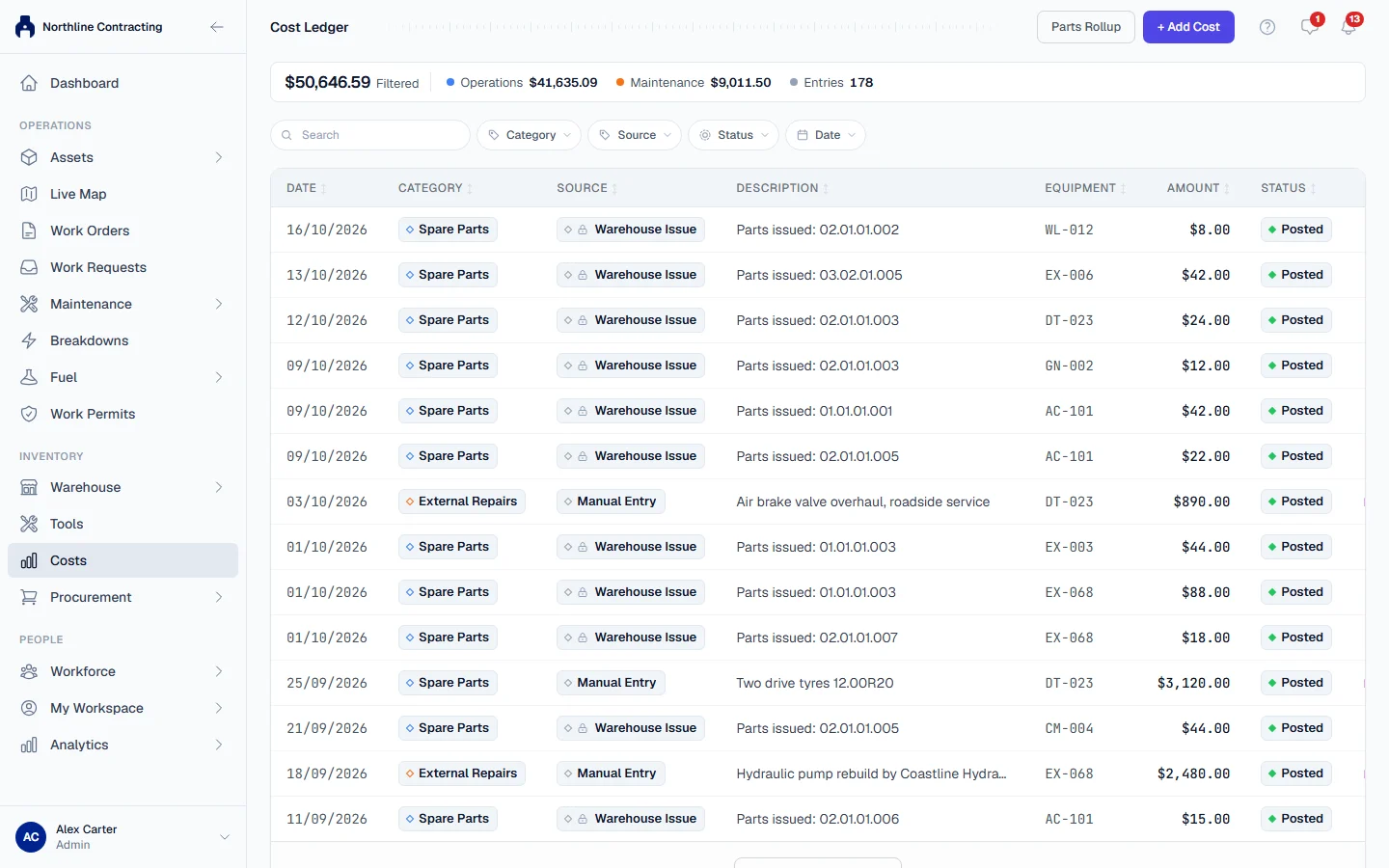
In the sidebar, open Costs. The page is called Cost Ledger.
The totals across the top
| Figure | What it is |
|---|---|
| Filtered | The total of every posted entry matching your filters. |
| The group figures | The totals for your biggest category groups, such as Maintenance or Operations, within the filters. |
| Entries | How many entries match, voided ones included. |
Voided entries are listed but never added to any total.
Filter and search
- Type in the search box to search descriptions and references, such as an invoice number.
- Click Category to show one category, such as Fuel or External Repairs.
- Click Source to show one source only, such as Fuel Log, Warehouse Issue or Manual Entry.
- Click Status to show Posted, Draft or Voided entries only.
- Click Date and choose a range.
- Clear the filters with the clear button on the filter bar.
Coming from a machine's Costs tab with View in Cost Ledger →, the ledger opens filtered to that machine, shown as an Equipment chip. Click the cross on the chip to see every machine again.
The columns
| Column | What it shows |
|---|---|
| Date | The date the cost belongs to. |
| Category | What kind of cost it is. |
| Source | Where it came from: Fuel Log, Warehouse Issue or Manual Entry. |
| Description | What it was. |
| Equipment | The machine it was charged to, if any. |
| Amount | In your base currency, or in US dollars when the toggle is on. |
| Status | Posted or Voided. |
Click a column heading to sort by it. The list shows the newest entries first; click Load More at the bottom for older ones.
Open an entry
Click a row. The Cost Detail panel opens with the amount, category, source, machine, Location, work order, quantity, unit cost, description and notes. A voided entry shows who voided it and why.
Under Activity Timeline, every change to the entry is listed with who made it and when: when it was created, updated or voided.
Parts Rollup
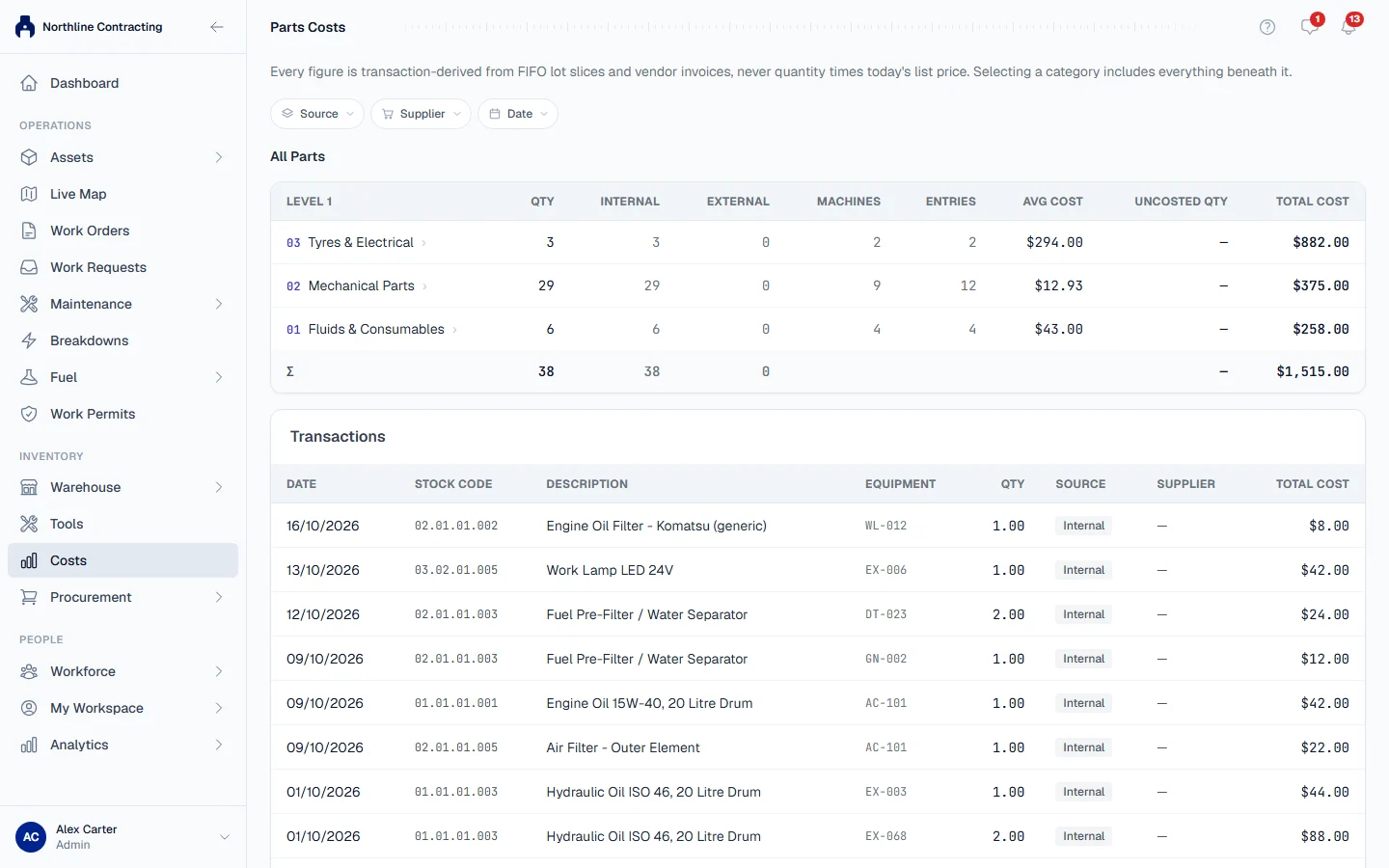
Click Parts Rollup at the top to open Parts Costs: the cost of parts, rolled up through your parts classification. Click a category to see what is beneath it, and filter by Source, Supplier and Date. Uncosted Qty is quantity issued from stock that had no price, stated rather than valued at a guess.
Show the figures in US dollars
If your company's base currency is not US dollars, a Convert to USD button sits at the top of the page.
- Click Convert to USD. Every amount on the page is shown in US dollars, and the button reads, for example, "TZS → USD".
- A line under the heading states the rate used, in the form "figures converted to USD at 1 TZS = … USD", and that your base currency remains the system of record.
- Click the button again to go back to the base currency.
Your choice is remembered in this browser for this page. The Fuel Management page and the dashboard's Fuel Overview have their own toggles.
Rules worth knowing
- No rate, no conversion. When no exchange rate can be fetched, the button is disabled and the figures stay in your base currency. Hover over it to see why.
- The button is not shown when your base currency is already US dollars.
- The rate is today's. An old entry is converted at the current rate, not the rate on its date, so treat converted figures as a reading aid, not as accounts.
Troubleshooting
| What you see | What to do |
|---|---|
| A message that no cost entries match the current filters | Clear the filters, or widen the date range. |
| Convert to USD is greyed out | No exchange rate could be fetched just now. Try again later; the figures are correct in your base currency. |
| A machine's costs look too low | Fill-ups and parts recorded without a price add no cost. See How costs work. |
| "No part costs in this scope yet." on Parts Costs | No priced parts have been issued in that range. |