
Help CenterManaging Purchases and Stock
Parts on a machine
Use a machine's Spare Parts tab to see which parts it takes, record a part fitted to it from the store or by an outside workshop, and void a record made in error.
Every machine's page has a Spare Parts tab. It answers three questions about that machine: which parts does it take, what has been issued for it, and which parts have actually been fitted to it. It is also where you record a part fitted outside a work order.
Before you start
- You need Warehouse: View to see the tab, and Warehouse: Edit to record or void anything on it.
- Open the machine from Assets > Equipment and choose the Spare Parts tab. See The equipment page.
The tab has four parts: Parts Catalog, Parts History, Replacement History and Documents.
Parts Catalog: which parts the machine takes
The Effective Parts List combines two sources, and the Source column says which each line came from:
- Model Default: parts listed for the machine's equipment model. Every machine of that model shares them.
- Equipment Override: parts listed for this one machine only.
To list a part for this machine only, click + Add Override under Equipment Overrides, search the part, enter the Quantity and an optional note, and click Add Override. Remove takes it off again.
To list a part for a whole model, open the part with Edit on the Stock Register and use + Assign to Model under Model-level assignments.
These lists move no stock. They are what the Equipment Model and Specific Equipment filters on the Stock Register use.
Record a part fitted from the store
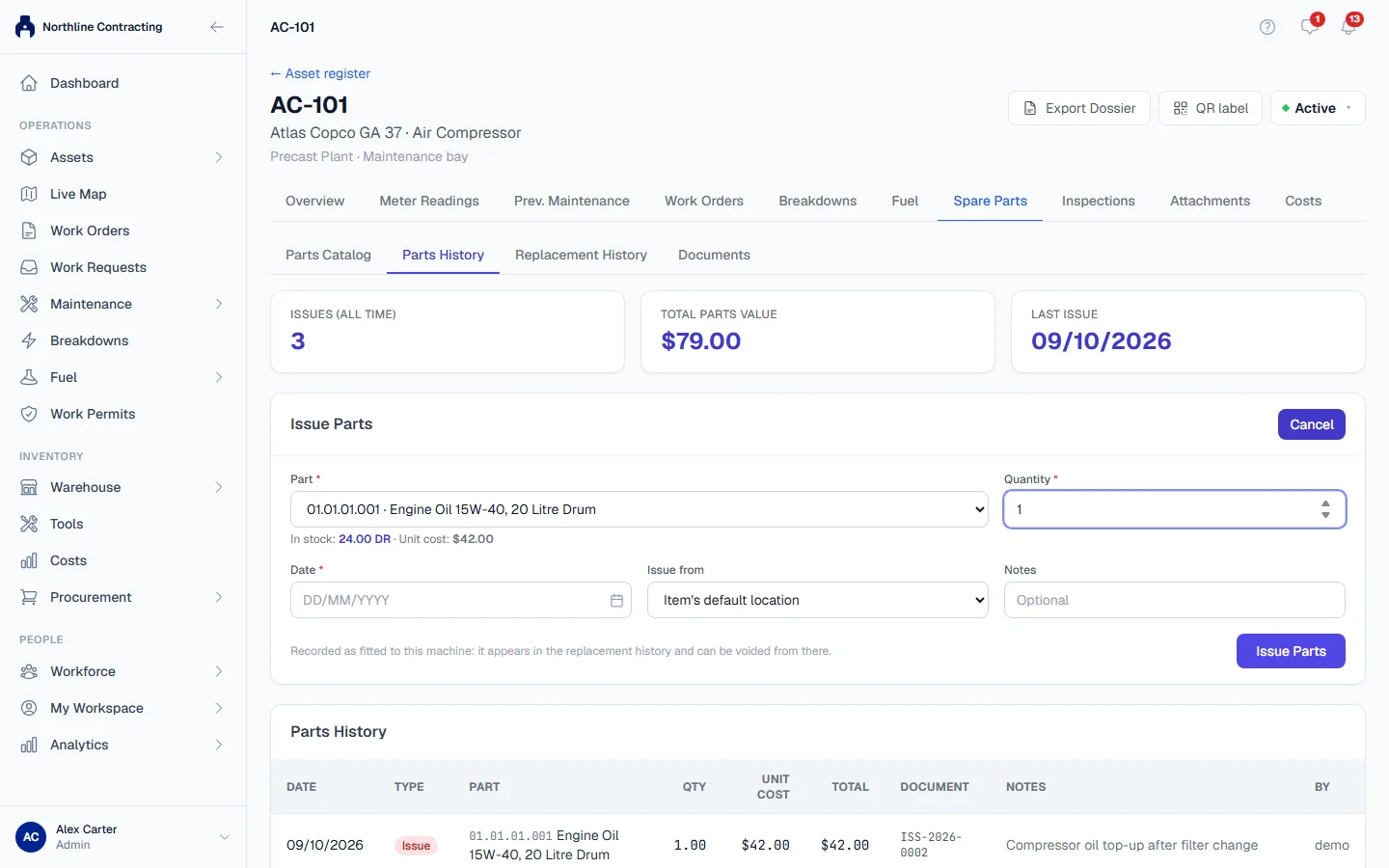
Use this when a part is taken from your store and fitted to this machine outside a work order or a PM.
- Open Parts History and click + Issue Part.
- Choose the Part. The quantity in stock and the part's unit cost are shown below it.
- Enter the Quantity and the Date.
- In Issue from, leave Item's default location to use the part's put-away location, or choose another storage location.
- Add Notes if useful.
- Click Issue Parts.
The stock leaves the store, its cost is charged to this machine, and the part appears both in the Parts History list and under Replacement History.
Parts History
Parts History lists every warehouse movement charged to this machine: parts fitted from this tab, parts from work orders and PMs, and goods issues charged to the machine. Above it, Issues (all time), Total Parts Value and Last Issue sum them up.
Record a part fitted by an outside workshop
When a vendor or dealer fits a part from their own shelf, nothing leaves your store, but the machine's history should still show it.
- Open Replacement History and click + External Replacement.
- Choose the Part, and enter the Quantity, Fitted on date and the Supplier / Workshop.
- Optionally enter the Supplier Reference, a Unit Cost or Total Cost, the Work Order it belongs to, and attach the invoice under Invoice / Evidence.
- Click Record Replacement.
This moves no stock. If the workshop fitted a part you supplied, record it from the store instead, and record the workshop's labour as a separate cost.
Replacement History and voiding
Replacement History lists every part fitted to the machine, marked Warehouse or External / OEM, with totals for the quantity replaced, internal and external quantities, and the total cost. A line that came from unpriced stock shows how much of it is uncosted.
If a record was made in error, click Void, give a reason, and confirm. The record stays on the list, struck through and marked Voided, and stops counting in the totals. For a part fitted from the store, voiding puts the stock back on the shelf and removes its cost from the machine.
A part issued by a work order's job card or by a logged PM has no Void here. It shows Correct it on the work order or Correct it on the PM record instead, because voiding it here would put the stock back while the work order or PM went on listing the part as fitted. Withdrawing a logged PM returns its parts for you. See Correct or withdraw a PM.
You can void your own records. Voiding a record somebody else made needs Warehouse: Manage.
Documents
Model Documents are shared by every machine of the same model and are read only here. Machine-Specific Documents belong to this machine alone; click + Upload to add one.
Troubleshooting
| What you see | What to do |
|---|---|
| "Cannot issue 5; only 2 in stock" | There is not enough at the storage location you issued from. Reduce the quantity or choose another location in Issue from. |
| "... 0 available at Rack 4; 12 at Main Store. Transfer it first, or issue it from there." | The part is held at another storage location. Choose it in Issue from, or transfer it to the part's put-away location. |
| "This part was issued by a logged PM..." or "... by a work order's job card" | Correct it on that PM record or work order, not here. |
| "... has no default location, so there is nowhere to issue it from..." | Choose a location in Issue from, or give the part a put-away location. |
| "Only the person who recorded this usage, or a warehouse manager, can void it" | Ask the person who recorded it, or someone with Warehouse: Manage. |
| "No equipment model assigned..." under Documents | The machine has no equipment model, so it inherits no model documents. |
| No + Issue Part or + External Replacement button | Your role does not include Warehouse: Edit. |