
Read the map
Use icons, filters, colours and the exact spot on Live Map to see at a glance which equipment is where, and to record a machine's spot by hand.
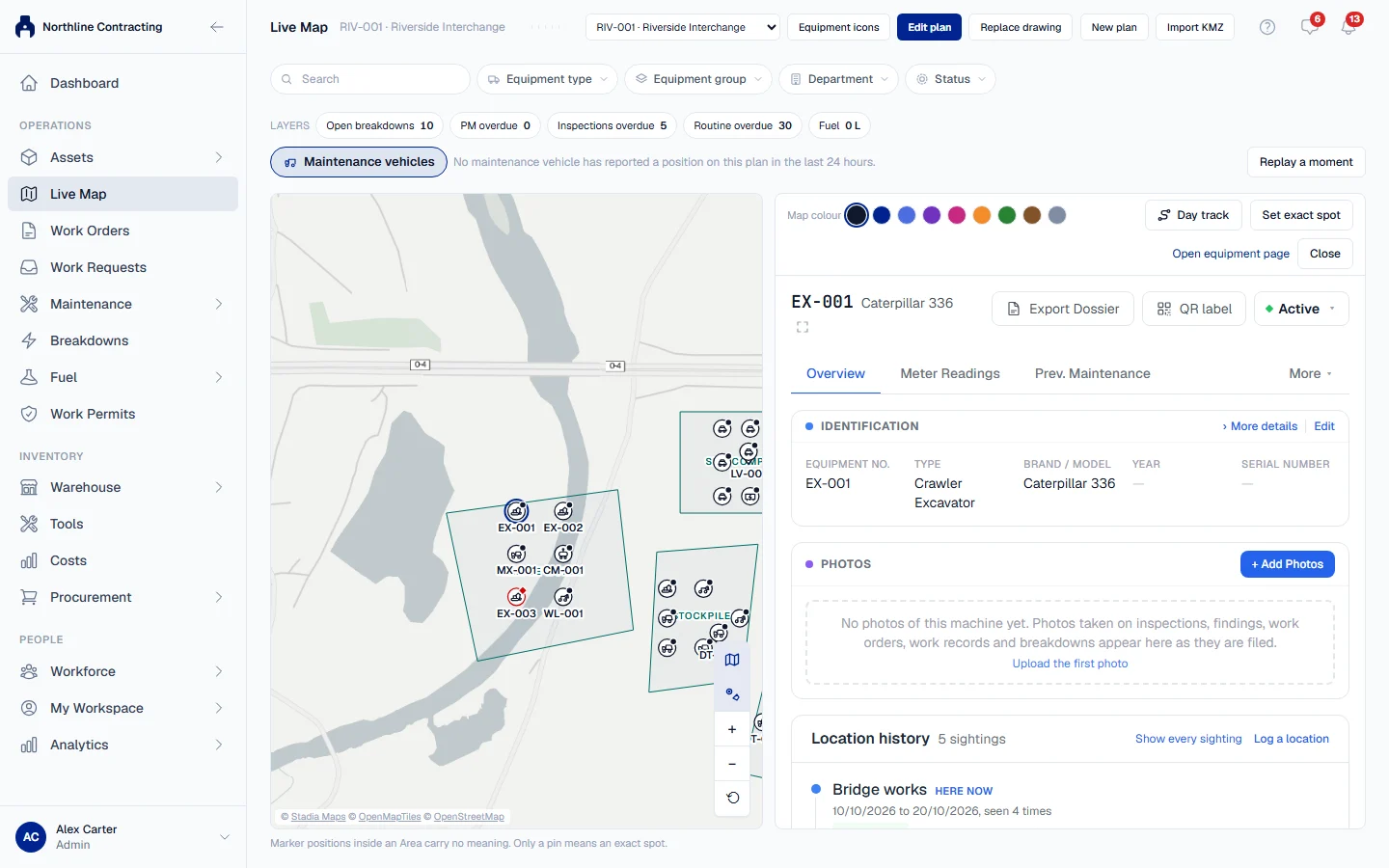
Live Map is built to answer "which equipment is where" at a glance. Icons show what each machine is, a small mark shows its status, filters narrow the plan to the machines you care about, and a colour can pick out a few machines among many.
Before you start
- Live Map is switched on per company, not by plan. If you do not see it, contact Solmex.
- You need Live Map: View and Equipment: View.
- Choosing icons, setting a machine's colour and recording an exact spot all need Equipment: Edit.
What each mark means
Every machine on the plan carries its equipment number, always. Around it:
- The icon shows the equipment type. A type with no icon chosen is drawn by its status mark alone.
- The small mark beside the icon is the status. Status is a shape as well as a colour, so the plan still reads when printed in black and white.
- Teal marks are Sublocations. Machines are drawn in black and in their status colour, so a place and a machine never look alike.
- A faint machine was last seen more than 14 days ago.
Open Legend in the list pane for the full key.
When an Area holds more machines than can be drawn apart at the current zoom, it shows a count chip instead, such as "18 · 2 down". Click the chip and the plan zooms in until the machines separate. Machines never slide around as you zoom: a marker keeps its place on the ground.
To hide the Sublocation rings and names, use Hide sublocation marks beside the zoom controls. Your choice is remembered in this browser.
Choose an icon for each equipment type
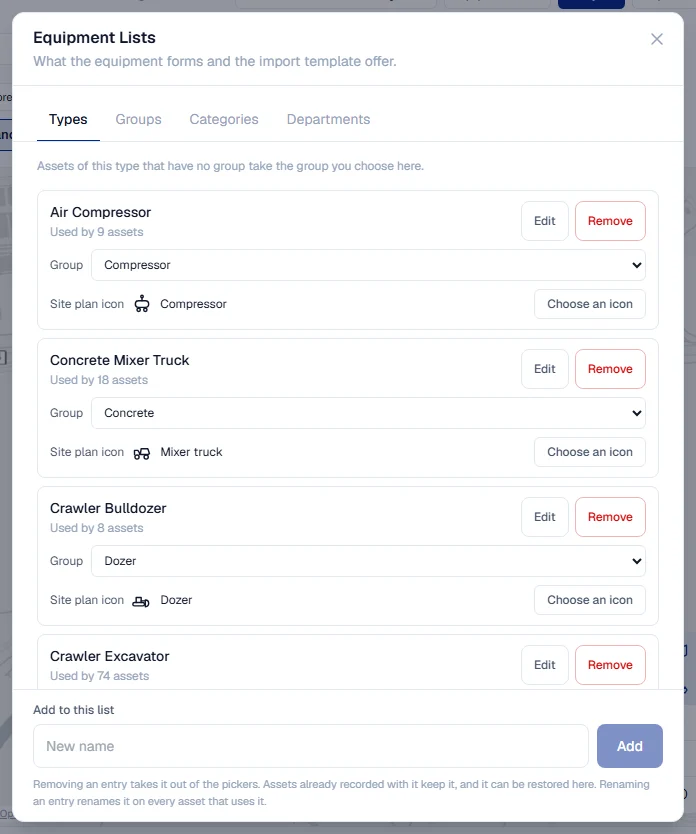
- Click Equipment icons in the page header.
- Find the equipment type and open Choose an icon.
- Pick one from the library, or Upload a picture (a small PNG works best).
The icon belongs to the type, so every machine of that type is drawn with it on every plan. Solmex never picks an icon from the type's name: a type stays plain until you choose.
Filter the plan
Use the filter bar above the plan: Equipment type, Equipment group, Department and Status. Each filter can hold several values. The options list only what this Location's on-site machines actually carry, with counts, so no filter offers a value that would empty the plan. A filter narrows both what is drawn and the counts.
Find a machine
Click a machine in the list pane and the plan centres on it and zooms in. The machine's panel opens on the right with its record.
Give a machine its own colour
Use this to pick out the machines someone is watching: rented equipment, a subcontractor's machines, or one going off hire.
- Click the machine to open its panel.
- Under Map colour, click one of the eight swatches, or No colour (black) to clear it.
The colour reaches the machine's badge, icon and number. Its status mark keeps its own shape and colour.
Record a machine's exact spot
When you are standing at a machine, you can record exactly where it is.
- Click the machine to open its panel.
- Click Set exact spot.
- Tap the plan where the machine is standing. The spot must be inside a drawn Area.
- Read the confirmation and click Record it here.
This records a sighting in that Sublocation, with the exact point. If it is the machine's newest sighting, the Asset Register moves the machine there and the plan draws it as a pin.
Set exact spot is offered only on the live view, not while replaying a past moment, because a tap says where a machine is now.
Refresh GPS positions
If your company has a Wialon connection, Refresh GPS in the header fetches every machine's position at once rather than waiting for the next minute's update. The note beside it says when the positions are current as of, and how many machines moved.
Troubleshooting
| What you see | What to do |
|---|---|
| "That spot is not inside any drawn Area." | Tap inside an Area, or draw the Sublocation first. The nearest Area would be a guess. |
| Set exact spot or Map colour is missing | Your role does not include Equipment: Edit. |
| "No Wialon feed is connected." | See Connect Wialon. |
| A machine's tooltip says No icon chosen for this type | Choose one from Equipment icons. |