
Help CenterMessaging and Notifications
Email Solmex sends
The emails Solmex sends, who receives them, how long their links work, how to stop trial emails, and what to do when an email does not arrive.
Solmex sends a small number of emails: to let people in, to help them back in, to keep administrators informed during a trial, and to deliver reports you scheduled. This article lists each one so you know what to expect and what to do when one does not arrive.
Before you start
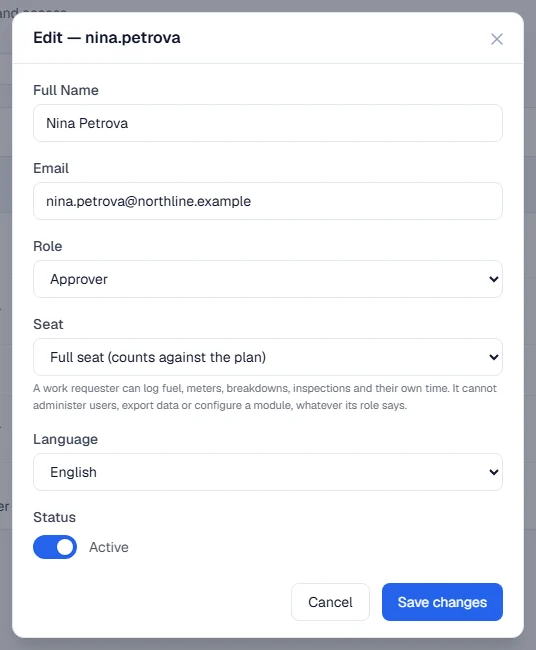
- Emails go to the address on each person's Solmex account. A user with no email address cannot receive any of them. An administrator adds or corrects addresses on the Users tab of Settings. See Invite your team.
- Solmex sends from a no-reply address. Links in an email always point to your company's own Solmex address.
The emails
| Sent to | Link works for | |
|---|---|---|
| Invitation | A new user, when an administrator adds them | 7 days |
| Password reset | A user who clicked Forgot your password? | 2 hours |
| Confirm your email | Someone setting up a new company on Solmex | 3 days |
| Trial emails | Your company's administrators, during a free trial | |
| Automatic reports | The users chosen on the report's schedule | |
| Scheduled data exports | The users chosen on the export's schedule |
Invitation
When an administrator adds a user with an email address, Solmex emails them a link to choose their own password. After 7 days the link stops working, and the administrator sends a new one with Invite on the person's row. See Sign in to Solmex.
Password reset
The reset email arrives only if an account with that address exists, but the sign-in page says the same thing either way, so nobody can use it to find out who has an account. The link works for 2 hours and only once.
Trial emails
During a free trial, your company's administrators receive up to five short emails: after the first week, halfway through, a week before the end, the day before the end, and when the trial has ended and your company moves to the free plan. Each one uses your own company's figures, such as how many machines and work orders you have recorded. These emails are in English.
To stop them, click the unsubscribe link in any of them and press Stop these emails on the page that opens. Opening the page alone changes nothing. This stops trial emails for you only; password resets and invitations still arrive. See Plans, trial and seats.
Reports and data exports
Automatic reports and scheduled data exports are sent only to people with a Solmex account in your company, chosen by whoever sets up the schedule. A schedule cannot send to an outside address.
When an email does not arrive
- Check the spam or junk folder, and search the mailbox for "Solmex".
- Check the address on your account is right. Ask an administrator to look on the Users tab of Settings.
- Ask your IT team whether mail from Solmex is being held or blocked. Add Solmex's sending address to your allowed senders.
- For an invitation, ask the administrator to click Invite again. For a reset, request a new one.
Troubleshooting
| What you see | What to do |
|---|---|
| "An invitation was sent moments ago. Wait a minute before sending another." | Wait a minute, then click Invite again. |
| "No mail server is configured, so no invitation can be sent." | Your Solmex installation cannot send mail. Set the person's password with Reset PW and tell them it, or contact Solmex. |
| "The invitation could not be sent. Check the mail server configuration." | Try Invite again later. If it keeps failing, contact Solmex. |
| "This email address is blocked because an earlier email to it bounced or was reported as spam." | Solmex no longer sends to that address. Check the address is spelled correctly, use a different one, or contact Solmex support to have the block reviewed. |
| An invitation or reset link says it has expired | Ask for a new one. Each link works once, within its time limit. |