
Due for Service, Calendar and Workload
The other three tabs of the Work Orders page. See which services and inspections are due, plan them on dates, and check how much work lies ahead.
Besides the list of jobs, the Work Orders page has three planning tabs. Due for Service shows machines whose preventive maintenance or inspection is due but is not a job yet. Calendar shows what is planned on which day. Workload shows how busy the coming eight weeks are.
Before you start
- You need Maintenance Planning: View to see these tabs. It is on the Growth and Business plans; without it the Work Orders page shows the Work Orders tab alone.
- To schedule, reschedule or cancel a planned task you need Maintenance Planning: Schedule.
- Machines appear on Due for Service only when they have a preventive maintenance template or an inspection that falls due.
Due for Service
The tab opens with a short line saying what it is for, then four figures: In queue, Overdue, Due soon and Scheduled today. Click In queue, Overdue or Due soon to filter by it.
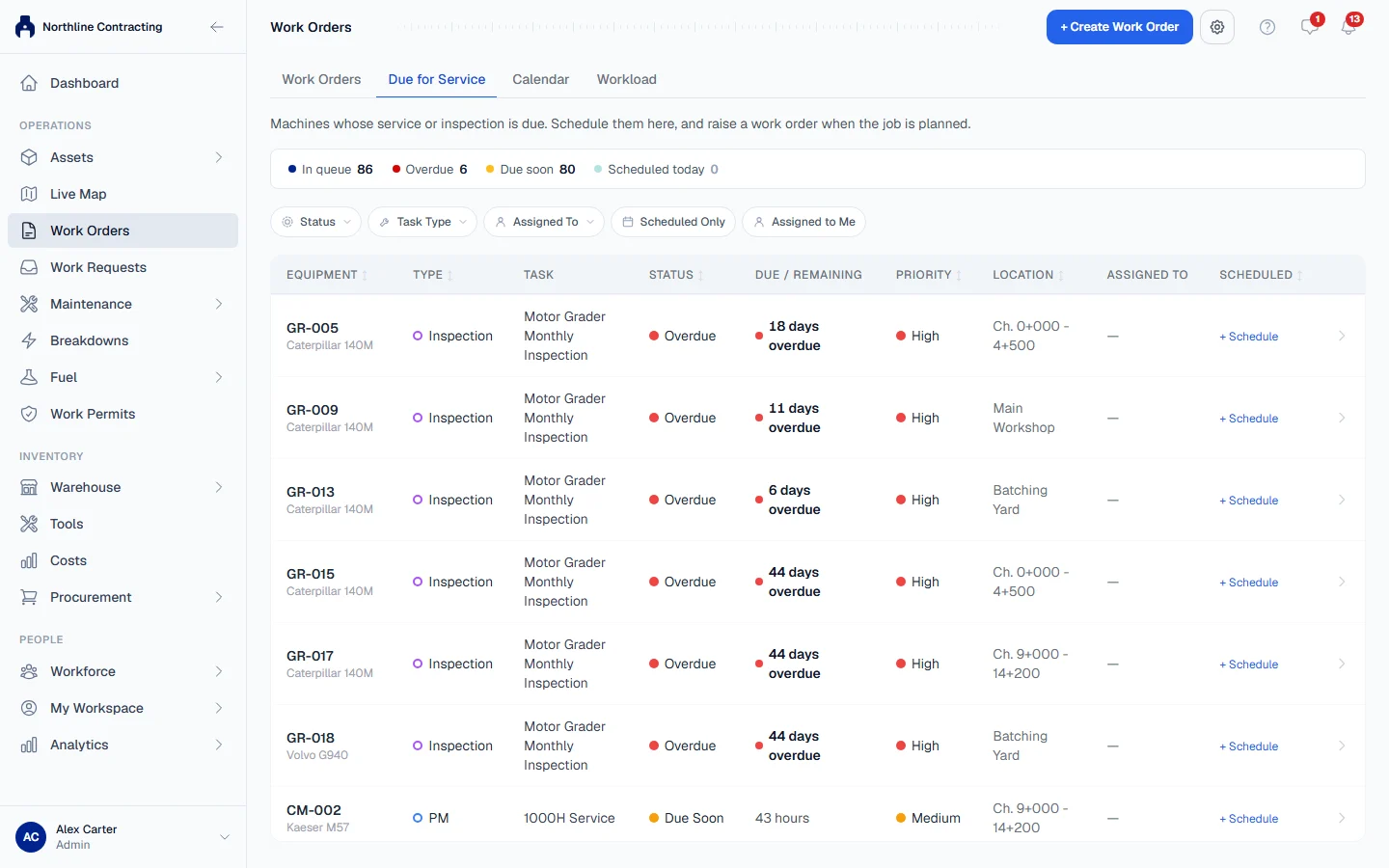
Each row is one service or inspection on one machine. It shows the equipment, the type of task, the task, its status, how long until it is due (or how far overdue it is, in hours, kilometres or days), the priority, the location, who it is assigned to and the scheduled date.
| Filter | What it does |
|---|---|
| Status | Overdue, Due soon or All statuses. Left blank, the tab shows overdue and due soon together. |
| Task Type | PM only or Inspections only. |
| Assigned To | Type part of a name. |
| Scheduled Only | Only tasks that already have a date. |
| Assigned to Me | Only tasks assigned to you. |
Schedule a task
- Click a row, or + Schedule in its scheduled column. A panel opens with the machine, what triggered the task, and when it was last completed.
- Click Schedule Task.
- Choose the Scheduled Date, and optionally the Assigned Team / Workshop, Estimated Hours and Notes.
- Click Schedule.
The task now shows its date and appears on the Calendar. From the same panel you can Reschedule it or Cancel Schedule.
Calendar
The Calendar tab opens on the Week view; switch to Month with the buttons at the top right. Use the previous and next buttons and Today to move around.
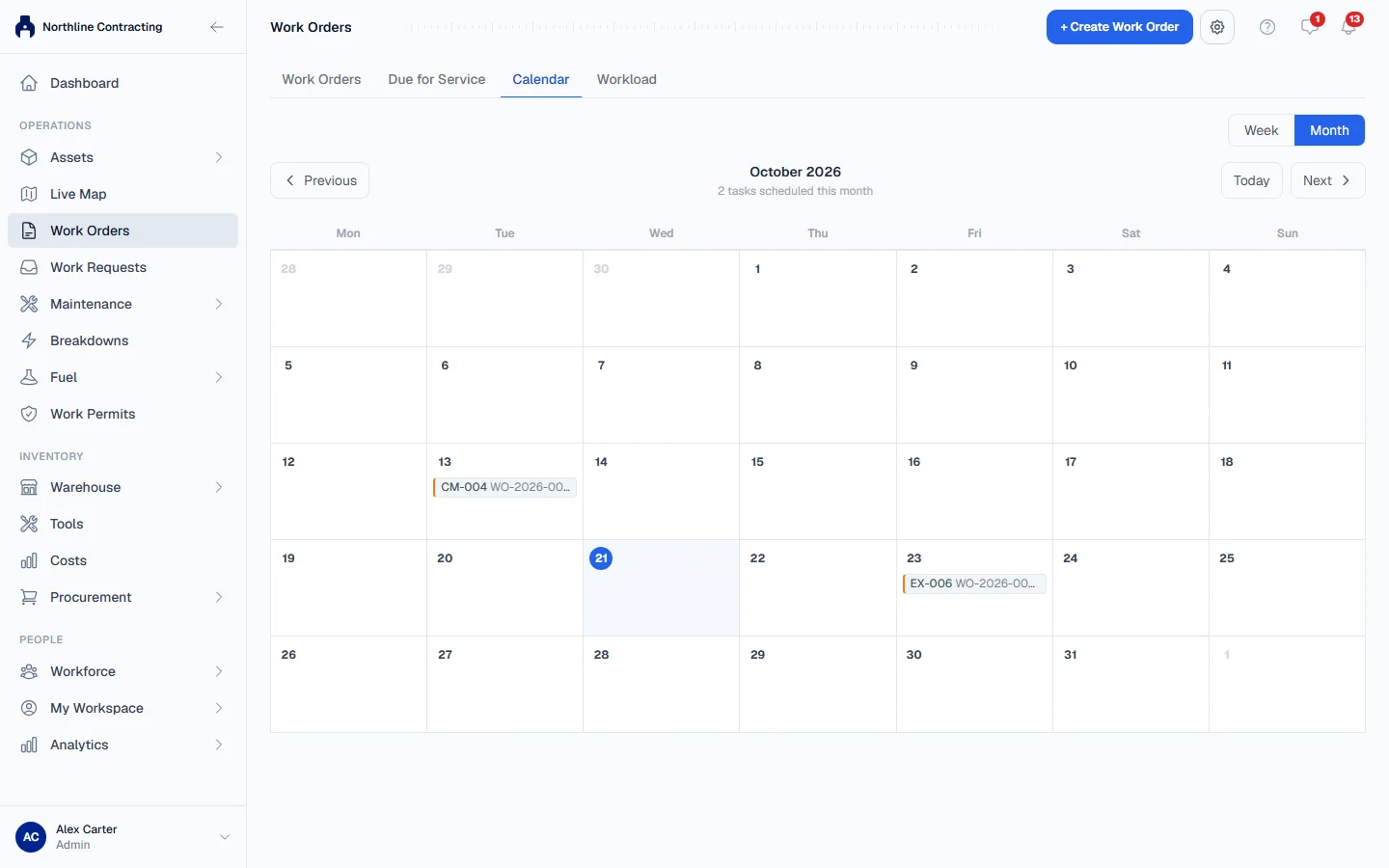
Scheduled services and inspections, and work orders with a scheduled date, appear on their day. In the month view, click a day to see everything planned on it.
On a scheduled service or inspection, people with Maintenance Planning: Schedule can press the tick to Mark completed, or the cross to delete the entry.
Workload
The Workload tab shows the next eight weeks as bars, one per week, so you can see where work piles up.
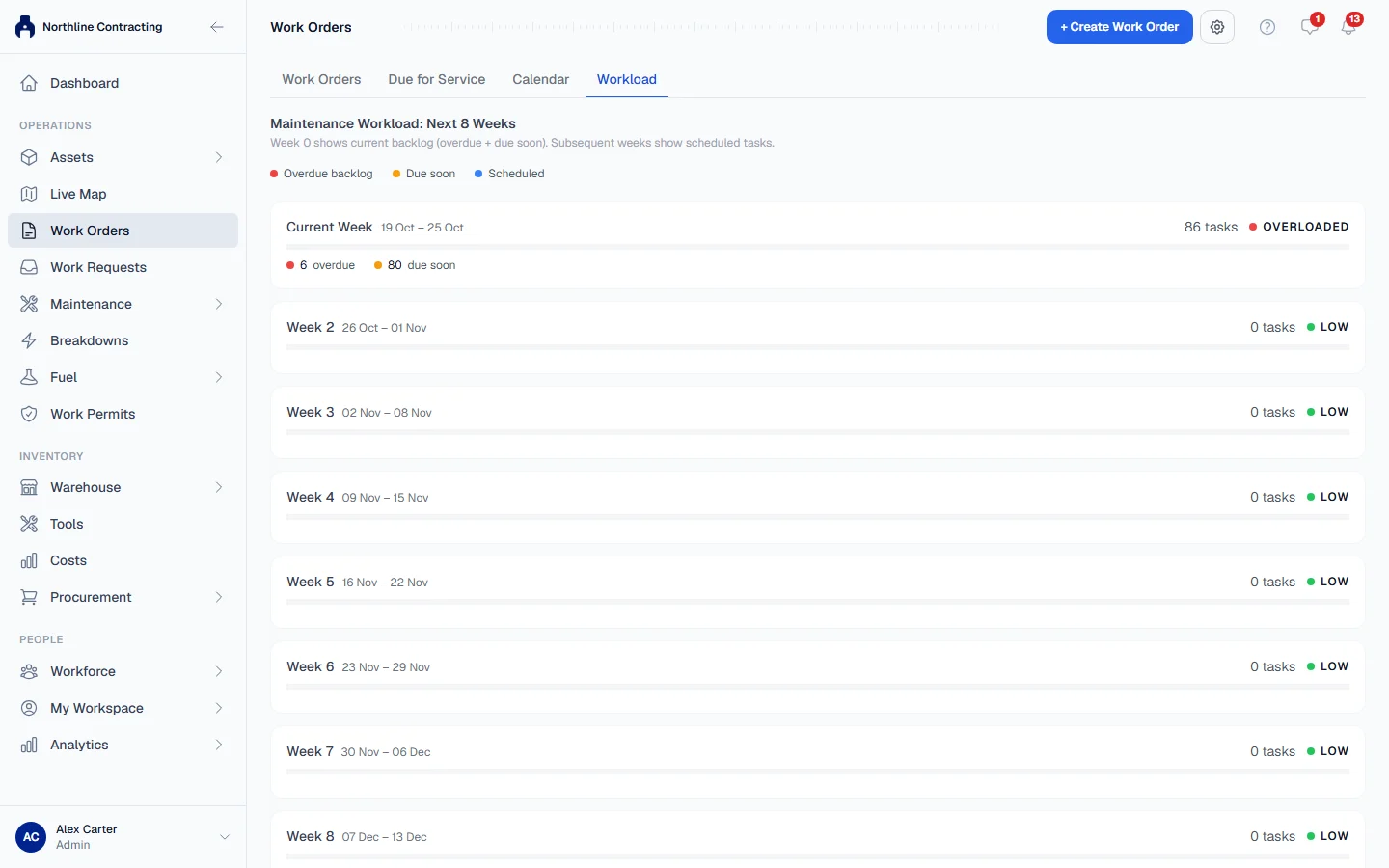
- The Current Week bar holds the backlog: overdue tasks and tasks due soon.
- The weeks after it show the tasks scheduled in each.
- Colours separate Overdue backlog, Due soon and Scheduled, and each bar is also labelled with the counts, so it reads without colour.
Rules worth knowing
- Work orders are not listed on Due for Service. They have their own tab, so this tab shows only what has not become a job yet.
Troubleshooting
| What you see | What to do |
|---|---|
| "Calm waters", saying no tasks match the current filters | Nothing is due with these filters. Widen Status to All statuses. |
| No Schedule Task button in the panel | Your role does not include Maintenance Planning: Schedule. |
| Only the Work Orders tab shows | Your role or your plan does not include Maintenance Planning: View. Ask your administrator. |
| "Failed to save schedule." | Check the date and try again. |
| "No workload data available." | Nothing is overdue, due soon or scheduled in the next eight weeks. |