
Invite your team
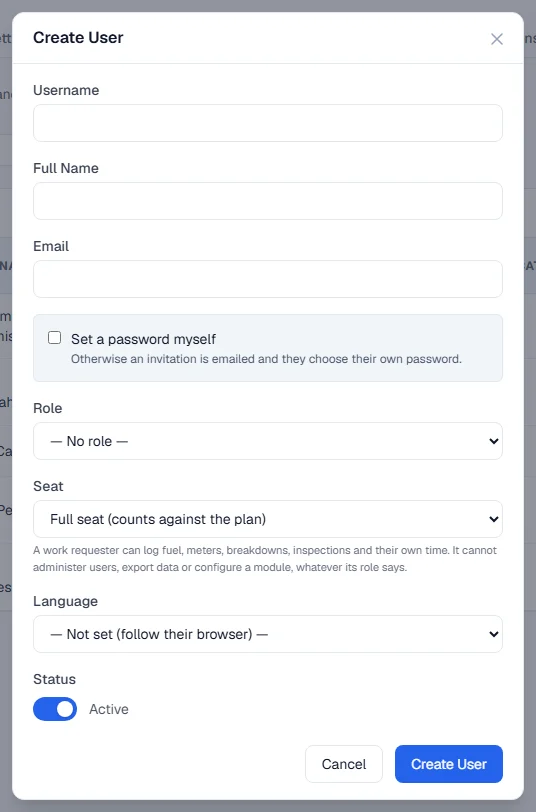
Add users, send them an invitation to set their own password, choose a role and a seat, and disable an account when someone leaves.
Before you start
- You need the Users: Edit permission to add and edit users, and Users: Delete to disable or enable them. Administrators have both.
- Decide each person's role (what they can do) and seat (full seat or work requester). See Roles and permissions and Plans, the free trial and seats.
Add a user
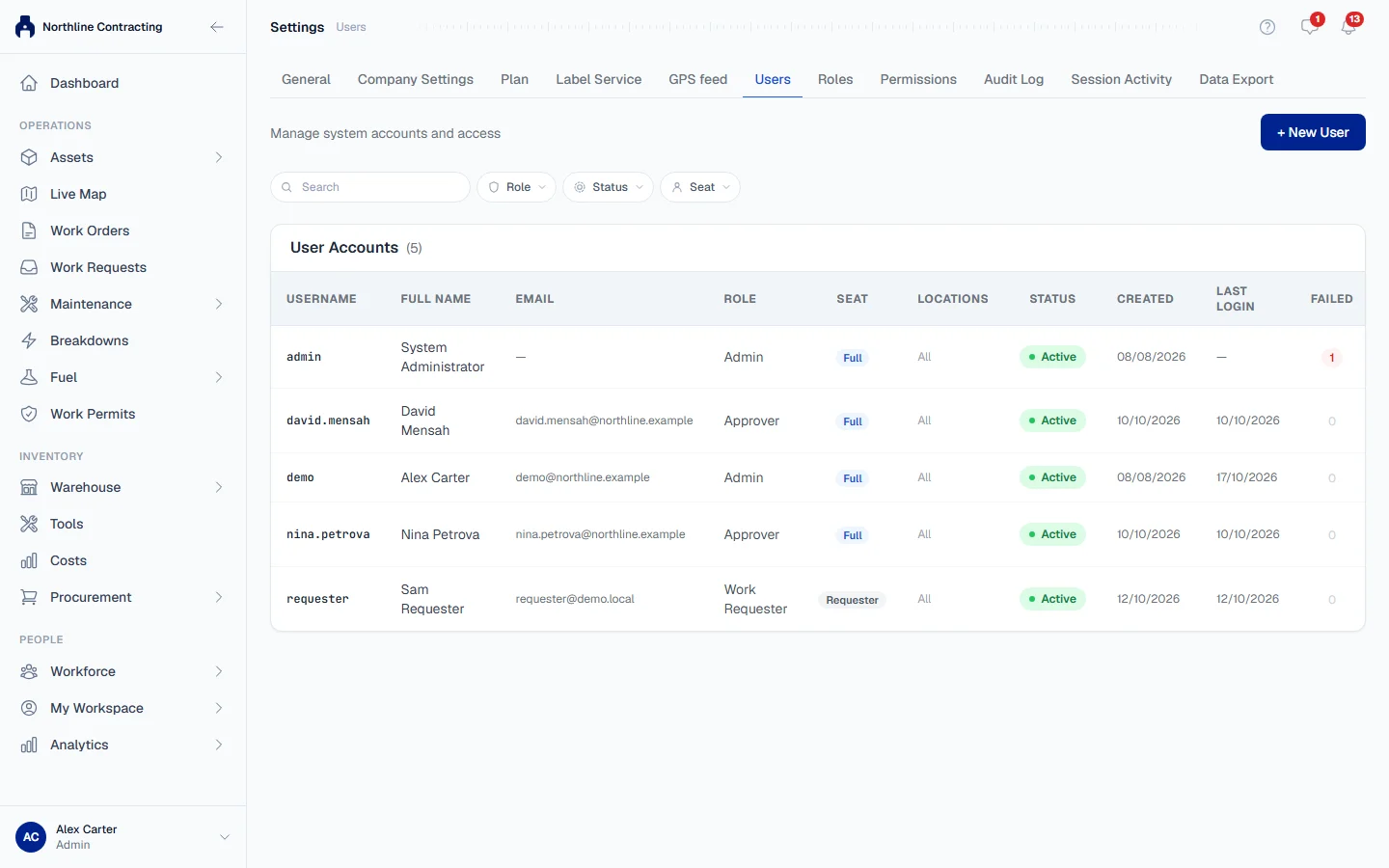
- Open Settings (click your name at the bottom of the sidebar) and go to the Users tab.
- Click + New User.
- Fill in the fields in the table below.
- Click Create User.
| Field | Notes |
|---|---|
| Username | Required. What they sign in with if they have no email. |
| Full Name | Required. Shown on every record they make. |
| Needed to send an invitation. | |
| Role | What they can do. |
| Seat | Full seat or Work requester. |
| Language | Leave it unset to follow their browser. |
Solmex emails the person an invitation. They open it, choose their own password and sign in. The invitation link is valid for 7 days.
Full seat or work requester?
Use a work requester seat for people who only report problems and enter data in the field: fuel, breakdowns, inspections, the work they did on a work order, and their own time. Meter readings need a full seat (Equipment: Edit). Work requesters are free and unlimited on every plan, and they can never administer users, export data or configure a module, whatever their role says.
Use a full seat for anyone who plans, assigns, approves or reports. Full seats count against your plan. On Starter there is one full seat per company, so everyone else joins as a work requester.
Resend an invitation
If someone did not receive their invitation or it expired, click Invite on their row. It emails a new link.
Reset someone's password
Click Reset PW on their row, type the New Password twice and click Reset Password. Tell the person their new password. Only an administrator can reset another administrator's password.
Limit someone to certain Locations
Click Locations on their row and choose Only these Locations, then tick the Locations they work at. Their dashboard then shows only those Locations. Some other modules still show every Location while this setting is being extended to them; the dialog says which.
When someone leaves
Users are never deleted, so their name stays on the work they recorded. Click Disable on their row instead. They can no longer sign in, and a full seat is freed. Enable brings the account back.
Rules worth knowing
| Rule | Why |
|---|---|
| You cannot disable, change the role of, or change the seat of your own account. | So nobody locks themselves out by accident. |
| The last active administrator cannot be disabled or moved to a work requester seat. | Someone must always be able to manage the company. |
| You cannot give a role more permissions than you hold yourself. | So access cannot be widened by the back door. |
Troubleshooting
| Message | What to do |
|---|---|
| "The user was created but the invitation could not be sent." | The account exists. Check the email address, then click Invite on their row. |
| "This account is deactivated. Reactivate it first." | Click Enable, then Invite. |
| A message that you have reached your plan's seat limit | Disable an unused full seat, use a work requester seat, or contact us to add seats. |