
Create a work permit
Raise a work permit from the register or from a work order, choose what it covers, and fill in the work, the people and the precautions.
A permit is raised for a work activity, such as "Hot Work: Workshop Welding". That activity may be at a place, on one machine, on several machines, or part of a work order. This article creates a permit and submits it for approval.
Before you start
- You need Work Permits: Edit.
- For a permit at a place, the Sublocation must exist. See Add Locations and Sublocations.
- If your company uses permit templates, check which one fits. See Permit templates.
Create a permit from the register
- In the sidebar, open Work Permits.
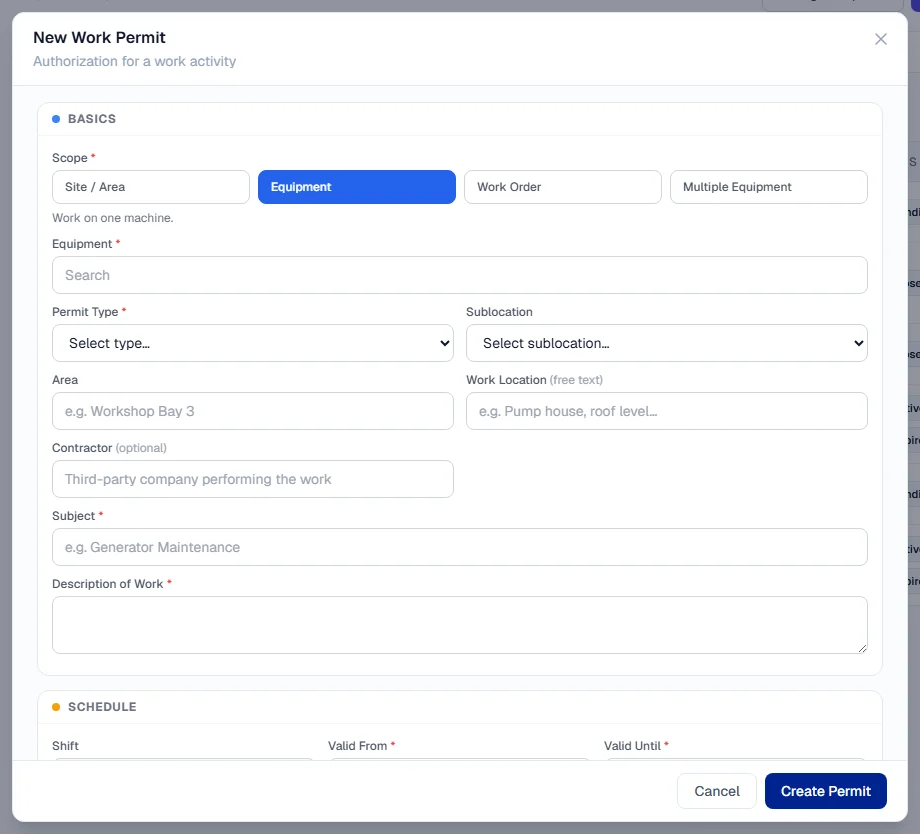
- Click + New Permit. The New Work Permit form opens.
- Choose the Scope (see below), then fill in the sections. Fields marked with a star (*) are required.
- Click Create Permit. The permit is saved as a Draft.
- Check it, then click Submit for Approval. If the permit came from a template that does not require approval, the button reads Submit (no approval needed) and the permit is approved at once.
Create a permit from a work order
- Open the work order.
- In its Work permit section, click Create work permit. See Work orders that need a work permit.
The form opens with the scope set to Work Order, and any machine named on the work order is carried across for you. You cannot create a permit for a closed work order.
Choose the scope
The scope says what the permit covers. Choose it first, because it decides which fields the form asks for.
| Scope | Use it for | Required |
|---|---|---|
| Site / Area | Work at a place rather than on a machine. | Sublocation |
| Equipment | Work on one machine. | Equipment |
| Work Order | Work authorised by an existing work order. | Work Order |
| Multiple Equipment | One activity covering several machines. | Equipment Covered, at least 2 machines |
For Multiple Equipment, search for each machine and pick it; the form shows how many machines are on the permit. If you pick only one, switch the scope to Equipment.
For Work Order from the register, search the Work Order field by number, title or machine and pick one. Only open work orders are listed, because a closed work order cannot get a new permit. The machine on the work order is carried across; you do not pick it again. Click Change to choose another work order.
Basics
| Field | Notes |
|---|---|
| Permit Type * | Such as Hot Work Permit, Confined Space Entry Permit or Working at Height Permit. |
| Template | Optional. Pre-fills hazards, PPE, checklist and Valid Until from a template of this type. Use Preview to see it first. The form also says if the template needs no approval, or which sign-offs it requires. |
| Sublocation | The area inside a Location where the work happens. Required for a Site / Area permit. |
| Area | Optional, such as "Workshop Bay 3". |
| Work Location | Optional free text, such as "Pump house, roof level". |
| Contractor | Optional. The third-party company doing the work. |
| Subject * | What the work is, such as "Hot Work: Workshop Welding". The permit is named by its subject. |
| Description of Work * | What will be done. |
Schedule
| Field | Notes |
|---|---|
| Shift | Day, Night, 24 Hour or Custom. With Custom, type a Shift Label. |
| Valid From * | When the authorisation starts. |
| Valid Until * | When it ends. Must be after Valid From. A template with a Default Validity fills it in for you (Valid From plus that many hours, with Valid From set to now if it is empty). A time you already entered is never replaced. |
| Issue Date | Defaults to now. Click Change it to set another time. |
Personnel
| Field | Notes |
|---|---|
| Permit Holder * | The person accountable for the permit from start to hand back. |
| Supervisor | Who supervises the work. |
| Workers | Everyone doing the work. Use Add a whole crew to add everyone in a Location or a team at once, then remove anyone not on site today. |
| Issuer and Approver | Who issues and approves the permit. |
Safety & Compliance
List the Hazards and Required PPE, and switch on Fire watch, Gas test and Toolbox talk done where they apply. Click Add isolations, checklist, rescue plan & notes for Isolations, the Checklist, the Rescue Plan, Safety Notes and Environmental Precautions.
Editing a permit
You can edit a permit only while it is a Draft: click Edit on the permit. After you submit it, the details are fixed. If an approver rejects it, it returns to Draft with their comment and you can edit and submit it again.
Troubleshooting
| What you see | What to do |
|---|---|
| "Subject is required." / "Description of Work is required." | Fill in both. |
| "Valid Until must be after Valid From." | Correct the times. |
| "Permit Holder is required." | Choose the person accountable for the permit. |
| "Sublocation is required for a 'Site / Area' permit." | Choose the Sublocation. |
| "A 'Multiple Equipment' permit needs at least 2 machines." | Add another machine, or switch the scope to Equipment. |
| "A work order is required for a 'Work Order' permit." | Pick the work order in the Work Order field, or choose another scope. |
| "Could not load work orders." | Picking a work order needs access to the Work Orders module. Ask your administrator, or raise the permit from the work order itself. |
| "No sublocations are registered yet" | Add a Sublocation first. |
| "Cannot create a permit for a closed work order" | Raise the permit from the register instead. |