
Help CenterManaging Purchases and Stock
Set up storage locations
Lay out your stores, racks, shelves and bins as a tree of storage locations, print a label for each, and archive the ones you no longer use.
Storage locations tell Solmex where stock physically sits: a store, and the areas, racks, shelves and bins inside it. Every receipt goes into one, every issue comes out of one, and each part names one as its put-away location, so set them up before you receive anything.
Before you start
- You need Warehouse: Manage to open Warehouse Settings and add, edit or archive a storage location. Anyone with Warehouse: View can still open a location's own page from its shelf label.
- Decide how detailed you want to be. Stock can sit at any level, so a single room store needs only one location. Add racks and bins only if you will actually count and pick by them.
Open the layout
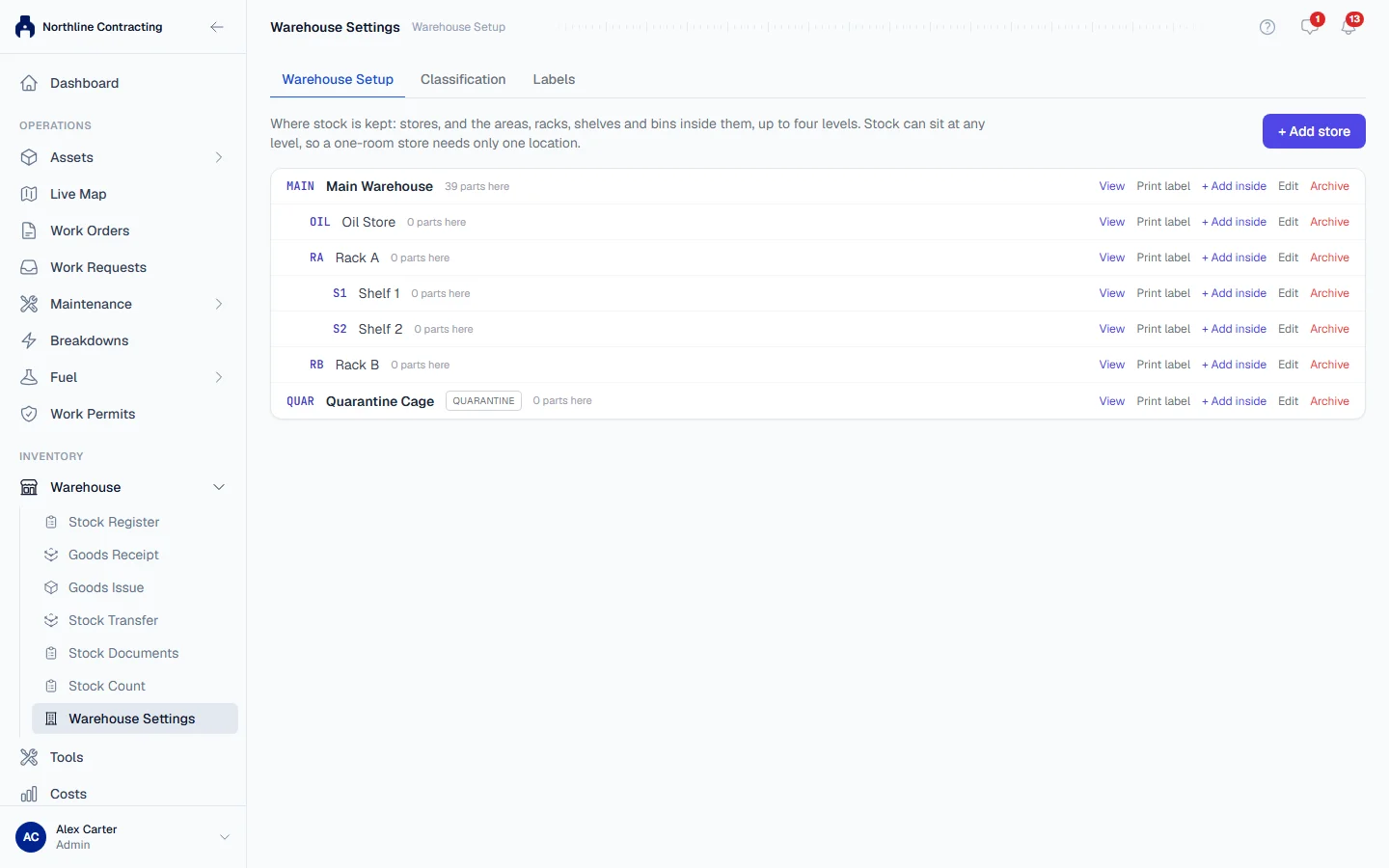
- In the sidebar, open Warehouse > Warehouse Settings. You can also press Warehouse Settings at the top of the Stock Register. Both appear only with Warehouse: Manage.
- Open the Warehouse Setup tab.
The tab shows one indented tree. Each row shows the location's code, its name, a "Used for" tag when it is not ordinary storage, and how many parts are recorded there, for example "3 here · 12 including inside".
Add a store
- Click + Add store.
- Enter a Name, such as "Main Store".
- Enter a Code, such as
MAIN. The code is printed on the shelf label and used in the location's path. - Choose what it is Used for: Storage, Receiving, Quarantine or Scrap. Most locations are Storage.
- Click Save.
Add racks, shelves and bins inside it
- On the store's row, click + Add inside.
- Enter the Name (for example "Rack 4") and Code (for example
R04), and choose Used for. - Click Save.
Repeat on the new row to go a level deeper. Locations go four levels deep: a store, and up to three levels inside it. The path of a bin reads like MAIN.R04.S2.B12, and pickers across the warehouse show the path together with the name.
Edit, archive and restore
- Edit changes the name, the code or what the location is Used for. Changing a code also changes the path of everything inside it.
- Archive takes a location out of use. Everything inside it is archived with it. Archived locations are no longer offered when you receive, issue, count or choose a put-away location. A location cannot be archived while stock is recorded at it or anywhere inside it.
- Show archived lists the archived ones, and Restore brings one back together with everything inside it. A rack inside an archived store cannot be restored on its own: restore the store.
There is no way to move a location to a different parent. If a store was laid out wrongly, create the new layout, move the stock across with a stock transfer, then archive the old one.
Labels and the location page
Click Print label on a row to print a shelf label. Its QR code opens that location's page, where anyone with Warehouse: View sees the Stored Parts at the location and inside it, with Print label to reprint. Click View on a row to open the same page.
A label printed before your store layout was rebuilt opens a page saying "This label was printed before the store layout was rebuilt". Reprint it from the Warehouse Setup tab.
Troubleshooting
| What you see | What to do |
|---|---|
| "There is already a location with the code ..." | Another location at the same level already uses that code. Choose a different one. |
| "A location code is up to 20 letters, digits, hyphens or underscores (no spaces or dots)" | Remove spaces, dots and other symbols from the code. |
| No + Add inside on a row | The row is archived, or it is already at the fourth level. |
| "Changing the layout needs the Warehouse manage permission." | Ask an administrator for Warehouse: Manage, or ask someone who holds it. |
| A location is missing from the Receive into or Issue from list | It is archived. Restore it on the Warehouse Setup tab. |
| "... still holds stock ... before archiving." | Stock is recorded at the location or inside it. Move it with a stock transfer, or count it out, then archive. |
| "... is archived. Restore it first" | The location sits inside an archived one. Restore the outer location; everything inside comes back with it. |