
Permit templates
Save the hazards, PPE, isolations and checklist you use for each kind of permit as a template, so new permits start from your company's standard instead of a blank form.
A permit template holds your standard safety content for one kind of work, such as "Hot Work: Welding": its hazards, required PPE, isolations, checklist and notes. When someone creates a permit of that type and picks the template, the form is filled in for them, and they adjust it for the job.
Before you start
- You need Work Permits: Templates to create, edit, duplicate or archive templates.
- Anyone with Work Permits: View can see templates, and anyone with Work Permits: Edit can use them when creating a permit.
Open the templates
- In the sidebar, open Work Permits.
- Click Manage Templates.
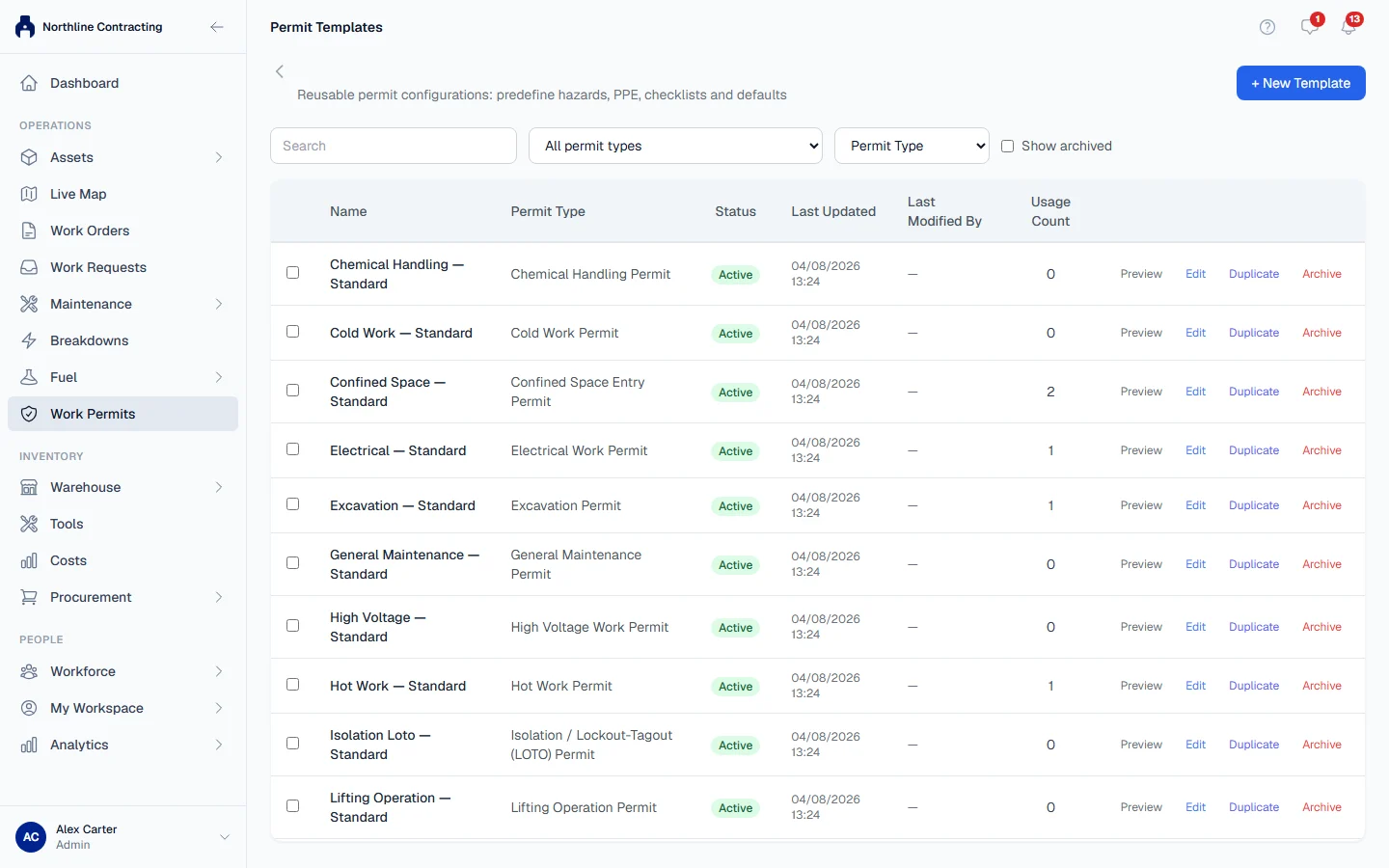
The list shows each template's Name, Permit Type, status, Last Updated, Last Modified By and Usage Count (how many permits were created from it). Search by name, filter by permit type, and tick Show archived to include archived templates.
Create a template
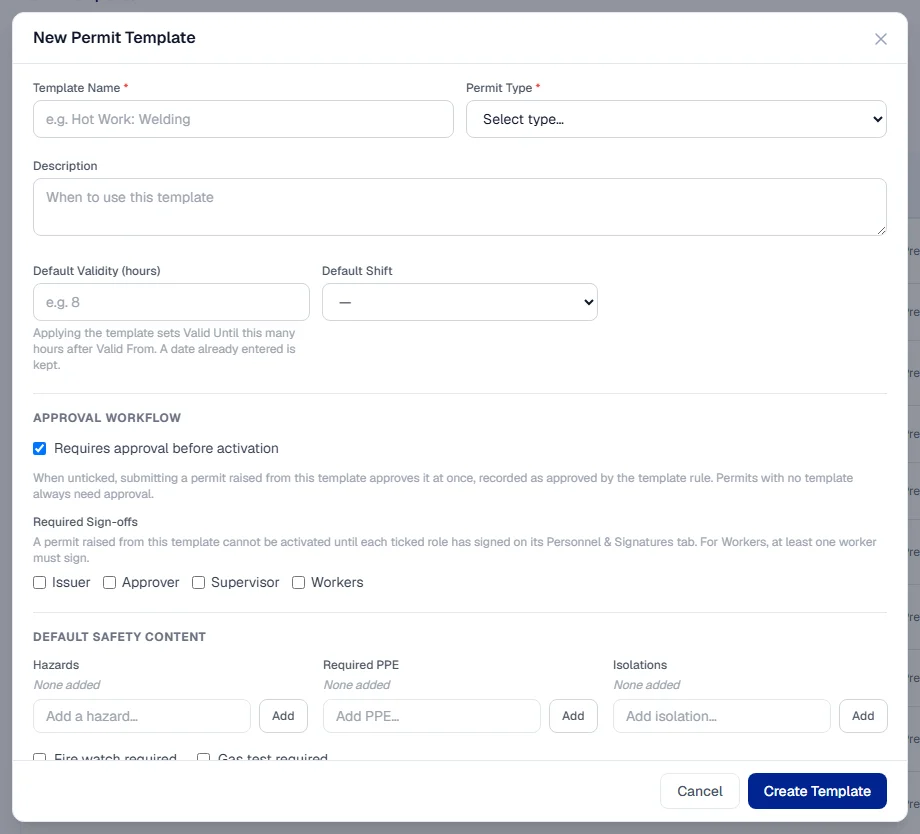
- Click + New Template. The New Permit Template form opens.
- Fill in Template Name and choose the Permit Type. Both are required. Add a description of when to use the template.
- Under Default Safety Content, list the hazards, required PPE, isolations and Standard Checklist Items, and switch on Fire watch required or Gas test required if they apply.
- Fill in any of Default Rescue Plan, Default Environmental Precautions, Default Safety Notes, Default Additional Instructions and Default Shift.
- Click Create Template.
You can have several templates for the same permit type, for example one for welding and one for grinding, both under Hot Work Permit.
Use a template on a permit
- On the New Work Permit form, choose the Permit Type.
- In Template, pick one of that type's templates. Click Preview to read it first, or keep Start from blank permit.
The template fills in the safety content: hazards, PPE, isolations, checklist, fire watch, gas test, rescue plan, notes, precautions and shift, and Valid Until from its default validity. Everything stays editable. Anything you had already typed in one of those fields is kept. Under the template, the form says if the template needs no approval and which sign-offs it requires.
Validity, approval and sign-off rules
| Field | What it does on a permit created from the template |
|---|---|
| Default Validity (hours) | Fills Valid Until with Valid From plus this many hours. If Valid From is empty it is set to now. A Valid Until already entered is never replaced. |
| Requires approval before activation | When ticked (the default), the permit goes through Pending Approval as usual. When unticked, submitting the permit approves it at once; the History tab records it as approved by the template's rule and names the template. |
| Required Sign-offs | Sign & Activate is refused until each ticked role (Issuer, Approver, Supervisor, Workers) has signed on the permit's Personnel & Signatures tab. For Workers, one worker's signature is enough. |
| Attachment Checklist (reminder) | A reminder of the documents to attach. It is not enforced: a permit can be saved and activated without them. |
The approval and sign-off rules are copied onto the permit when it is created, like the rest of the template. Changing them on the template later does not change permits already raised from it, and permits with no template always need approval.
Edit, duplicate and archive
| Action | What it does |
|---|---|
| Edit | Change the template. Permits already created are not affected. |
| Duplicate | Creates a copy named "(Copy)" and opens it for editing. |
| Archive | Removes the template from the Template list on new permits. It stays in the register for reference. |
| Activate | Brings an archived template back. |
Tick several templates to use Activate Selected or Archive Selected on all of them at once.
Troubleshooting
| What you see | What to do |
|---|---|
| "Template name is required." | Fill in Template Name. |
| "Permit type is required." | Choose the Permit Type. |
| "No templates for this permit type yet" on a new permit | Create one, or carry on: a blank permit works fine. |
| A template is missing from the Template list on a permit | It is archived, or it belongs to a different permit type. |
| No Manage Templates button | You need Work Permits: Templates. |