
Help CenterManaging Purchases and Stock
Add a part
Add a spare part, fluid or consumable to the catalogue with its classification, unit, minimum stock, put-away location and photos.
Before a part can be received, issued or fitted, it needs a line in the catalogue. Adding it records what the part is and where it is normally kept; it does not add any stock. Stock arrives with a goods receipt.
Before you start
- You need Warehouse: Edit.
- At least one Family must exist in the classification. See Classify your parts.
- It helps to have your storage locations set up, so you can choose a put-away location. See Set up storage locations.
Add the part
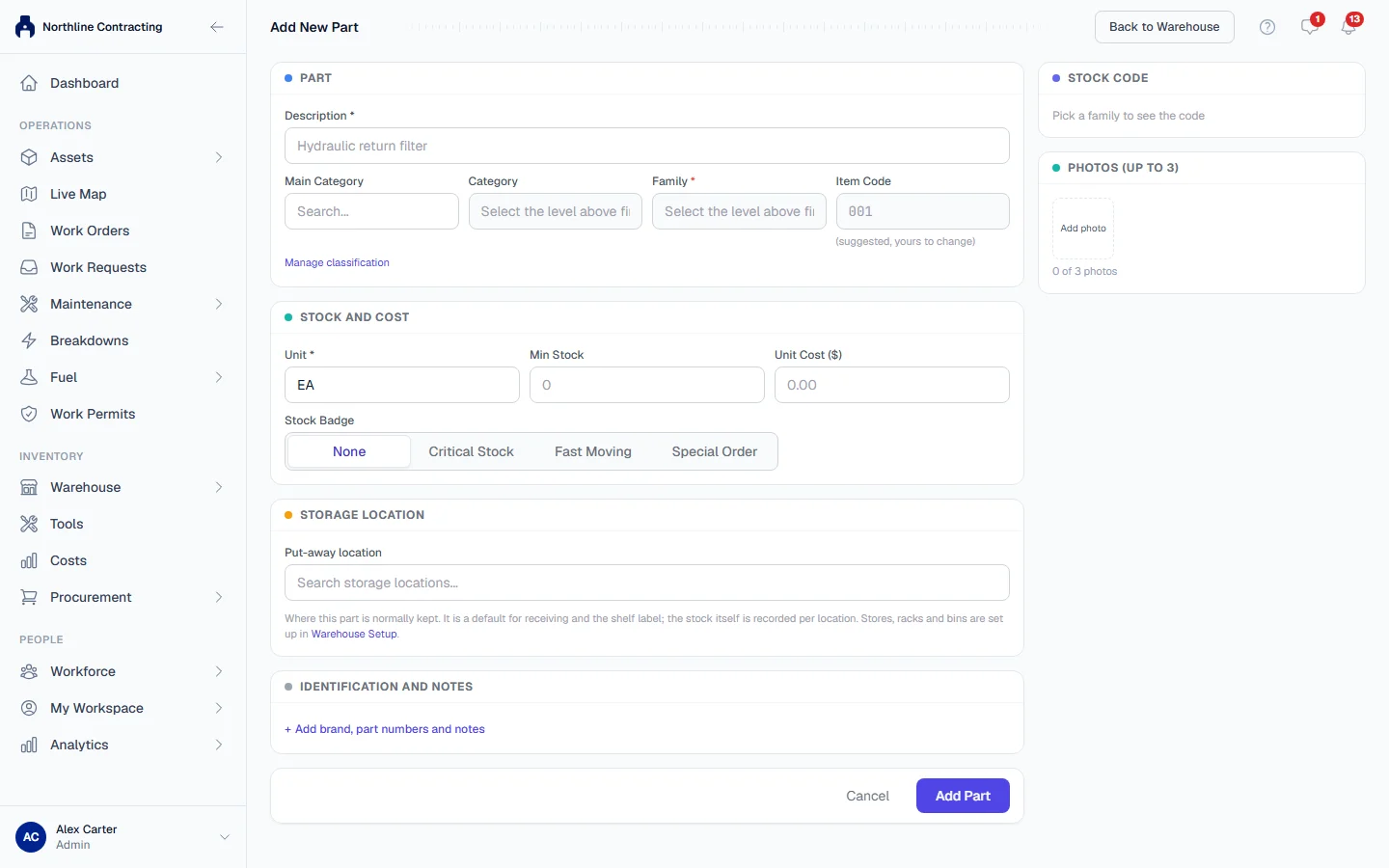
- In the sidebar, open Warehouse > Stock Register.
- Click + New Part. The Add New Part page opens.
- Under Part, enter the Description, such as "Hydraulic return filter".
- Choose the Main Category, then the Category, then the Family. Each list opens once the level above it is chosen.
- Check the Item Code. Solmex suggests the next free number in that Family; you may change it. The full Stock Code is shown beside the form as you go.
- Under Stock and cost, enter the Unit, such as EA, L or KG. Add a Min Stock if you want the part flagged when it runs low, and a Unit Cost if you know a typical price.
- Optionally choose a Stock Badge: Critical Stock, Fast Moving or Special Order.
- Under Storage Location, choose the Put-away location: the store, rack or bin where this part is normally kept.
- To record the brand, manufacturer, OEM number or notes, click Add brand, part numbers and notes.
- Under Photos (up to 3), add photos if you have them. They upload as soon as the part is saved.
- Click Add Part.
The part now appears on the Stock Register with an In Stock of 0.
Edit a part
On the Stock Register, click Edit on the part's row. The Edit Part page opens with the same fields. Click Save Changes when you are done.
Make a part inactive
A part you no longer stock can be made inactive instead of deleted, so its history stays. On the Edit Part page, under Stock and cost, set Status to Inactive and save. An inactive part cannot be received, issued or fitted, and it leaves the Stock Register's default view; choose Inactive items in the register's filters to find it again, and set it back to Active the same way.
A part that still holds stock cannot be made inactive, because that stock could then never be moved. Issue it, transfer it or count it out first.
Rules worth knowing
- The put-away location matters. Parts used on work orders and logged PMs are issued from the part's put-away location. A part with no put-away location cannot be issued that way, and the Missing Bin tile on the Stock Register counts the parts that have none.
- The Unit Cost on the part is a reference figure. It is shown on the Stock Register. It is not used to value stock: the Stock Value tile and what an issue is charged both come from the prices on the receipts the stock arrived with.
- Low stock is measured against Min Stock. A part with stock above zero but at or below its Min Stock shows Low Stock; a part with none shows Out.
- A stock code must be unique. Two parts cannot share one.
Labels
On the Stock Register, click Print label on a part's row to print a part label. Its QR code opens the part's page, which shows how many are In Stock, where the part is kept, its compatible equipment and its Stock History. To print several at once, tick the parts and click Print Selected Labels, or click Print Filtered to print every part the current filters show.
Troubleshooting
| What you see | What to do |
|---|---|
| "No classification tree defined yet..." | Build the classification first. See Classify your parts. |
| "Pick the level-3 family this part is filed under." | Choose a Family, not only a Main Category and Category. |
| "Stock code ... is already in use" | Change the Item Code. |
| "... is archived; restore it before filing parts under it" | The Family is archived. Restore it on the Classification tab, or choose another. |
| "The storage location ... is archived" | Choose an active put-away location, or restore that one. |
| "Could not fetch next item code. Try again." | Choose the Family again, or type an Item Code yourself. |
| A part saved but some photos did not | Open the part with Edit and add the photos again. |
| "... still holds ... in stock. Issue it or count it out before making the part inactive." | Move or use up the stock first, then set Status to Inactive. |