
The Preventive Maintenance page
One page for every machine's service programme. What the Dashboard, Status, History, Templates and Assign tabs show, and how to use their filters.
A machine's Prev. Maintenance tab tells you about one machine. The Preventive Maintenance page tells you about all of them: what is overdue, what is coming up, what was done, and which machines are not on a programme at all.
Before you start
- You need Preventive Maintenance: View to open the page. The Assign tab also needs Preventive Maintenance: Assign. A tab you cannot use is not shown.
- Open it from the sidebar: Maintenance > Preventive Maintenance.
The five tabs
| Tab | Answers |
|---|---|
| Dashboard | How is the programme doing overall? |
| Status | Where is each machine in its programme right now? |
| History | Which services were done, when, by whom, and on time? |
| Templates | Which service programmes exist and who uses them? |
| Assign | Which machine follows which template? |
The filters you set on Dashboard and Status apply to both, so the two tabs always describe the same machines.
Dashboard
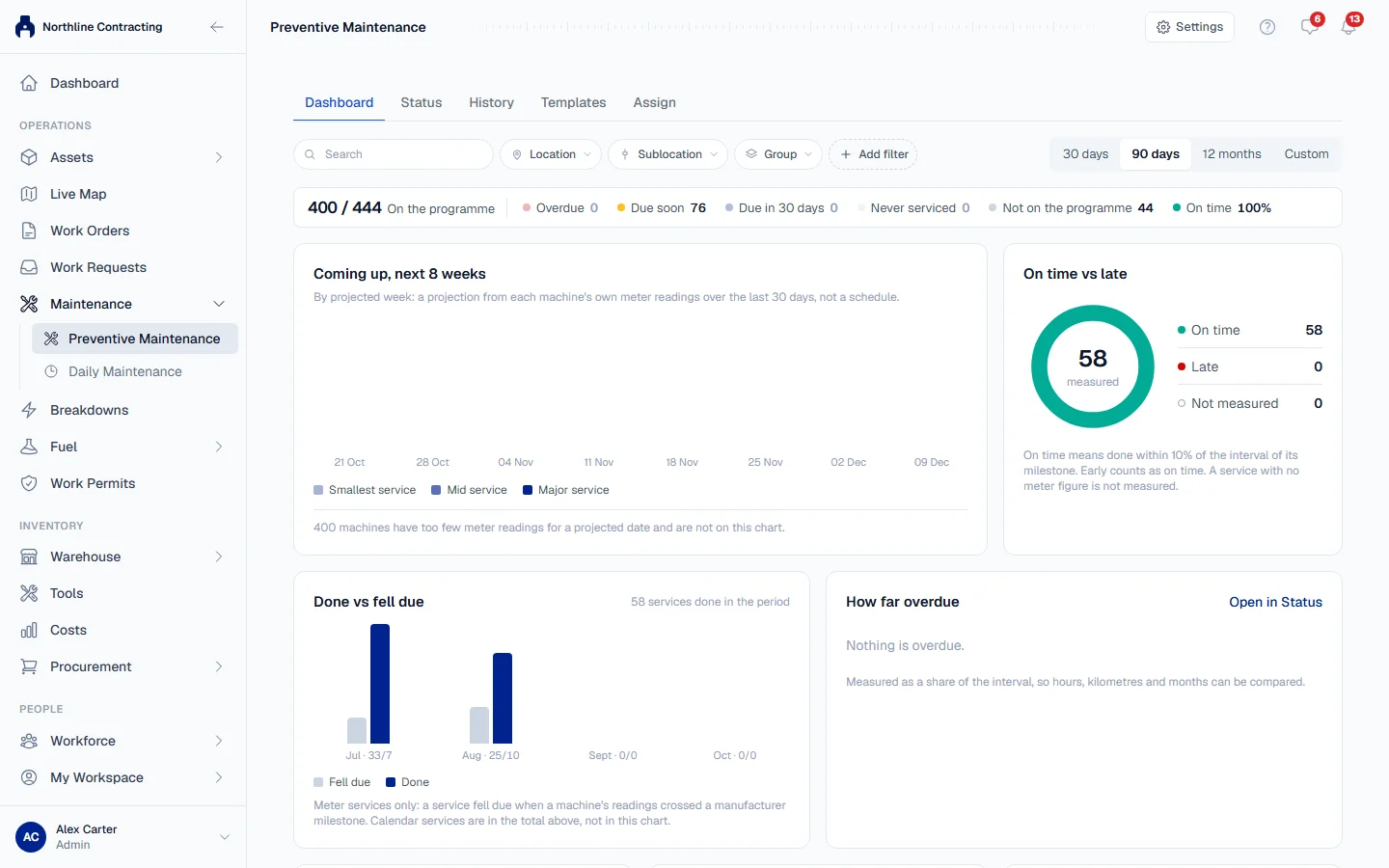
The line of figures across the top counts On the programme (machines with a working schedule, out of all machines in view), Overdue, Due soon, the services due in the next 30 days, Never serviced, Not on the programme and the On time rate. Click a figure to open the matching machines on the Status tab.
Below it, use the Period picker (30 days, 90 days, 12 months or Custom) and read the cards:
- Coming up, next 8 weeks: services by projected week. Machines with too few meter readings for a projection are counted under the chart.
- On time vs late: a service is on time when it was done within 10% of its interval of the milestone it answered. Early counts as on time. A calendar service is Not measured.
- Done vs fell due: per month, services done beside services that fell due (hours and kilometres services only).
- How far overdue: overdue machines grouped as a share of the interval, so hours, kilometres and months can be compared.
- Where the backlog is: overdue machines by Sublocation, Group and Template.
- Work by team: services per maintenance team, and how many named no team.
- Programme gaps: machines with no verdict, and why. None of these is counted as overdue.
- Parts for the next 30 days: parts the coming services will need, beside what is in stock. Only shown if you can see the warehouse.
- Needs attention: the machines furthest overdue.
Status
One row per machine. The columns include PM status, Template, Next service, Due at, Current meter, Remaining, Due date (the projected date), Last service and Last meter reading. Use the column picker to show the separate Hours, Kilometres and Calendar verdicts.
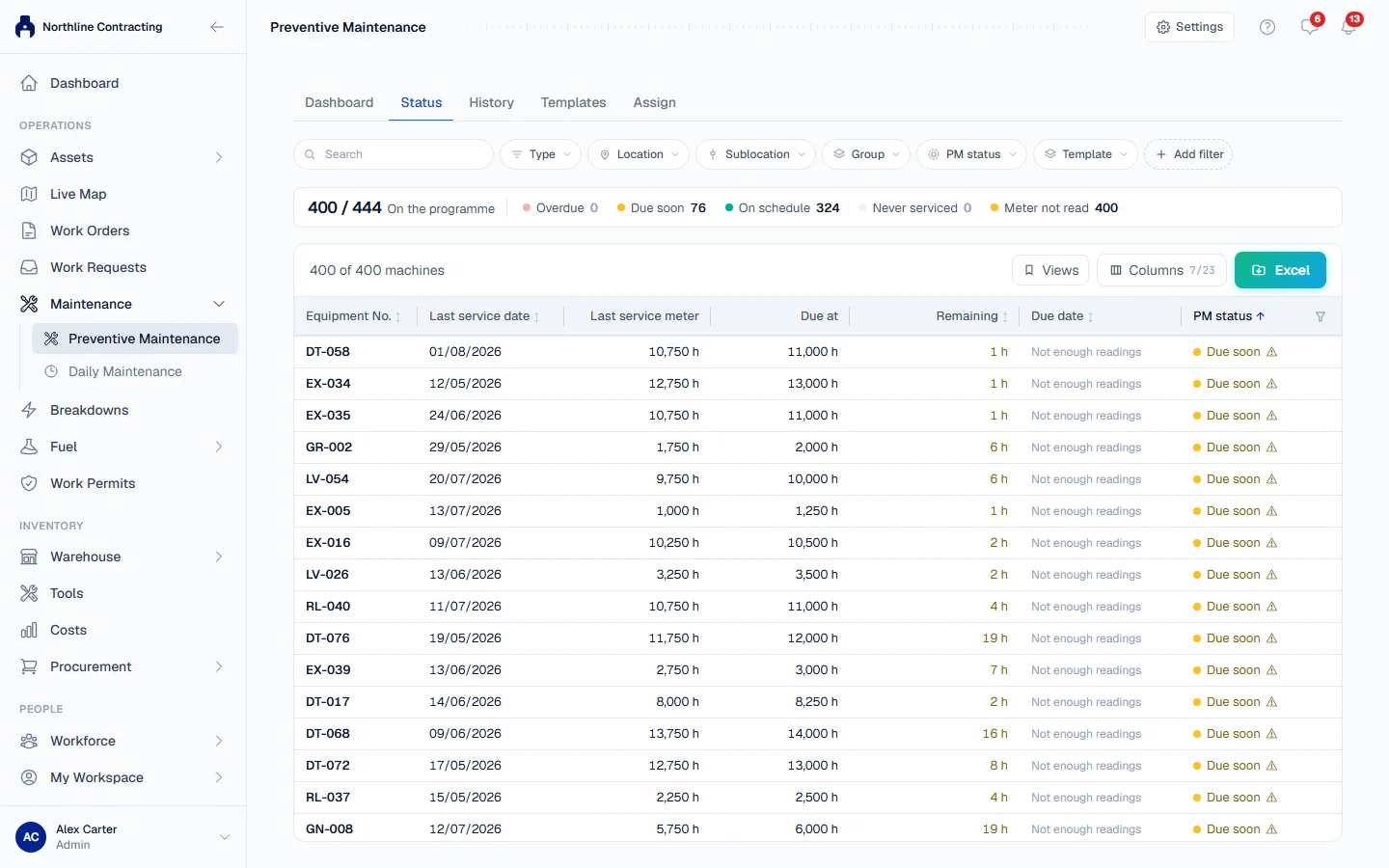
Filter with PM status, Template, Programme, Due within, Meter reading and Why not on the programme. Click a row to open that machine's Prev. Maintenance tab, where you can log the service.
The PM status of a machine is one of:
| Status | Meaning |
|---|---|
| Overdue | A milestone has passed with no service on record for it. |
| Due soon | The next service is within its due-soon window. |
| On schedule | Nothing is due yet. |
| Never serviced | It looks overdue, but the machine has no service on record at all. Its history probably has not been entered. |
| Not on the programme | Solmex cannot schedule it. The reason is shown. |
The reasons a machine is Not on the programme are: No template assigned, The template needs a meter and this machine has none, The template needs a meter and none is set up, and The template has no intervals to schedule by.
A machine whose meter has not been read for 14 days keeps its verdict but is marked "Meter not read for ... days", since the verdict may be out of date.
History
One row per logged service in the period: date, machine, service, meter at completion, Timing (On time, Late or Not measured), team and who did it, and the PDF Report. Filter by timing, team, template, service name and Source (Logged service or Imported last PM).
Withdrawn records are hidden. Choose Show withdrawn under Withdrawn records to find one again. From a row you can Correct or Withdraw a service: see Correct or withdraw a logged PM.
Templates
Your service programmes, with their intervals, what they are scheduled by and how many machines use each. See Create and edit a PM template.
Assign
Put templates onto machines, and import each machine's last PM. See Assign PM templates to machines and Import each machine's last PM.
Maintenance teams
The Settings button at the top right of the page opens Maintenance teams: the crews that carry out services. A team can then be recorded on each PM you log, which feeds Work by team on the Dashboard. See Maintenance teams.
Troubleshooting
| What you see | What to do |
|---|---|
| "Could not load preventive maintenance." | Reload the page. If it keeps happening, contact support. |
| "No machines match these filters." | Clear one or more filters. |
| "Not shown: this needs access to the warehouse." | The parts card needs permission to view the warehouse. Ask an administrator. |
| Many machines show Never serviced | Their history is not in Solmex yet. Import each machine's last PM. |