
Export all your data
Take your company's records out of Solmex as one zip file of Excel workbooks or CSV files, for a whole module or everything at once.
Data Export takes your records out of Solmex in one file: every machine, work order, breakdown, inspection, fill-up, stock movement, employee and more. Use it for a backup, for an auditor, to load your data into another system, or when you leave. Your data is always yours to take, so this works on every plan, including a free one.
Before you start
- You need Data export: Run. By default only administrator roles have it.
- For each category, you also need that module's View permission, plus its Export permission where the module has one (Equipment, Warehouse, Fuel, Employees and Costs). A category your role cannot read is not offered.
- The page is in Settings > Data Export.
Export everything
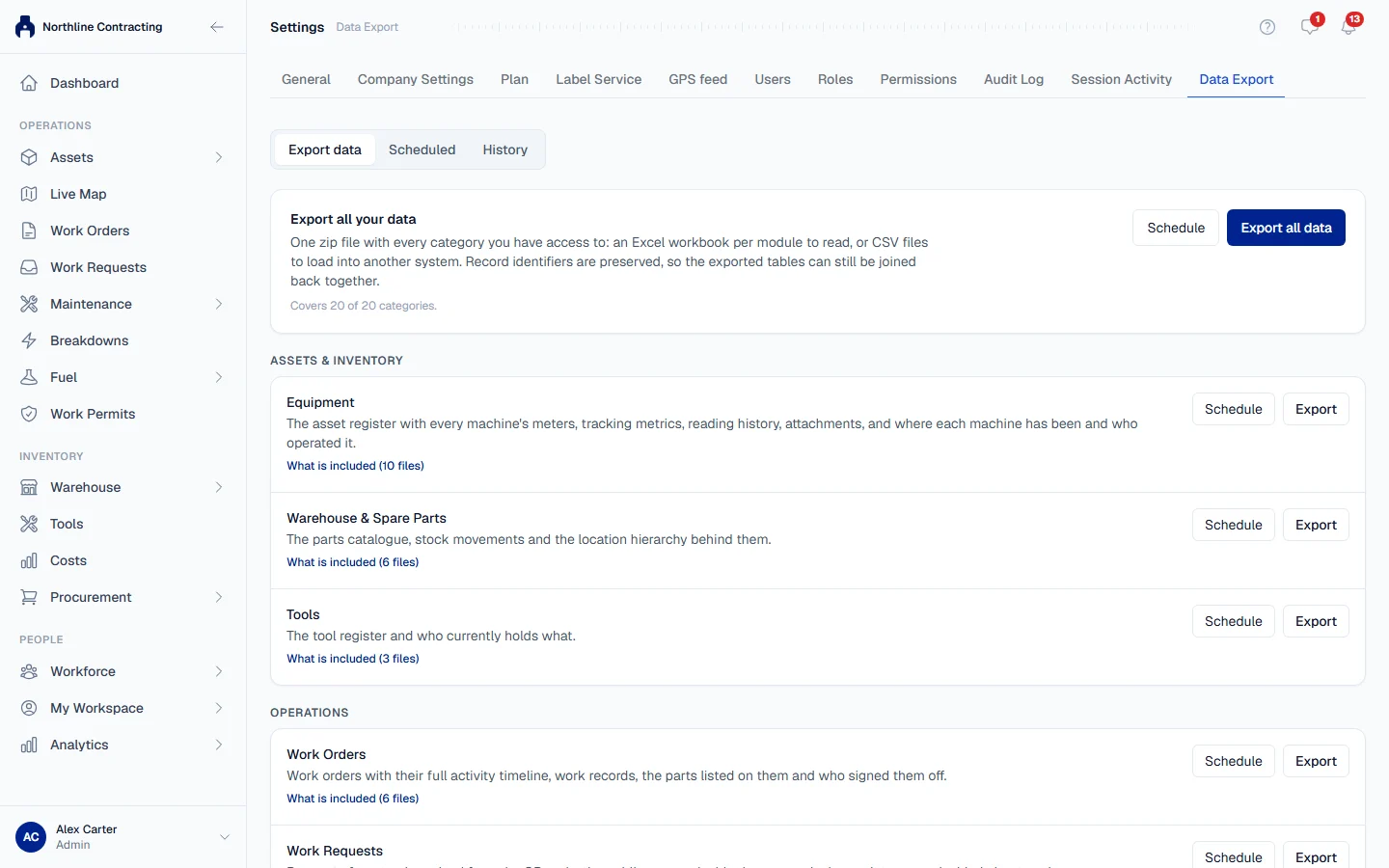
- Open Settings > Data Export. The Export data view lists every category you may export, grouped under headings such as Assets & Inventory, Operations and People.
- At the top, under Export all your data, check the line that says how many categories it covers. If some are excluded because your role cannot read them, it says how many.
- Click Export all data.
- Under Date range, choose Everything, or Between two dates and set From and To.
- Under File format, choose one of the three formats described below.
- Click Start export. Solmex switches to History and prepares the file in the background. You can leave the page.
- When the export's status reads Ready, click Download. A zip file downloads.
Export one category
Each category has its own row. Click What is included to see the files it contains and which date each one is filtered on, then click Export on that row and follow steps 4 to 7 above.
Choose a file format
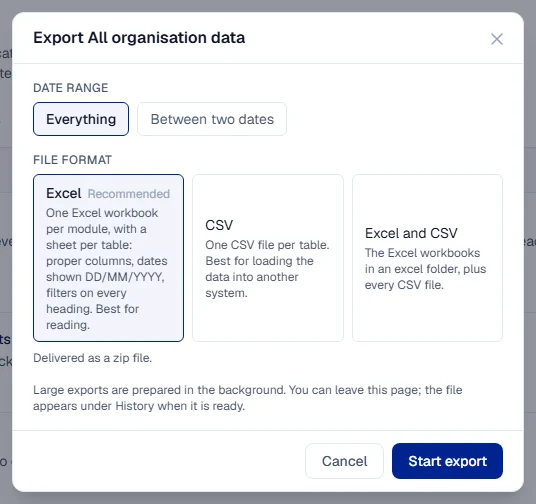
| Format | What you get | Best for |
|---|---|---|
| Excel (recommended) | One Excel workbook per module, with a sheet per table: proper columns, dates shown DD/MM/YYYY, filters on every heading. | Reading and checking the data yourself. |
| CSV | One CSV file per table. | Loading the data into another system. |
| Excel and CSV | The Excel workbooks in an excel folder, plus every CSV file. | Both at once. |
Whatever you choose, record identifiers are kept, so the tables can still be joined back together in another system. Every zip also carries a short read-me describing its contents.
Date ranges
With Between two dates, each category is filtered on its own date field: work orders on when they were raised, fill-ups on the fill-up date, and so on. What is included names the field. Reference data, such as your PM templates or breakdown codes, has no date and is always exported in full.
What is not in the export
- Uploaded files. Photos, documents and signatures are not included. The Document index lists each file's name, type and upload date.
- Secrets. Passwords, sign-in tokens and the private codes behind your public equipment cards are never exported, whoever runs the export.
The history
History lists every export you started, with its Records, Size and Status: Preparing, Ready, Failed or Expired.
Export files are kept for 7 days and then removed. The row then reads Expired and shows File removed. Run the export again to get a new file.
Scheduled exports
The Scheduled view sends an export by email on a schedule, for example a monthly fuel export to your finance team. Scheduling needs Data export: Schedule, and is included in the Enterprise plan. On other plans the view explains that scheduled exports are not included; exporting on demand still works.
Troubleshooting
| What you see | What to do |
|---|---|
| "You do not have access to any exportable data. Ask an administrator." | Your role can read none of the categories. Ask your administrator for the module permissions you need. |
| Data Export is not in Settings | Your role does not include Data export: Run. |
| "A date range needs both a start and an end date." | Fill in From and To, or choose Everything. |
| "The start date is after the end date." | Swap the two dates. |
| "Could not start this export." | Try again. If it keeps failing, export one category at a time. |
| The status reads Failed | The reason is shown under the status. Run it again; if it fails again, contact Solmex support. |
| The status reads Expired | The file was removed after 7 days. Run the export again. |