
Help CenterManaging the Organisation
Leave types and entitlements
Set up the kinds of leave your company grants, give each employee their yearly entitlement, and read everyone's balance on one page.
A leave type is a kind of leave your company grants, such as Annual Leave or Compassionate Leave. An entitlement is how many days of one type one employee has for one year. Solmex subtracts the leave each person takes and shows what is left, so nobody has to keep a balance in a spreadsheet.
Before you start
- Leave: Edit lets you keep leave types and set entitlements. Leave: View lets you read balances.
- Your employees must be on the employee list. See Add and manage employees.
Add a leave type
- In the sidebar, open Workforce > Leave Types and click + Add Type.
- Enter the Leave Type Name, such as "Annual Leave".
- Enter a Code, such as "ANNUAL". It is turned into capitals, must be unique, and cannot be changed later.
- Optionally add a Description and the Default Entitlement Days, the number of days most people get. When you set an employee's entitlement for this type, the days are filled in with this number for you to keep or change.
- Switch Is Paid Leave on or off.
- Click Create Leave Type.
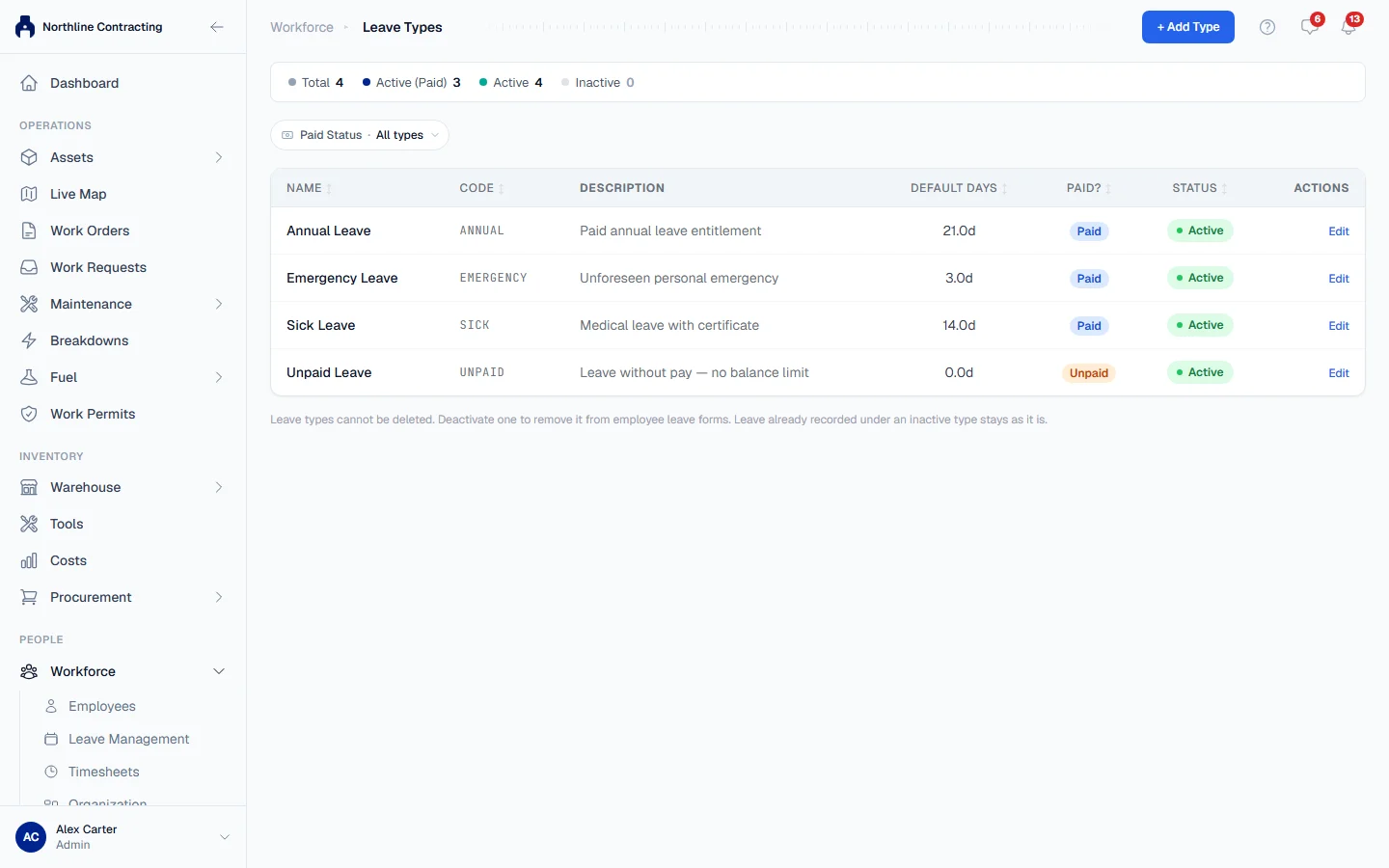
The page counts your types and filters them by Paid Status.
Set an employee's entitlement
- Open the employee's profile from Workforce > Employees and go to the Leave tab.
- Choose the year at the top, then click Set Entitlement.
- Choose the Leave Type and check the Year. If the type has Default Entitlement Days, Days Entitlement is filled in with them; change the number if this person gets a different amount. A number you have typed is never replaced when you change the type.
- Click Save.
Setting an entitlement again for the same type and year replaces the number; it does not add to it. Each year needs its own entitlement.
The Leave tab now shows a card per leave type with the days remaining, the days used, and the entitlement, with a bar showing how much is gone.
Read everyone's balances
- Open Workforce > Leave Management and stay on the Balance Summary tab.
- Choose the Year, and narrow by Department or search for a name if you need to.
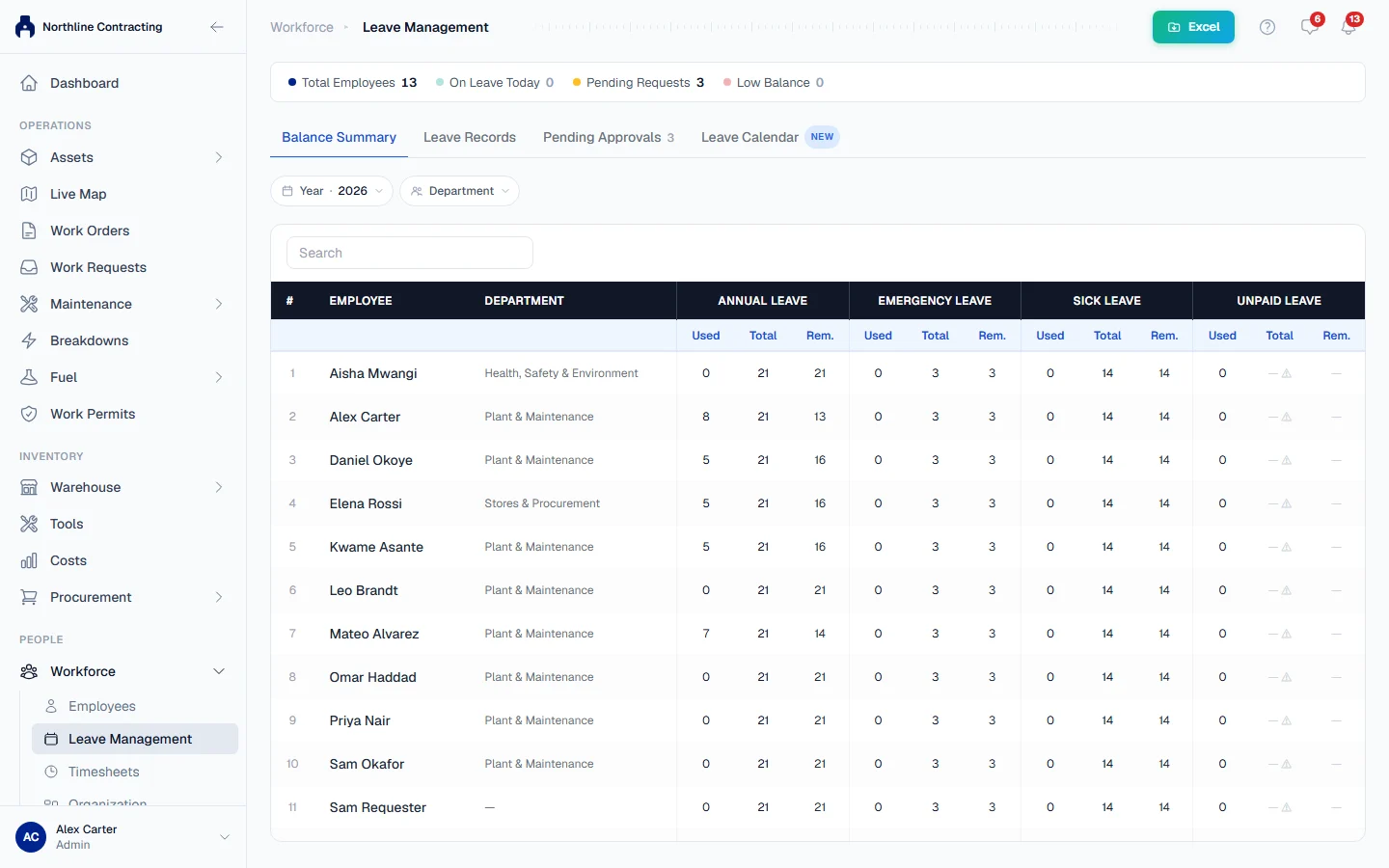
Each employee has a Used, Total and Rem. (remaining) figure per leave type. "No entitlement" means none has been set for that type and year. A balance that has gone below zero is marked (exceeded).
The cards at the top count Total Employees, On Leave Today, Pending Requests and Low Balance: employees with fewer than three days left of any entitlement.
Rules worth knowing
- Pending requests count as used. A day someone has asked for is taken off their balance straight away, so two requests cannot both spend the same days. If the request is rejected or cancelled, the days come back.
- Leave counts against the year it starts in.
- No entitlement means no limit. An employee with no entitlement for a type can still take that leave; their balance shows as unlimited. Set entitlements for every type you want to control.
- Leave types cannot be deleted. Edit a type and switch its Status to Inactive to take it off the leave forms. Leave already recorded under it is kept.
- You cannot set the entitlement on your own employee record. Ask a colleague, so nobody can raise their own allowance.
Troubleshooting
| What you see | What to do |
|---|---|
| "Leave type code '...' already exists." | Choose another code, or use the existing type. |
| "Leave type name '...' already exists." | Choose another name. |
| "You cannot set the leave entitlement on your own employee record" | Ask another person with Leave: Edit to set it. |
| A leave type is missing from the forms | It is inactive. Edit it and switch it back to Active. |