
Help CenterManaging Purchases and Stock
Raise a purchase request
Ask for the things you need on one request, with a reason, an urgency and a photo per line, and send it to your approvers.
A purchase request is how you ask for something to be bought. One request can carry everything one job needs, such as boots, gloves and grease, so the same managers approve it once instead of three times.
Before you start
- You need Procurement: Edit to raise a request. It needs a full seat: work requesters cannot use Procurement.
- Your company needs an approval chain, or the request cannot be sent. An administrator sets it up: see Set up the approval chain.
- Your department and Location are filled in from your employee record, if you have one.
Raise the request
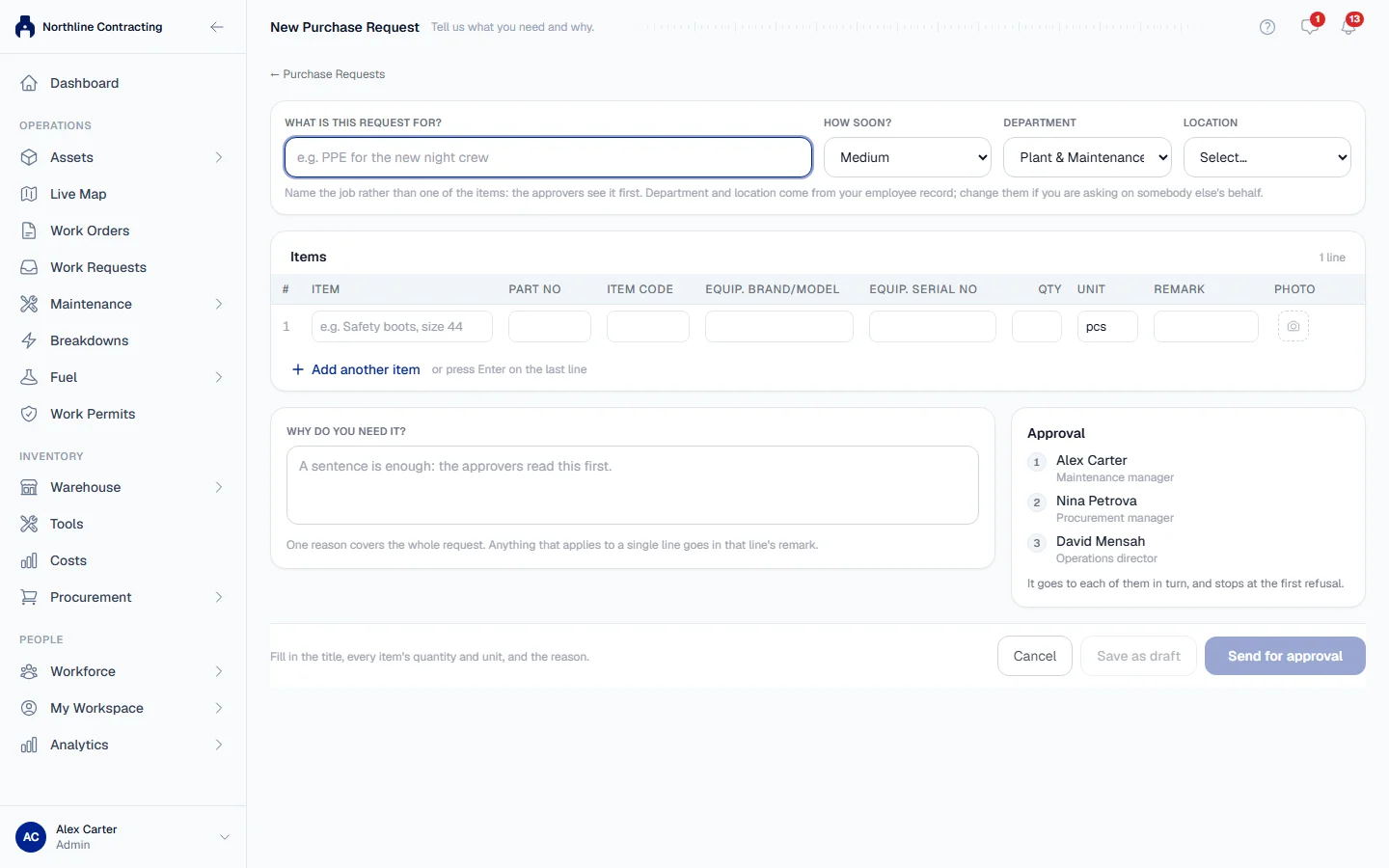
- In the sidebar, open Procurement > Purchase Requests.
- Click + New Request. The New Purchase Request page opens.
- Under What is this request for?, give it a title. Name the job rather than one of the items, for example "PPE for the new night crew": the approvers see it first.
- Choose How soon?: Low, Medium, High or Critical.
- Check Department and Location. Change them if you are asking on somebody else's behalf.
- Under Items, describe the first thing you need in Item, then enter its Qty and Unit.
- Add whatever else helps the buyer find it: Part no, Item code, Equip. brand/model, Equip. serial no and a Remark for anything that applies to this line only.
- To add a photo of the item, use the photo button on the line. One photo per line, and it must be an image.
- Click Add another item, or press Enter on the last line, for the next item. Use the remove button on a line to take it off.
- Under Why do you need it?, write one reason for the whole request. A sentence is enough.
- Check the Approval box at the bottom: it lists who will approve the request, in order.
- Click Send for approval. To finish it later instead, click Save as draft: nobody is asked to approve it yet.
The request's page opens with its number, such as PR-2026-0001. The first approver in the chain is told it is waiting for them.
What every request needs
The Send for approval button stays disabled until the title, How soon?, Department, Location, the reason and every line's description, quantity and unit are filled in. The bar at the bottom says what is missing.
| Field | Notes |
|---|---|
| Part no | The manufacturer's number, for the supplier. Optional. |
| Item code | Your own catalogue code, for the storeman. Optional. |
| Remark | A note for one line, such as a size or a brand. The reason covers the whole request. |
| Photo | Optional. Approvers can open it full size. |
A request can carry up to 50 items. Anything more belongs on a second request.
Drafts
A request is a draft until it is sent. Save as draft on the New Purchase Request page keeps it that way, with any photos you added, until you are ready. When you send a request with photos, Solmex first saves the request as a draft, uploads the photos, then sends it, so the photos are on the record before the first approver is asked. If something interrupts that, for example a lost connection, the request stays a draft.
A draft says This is still a draft. at the top of its page. Click Send for approval there to send it, or Edit to change it first. Only you can see your own drafts.
What happens next
The request goes to each approver in turn. Follow it on its page, under Approval, or on the My Requests tab of the Purchase Requests register. You are told when it is approved, rejected or sent back to you for correction.
Rules worth knowing
- Once sent, the request cannot be changed while it is with its approvers. What the approvers look at has to stay what they agreed to. Ask the approver to send it back, or withdraw it: see Correct, resubmit or withdraw a request.
- The approval chain is fixed when you send it. If an administrator changes the chain later, your request keeps the one it was sent with.
- Photos cannot be added after sending. Add them before you send.
Troubleshooting
| What you see | What to do |
|---|---|
| "No approval chain has been set up yet, so this cannot be sent for approval." | Ask an administrator to set one up under Procurement > Purchase Requests > Approval Chain. |
| "Fill in the title, every item's quantity and unit, and the reason." | Fill in the missing fields. Also check How soon?, Department and Location. |
| "A line photo has to be an image." | Choose a photo file, such as JPG or PNG. |
| "That is the most a single request can carry (50 items)." | Put the remaining items on a second request. |
| No + New Request button | Your role does not include Procurement: Edit. |