
The public equipment card
What a person sees when they scan a machine's QR label, what is never shown to them, and how they can report a problem from it.
When someone scans the QR label on a machine, their phone opens the machine's public card. It works without a Solmex account, so an operator on a hired machine, a subcontractor or a visitor can see what the machine is and tell maintenance about a fault. It shows a short list of facts chosen to be safe for anyone to read.
Before you start
- The machine needs a QR label. See Print a QR label for a machine.
- Nobody needs a login or a permission to open the card. To jump from it to the machine's full record, a person must already be signed in to Solmex with Equipment: View.
What the card shows
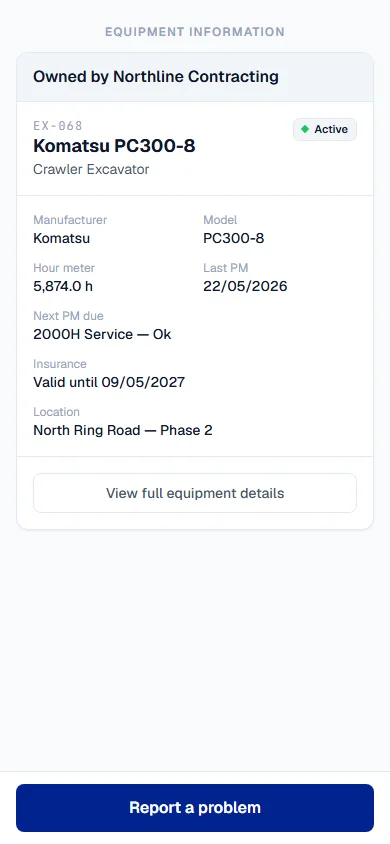
At the top, "Owned by" and your company name, then the machine's Equipment No., its make and model or type, and its status. Below that, any of these that are recorded:
| Field | What it shows |
|---|---|
| Manufacturer, Model | The machine's brand and model. |
| Plate number | Its registration plate, if it has one. |
| Operator | The name of the person last recorded as operating it. Nothing else about them. |
| Hour meter, Odometer | Its latest SMR and kilometre readings. |
| Last PM | The date of its last preventive maintenance service. |
| Next PM due | Its preventive maintenance position, worked out the same way as on the machine's own maintenance tab. Not tracked when it has no PM programme. |
| Insurance | "Valid until" or "Expired" with the date, or "Not on record". This is the later of the Insurance Expiry date on the machine's record and the expiry on its uploaded insurance certificate, whichever are known. |
| Third party | The rental company, shown only for a rented or subcontracted machine. |
| Location | The Location the machine belongs to. |
A field with nothing recorded is simply left off the card.
What the card never shows
The card is built from a fixed list of safe fields, not from the machine's record with some fields hidden. These never appear on it, whoever scans:
- costs, purchase value, rental rates or any other price;
- internal notes and descriptions;
- documents, certificates and photos;
- work orders, breakdowns, inspections and their findings;
- anything about the operator beyond their name.
Report a problem from the card
The Report a problem button stays at the bottom of the screen. It opens a short form that sends a work request to your maintenance team, already linked to this machine, without a login. The person who sends it can follow what happens to it. See Report a problem without a login.
Open the full record
If the person scanning is already signed in to Solmex, the card also shows View full equipment details, which opens the machine's page. Anyone not signed in, or without Equipment: View, does not see the button.
Rules worth knowing
- Every scan is recorded. Solmex writes each successful scan to your audit log, with the network address it came from, since there is no user to name.
- Scans are limited per network. To stop anyone working through labels automatically, one network can open about 30 cards in 5 minutes. Ordinary use never comes near this.
- The card follows the phone's language. Insurance and Next PM due are always shown in English for now.
- An unknown code says only that it is unknown. A damaged, mistyped or replaced code shows the same message, so nobody can learn anything by guessing codes.
Troubleshooting
| What the person scanning sees | What to do |
|---|---|
| "This label is not recognised" | The code does not match any machine. The label may have been replaced or damaged. Print a new one from the machine's page. |
| "Too many requests" | Wait a few minutes and scan again. |
| "Could not load this label" | The phone has no signal or the connection is weak. Press Retry. |
| A field they expected is missing | Nothing is recorded for it on the machine. Fill it in on the machine's Overview tab. |