
Assign PM templates to machines
Put a service programme onto many machines at once from the Assign tab, or onto one machine from its own page, and check what will change before you commit.
A machine has no PM schedule until it follows a template. You can assign one template to many machines in one go, or set it on a single machine from its page.
Before you start
- You need Preventive Maintenance: Assign.
- The template must exist and be active. See Create and edit a PM template.
- For machines already in service, record their last PM first or soon after, so they start at the right point in their cycle. See Import each machine's last PM.
Assign to many machines
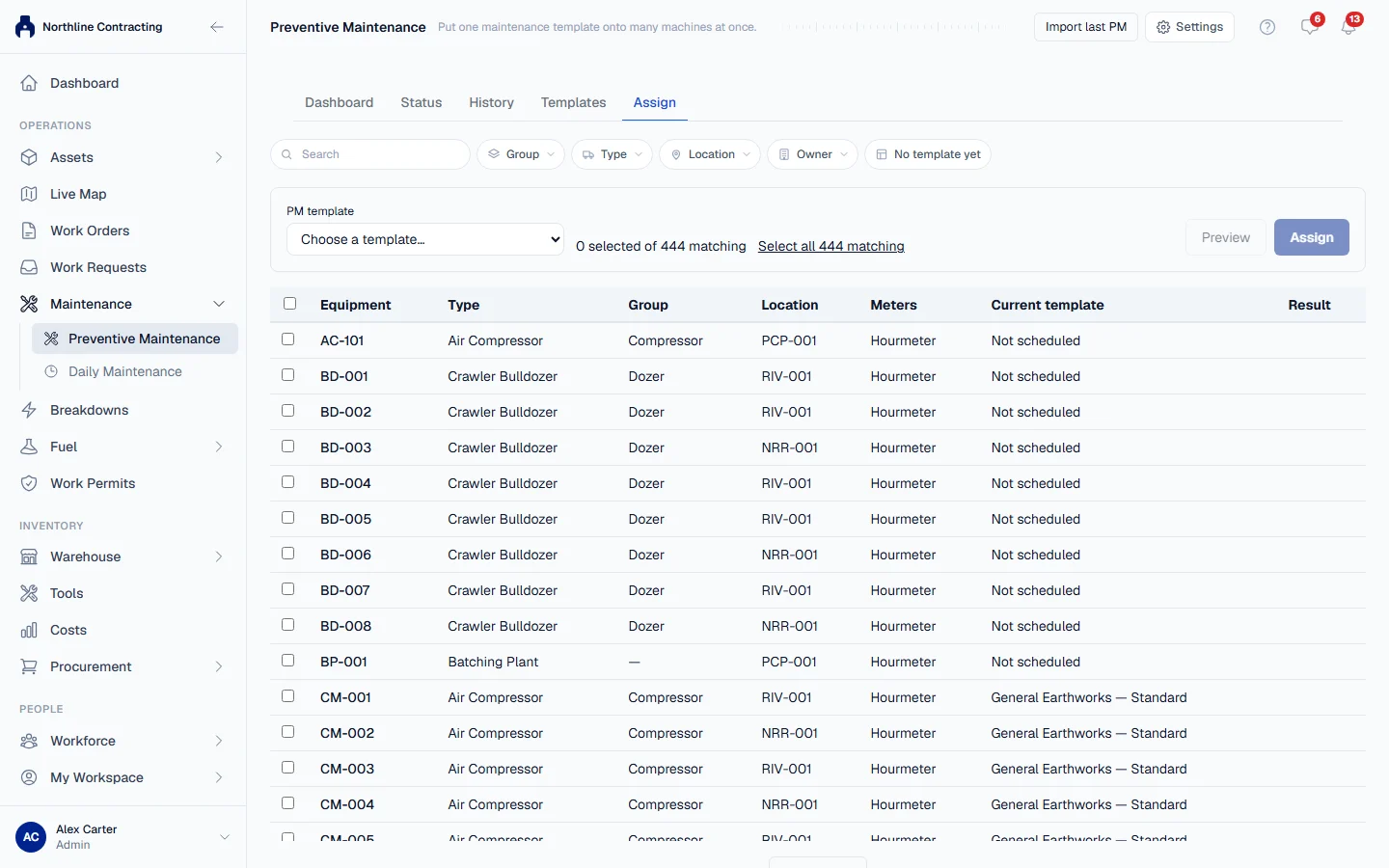
- In the sidebar, open Maintenance > Preventive Maintenance and choose the Assign tab.
- Narrow the list with the search box and filters, such as Group or Owner. Turn on No template yet to see only machines without one.
- Tick the machines. To take every machine the filters match, click Select all ... matching.
- Under PM template, choose the template.
- Click Preview. Solmex checks every selected machine and says what will happen to each one.
- Read the summary and any warnings, then click Assign (the button shows how many machines will change).
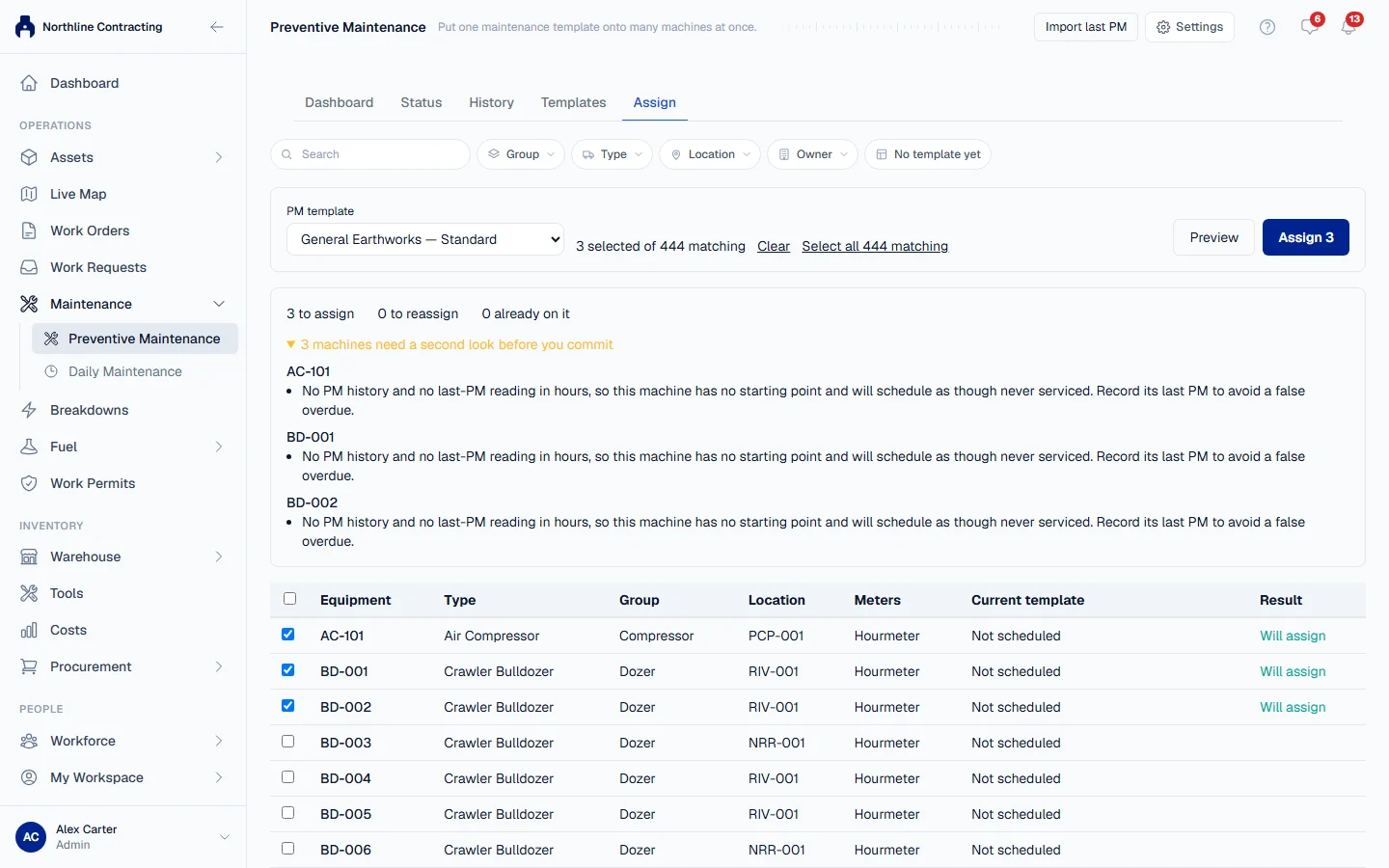
The Result column of the preview says, for each machine:
| Result | Meaning |
|---|---|
| Will assign | The machine has no template and will get this one. |
| Will reassign | The machine is on another template and will move to this one. |
| Already assigned | Already on this template. Nothing changes. |
| Cannot assign | This template cannot schedule this machine. The reason is shown. |
If some machines Cannot assign, either change your selection or tick Skip these ... machines and assign the other ... to go ahead with the rest.
Assign to one machine
- Open the machine and choose the Prev. Maintenance tab.
- Click Assign PM Template, or Change Template if it already has one.
- Choose the template and click Assign.
What happens next
The machine's service intervals appear on its Prev. Maintenance tab with their status, and the machine joins the Status and Dashboard tabs of the Preventive Maintenance page.
If the machine has a last PM on record (from the equipment form or from Import last PM), Solmex uses it as the starting point, so the machine is not shown as overdue for services it has already had.
Rules worth knowing
- The template must match the machine's meters. A template scheduled by hours needs a machine with an hourmeter. A machine with no meter at all can only take a template scheduled by the calendar.
- Changing template keeps the history. Services logged under the old template stay on the record. If the new template does not schedule those same services, they no longer count towards it, and the preview warns you.
- A disposed machine cannot be given a template. Reinstate it first if that was a mistake.
Troubleshooting
| What you see | What to do |
|---|---|
| "Template '...' schedules by hourmeter, which this machine does not have." | Add the meter on the machine's record, or choose a template that matches its meters. |
| "This machine is recorded as having no meter, so it can only be scheduled by calendar." | Choose a template scheduled by the calendar, or correct the machine's meters on its record. |
| "No PM history and no last-PM reading in ..., so this machine has no starting point" | A warning only. Import its last PM to start it at the right point. |
| "... logged service(s) on this machine include milestones '...' does not schedule" | A warning only. Those services stay on record but stop counting towards the new template. |
| "The preview was out of date. Review the updated result below." | Something changed while you were looking. Check the new preview and assign again. |
| The Assign tab is missing | You need the Preventive Maintenance: Assign permission. |