
Help CenterManaging Purchases and Stock
The approved request PDF
Download the signed-off document of an approved purchase request, with every line's outcome and the full approval history.
When a purchase request is approved, Solmex produces a PDF of it: the record of what your company authorized. Hand it to a buyer, attach it to a quotation request, or file it.
Before you start
- You need Procurement: View. You do not need to be the requester.
- The request must be Approved. There is no PDF for a draft, a request still with its approvers, or one that was rejected or withdrawn.
Download it
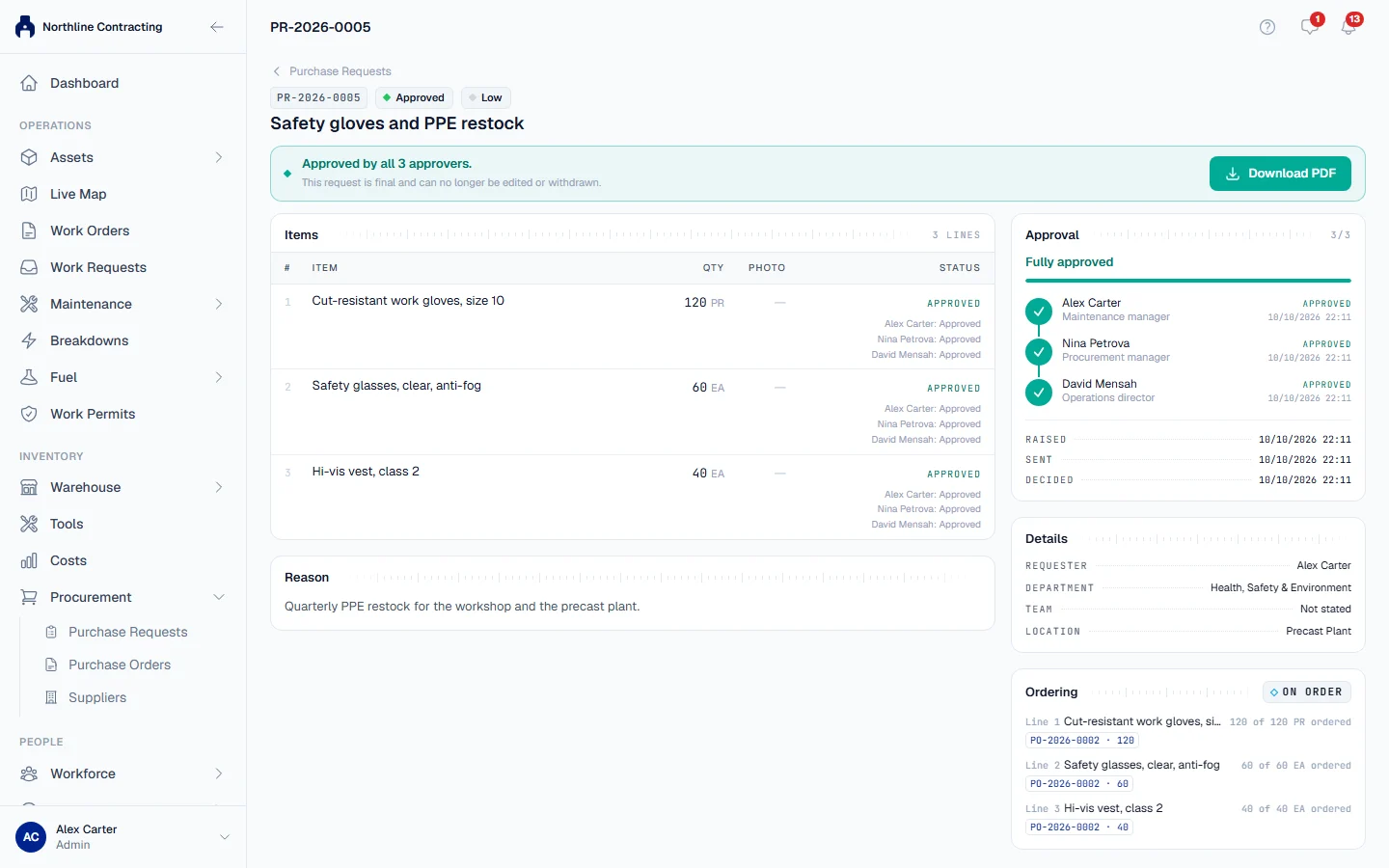
- Open the approved request. A green banner says Approved. or Approved by all 3 approvers.
- Click Download PDF.
The file is named after the request number, such as PR-2026-0014.pdf.
What it contains
- Your company's name and logo, from Settings > Company Settings. See Set up your company.
- The verdict, who raised it, the department, Location and urgency.
- The reason.
- Every line, with its outcome. A refused line shows the reason it was refused.
- The photos attached to the lines.
- The approval history, grouped by pass, so a request that was sent back and resubmitted shows both passes.
- A signature block, and the page number on every page.
Rules worth knowing
- An approved request is final. The PDF will always match what was approved, because the request can no longer be edited or withdrawn.
- Refused lines are printed, not hidden. They show as refused and are not authorized.
Troubleshooting
| What you see | What to do |
|---|---|
| No Download PDF button | The request is not approved yet. |
| "Could not produce the PDF. Please try again." | Check your connection and try again. |