
The Breakdowns list and the Breakdown Status Report
See every machine that is down and why at a glance, and export it as an Excel register or as the printable Breakdown Status Report for management.
The Breakdowns page is the live picture of what is down right now. From it you can export the same picture as an Excel register, or as the Breakdown Status Report: a short PDF written for managers who read it in under a minute, often printed in black and white.
Before you start
- To open the page you need Breakdowns: View.
- To download the Excel register you need nothing more.
- To download the PDF report you also need Analytics: Export, and your plan must include analytics (Business). Without them, the PDF button is not shown. See Plans, trial and seats.
Read the Breakdowns page
In the sidebar, open Breakdowns. The list opens on breakdowns that are still open; the Status filter shows Open / Active. Clear it to see resolved breakdowns as well.
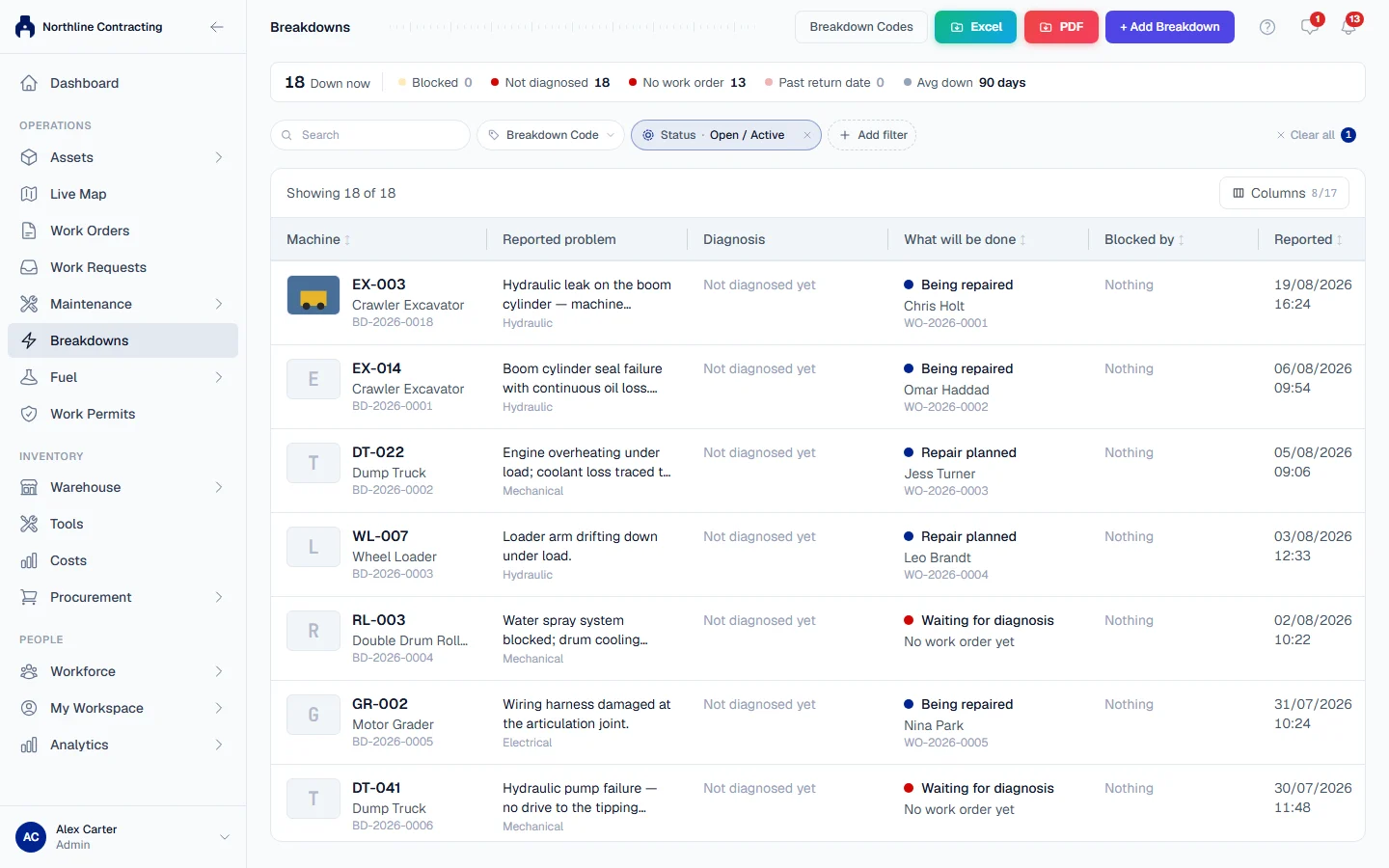
The figures along the top count every open breakdown in your company, whatever the filters say. Each one is also a shortcut: click it to show only those rows in the list below.
| Figure | Counts |
|---|---|
| Down now | Open breakdowns. |
| Blocked | Open breakdowns with a blocker set, such as waiting for spare parts. |
| Not diagnosed | Open breakdowns with no diagnosis yet. |
| No work order | Open breakdowns with no repair work order. |
| Past return date | Open breakdowns whose expected return date has passed. |
| Avg down | The average days down across open breakdowns. |
Each row answers the questions a supervisor asks, in order: which Machine, the Reported problem, the Diagnosis, What will be done (the stage, who it is assigned to and when it is expected back), what it is Blocked by, and how long it has been Down.
Beside the days down, each breakdown carries an age band:
| Band | Days down |
|---|---|
| New | up to 3 days |
| Aging | more than 3, up to 7 days |
| Overdue | more than 7, up to 14 days |
| Critical | more than 14 days |
Use the filters to narrow the list by Breakdown Code, Status, Location, Equipment Group, Equipment Type or reported date, and the search box to find a machine by number. To choose which columns the table shows, and in what order, click Columns at the top right of the table.
Export to Excel
- Set the filters you want.
- Click Excel.
- In Export to Excel, tick the columns to include and drag them into the order you want. Every column is included unless you untick it. Solmex remembers your choice in this browser.
- Click Export Excel. The workbook downloads.
The workbook has a summary sheet and a register sheet with one row per breakdown, plus notes explaining what each column means.
Download the Breakdown Status Report (PDF)
- Set the filters you want. The report covers exactly the breakdowns your filters cover, and says which filters were used.
- Click PDF. The report downloads.
The file is named with today's date. The report is A4 landscape, usually two or three pages, and its header names the Location it was made for:
- Page 1, the overall picture: a one-sentence summary; six figures (Active breakdowns, Equipment down, Average downtime, Longest breakdown, Critical breakdowns and Asset availability); the machines with the Longest Downtime; Management Insights, written from the data; and four small charts by equipment group, current blocker, root cause and time out of service.
- From page 2, Breakdowns in Detail: one row per open breakdown, longest down first, with the equipment, the issue reported, the diagnosis, the current blocker, the stage, the expected return date and who owns it.
- Data Notes: what the report could not state, for example how many breakdowns have no expected return date.
Every page carries "Page X of Y", the time it was generated, and your company logo if you have set one.
Rules worth knowing
- Colour is never the only signal. Each age band is printed as a word as well as a colour, so the report still reads on a black and white printer.
- A critical breakdown on the report is one down for more than 14 days, or one whose work order has critical priority. The definition is printed on the figure itself.
- Asset availability is the share of machines on site that are not broken down when the report is made. It is shown against a 90% target, with a trend against 30 days ago when the report is not filtered.
- Missing information is named, never guessed. An expected return date nobody set prints as "Not set".
- Cancelled breakdowns are left out of every count and average, on the page and in both exports. To list them, set the Status filter to Cancelled.
Troubleshooting
| What you see | What to do |
|---|---|
| "PDF generation failed. Please try again." | Try again. If the server gives a reason, that reason is shown instead. |
| No PDF button | You need Analytics: Export, and your plan must include analytics. Ask your administrator. |
| "Excel export failed. Please try again." | Try again. |
| Excel cannot be clicked | The list is empty. Change the filters. |
| "Calm waters", with a note that no breakdowns match the current filters | Nothing matches. Clear or change the filters. |
| A breakdown is missing from the list | It may be resolved or cancelled. Change the Status filter. |