
Transfer a machine to another Location
Move a machine from one Location to another from a chosen date, keeping all of its history.
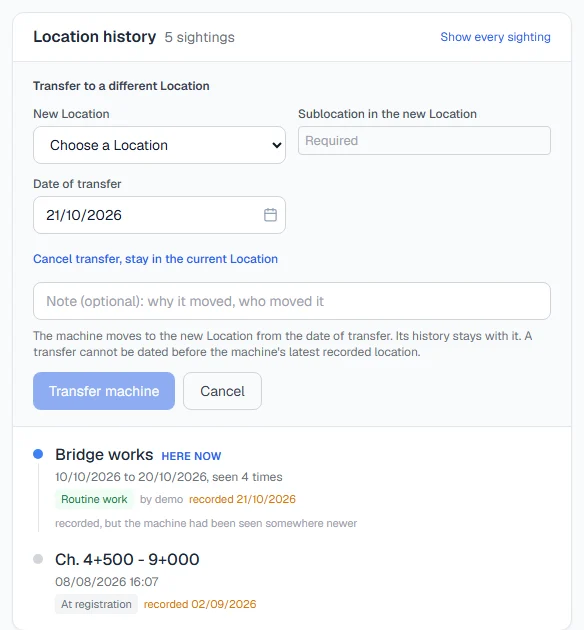
When a machine leaves one site for another, it moves to a different Location, not just a different Sublocation. A transfer records that move from a date you choose, and the machine's history goes with it.
Before you start
- You need the Equipment: Edit permission.
- The new Location must exist, with at least one active Sublocation for the machine to go to. See Add Locations and Sublocations.
Transfer the machine
- Open the machine. On the Overview tab, find the Location history card.
- Click Log a location, then Relocate to a different Location. The form changes to Transfer to a different Location.
- Choose the New Location.
- Choose the Sublocation in the new Location where the machine will be.
- Set the Date of transfer. It starts at today.
- Add a note if it helps, such as the reason for the move.
- Click Transfer machine.
The card confirms "Transferred. The machine is now in" the new Location, at the Sublocation you chose, and the machine's page now shows its new Location.
To change your mind before saving, click Cancel transfer, stay in the current Location.
Rules worth knowing
- The history stays with the machine. Work orders, readings, fuel, inspections and costs recorded at the old Location remain on the machine's record.
- A transfer cannot be dated before the machine's latest recorded location. A transfer says where the machine is from that date on, so a newer record saying it was somewhere else would contradict it.
- Moving between Locations is always deliberate. Choosing a Sublocation of another Location in the ordinary log form is refused. See Log where a machine is.
Troubleshooting
| What you see | What to do |
|---|---|
| "The machine was recorded somewhere on a later date than this transfer. Use a transfer date on or after its latest location entry." | Check the top of the Location history card and choose a date on or after it. |
| The new Location is not in the list | It does not exist yet, or you cannot see it. Ask an administrator. |
| No Sublocations offered for the new Location | It has none, or they are all archived. Add one first. |
| Transfer machine stays greyed out | Choose a new Location, a Sublocation and a date of transfer. |