
Help CenterMessaging and Notifications
Chat basics
Send direct messages to colleagues, share photos and files, reply, react and mention people, and edit or delete what you sent.
Chat lets the people in your company talk to each other inside Solmex, without a separate messaging app. You can message one colleague directly, or talk in a group (see Chat groups).
Before you start
- Chat is part of the Business plan. Every user in your company can send direct messages; no permission is needed.
- The other person needs an active Solmex account in your company.
Open chat
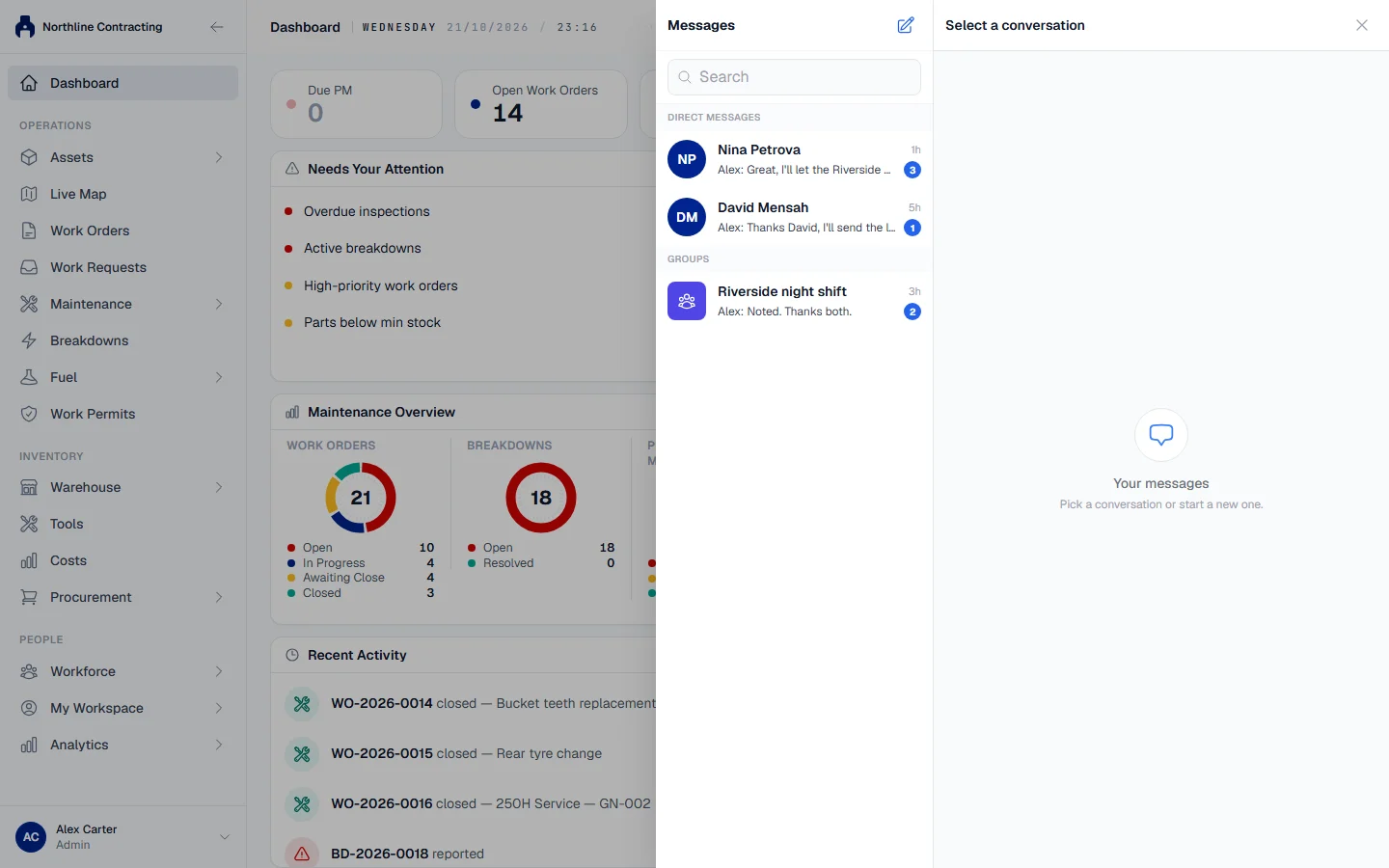
Click the chat bubble in the app header, next to the notification bell. A red badge on it shows how many messages you have not read. The chat panel opens on the side of the page, with your conversations listed under Direct Messages, Work Orders, Teams, Departments and Groups. Use Search conversations to find one by name.
In the mobile app, once it is released, chat will be the Chat tab along the bottom. See The Solmex mobile app.
Send a direct message
- In the chat panel, click New message.
- Stay on Direct message and search for the person under Search people.
- Click their name. The conversation opens.
- Type in the Message box and click Send.
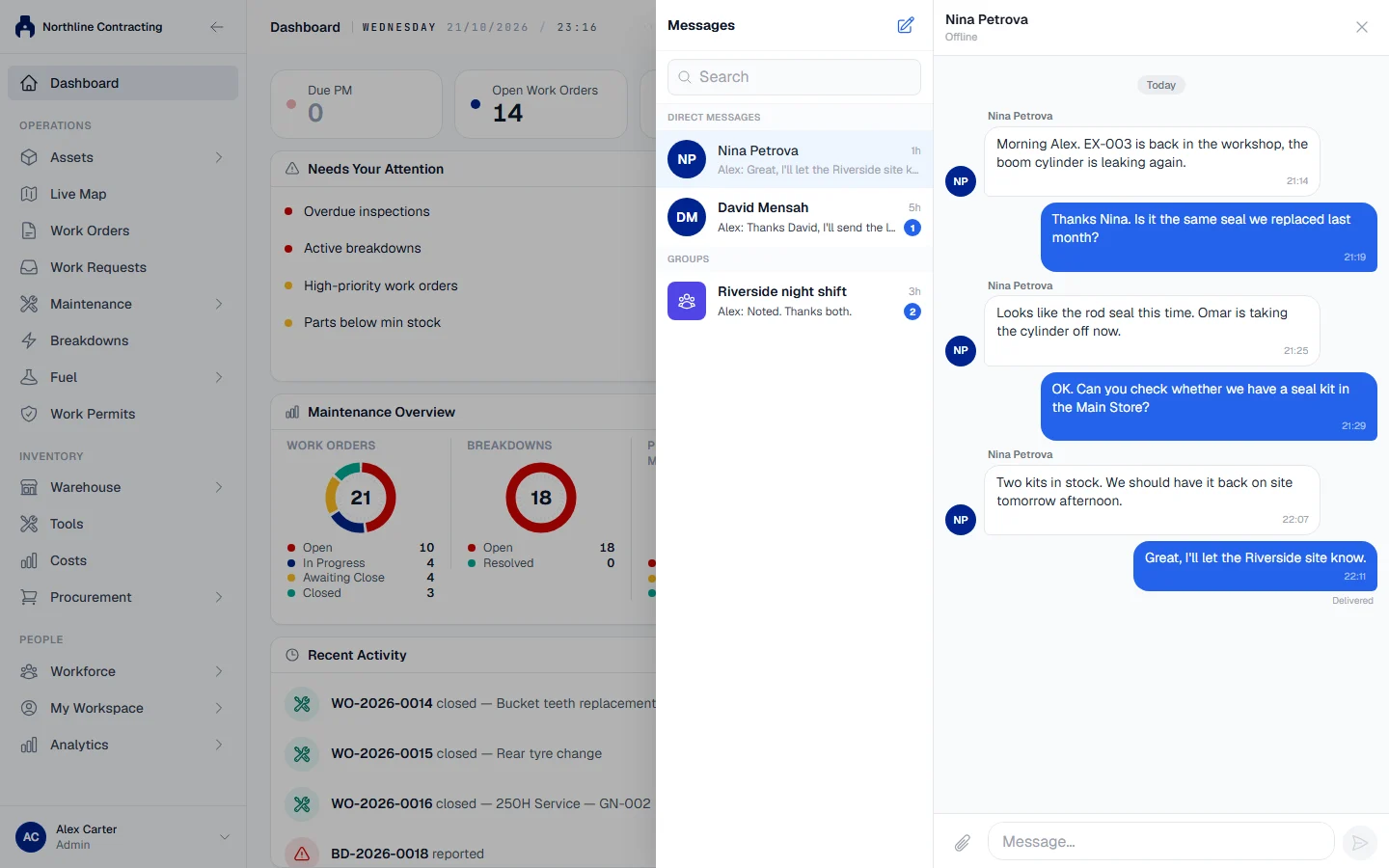
If you have messaged the person before, the same conversation opens again: there is only one direct conversation between two people.
Photos and files
Click Attach files beside the message box, or drag files onto the conversation (Drop files to send). You can send up to 10 files at a time.
| Kind | Accepted |
|---|---|
| Photos | JPG, PNG, WEBP and HEIC. Large photos are made smaller before they are stored. |
| Documents | PDF, Word, Excel, CSV, text and PowerPoint files. |
Your company's upload size limits apply. Animated GIFs are not accepted.
Reply, react and mention
Each message has these actions:
- Reply quotes the message above yours, so it is clear what you are answering. Cancel reply drops the quote.
- React adds one of six emoji reactions. Click it again to take it away.
- Type @ followed by a name to mention someone. They get a notification that names you, even when they are not reading the conversation.
Edit or delete what you sent
| Action | How long you have |
|---|---|
| Edit | 15 minutes after sending |
| Delete | 5 hours after sending |
A deleted message is replaced with "This message is deleted". It is not wiped from your company's records.
Delivered and Seen
In a direct conversation, your latest message shows Delivered until the other person has read it, then Seen. Group conversations do not show this, because a group has many readers.
What happens next
Each new message sends the other people in the conversation a notification. Several messages in a row from the same person collapse into one notification that keeps count. See Notifications.
To talk about one particular work order, use the Chat button on the work order itself. See Discuss a work order.
Troubleshooting
| What you see | What to do |
|---|---|
| "Edit window has expired (15 minutes)" | You can no longer change this message. Send a new one with the correction. |
| "Delete window has expired (5 hours)" | You can no longer delete this message yourself. Ask a chat administrator if it must come down. |
| "Cannot start a conversation with yourself" | Choose another person. |
| "User not found or inactive" | The person's account is disabled. Ask your administrator. |
| "Unsupported file type: ..." | Send the file as PDF, an Office file, CSV, text, or a JPG, PNG, WEBP or HEIC photo. |
| "Maximum 10 files per upload" | Send the files in smaller batches. |
| No chat bubble in the header | Your company's plan does not include chat. |