
Help CenterManaging Purchases and Stock
Issue parts
Hand stock out of the store with a goods issue, charged to a machine, a Location or a cost centre, and see what it cost.
A goods issue records stock leaving the store: oil drawn for the workshop, a box of rags, a set of filters taken for a machine. One issue can carry many lines, and you can charge it to a machine, a Location, a cost centre, or nothing at all. Posting it takes the stock off the shelf and sends its cost to Costs.
Before you start
- You need Warehouse: Edit.
- The parts must be in stock at the storage location you are issuing from.
- To charge a machine, you also need Equipment: View, so you can search for it.
Post an issue
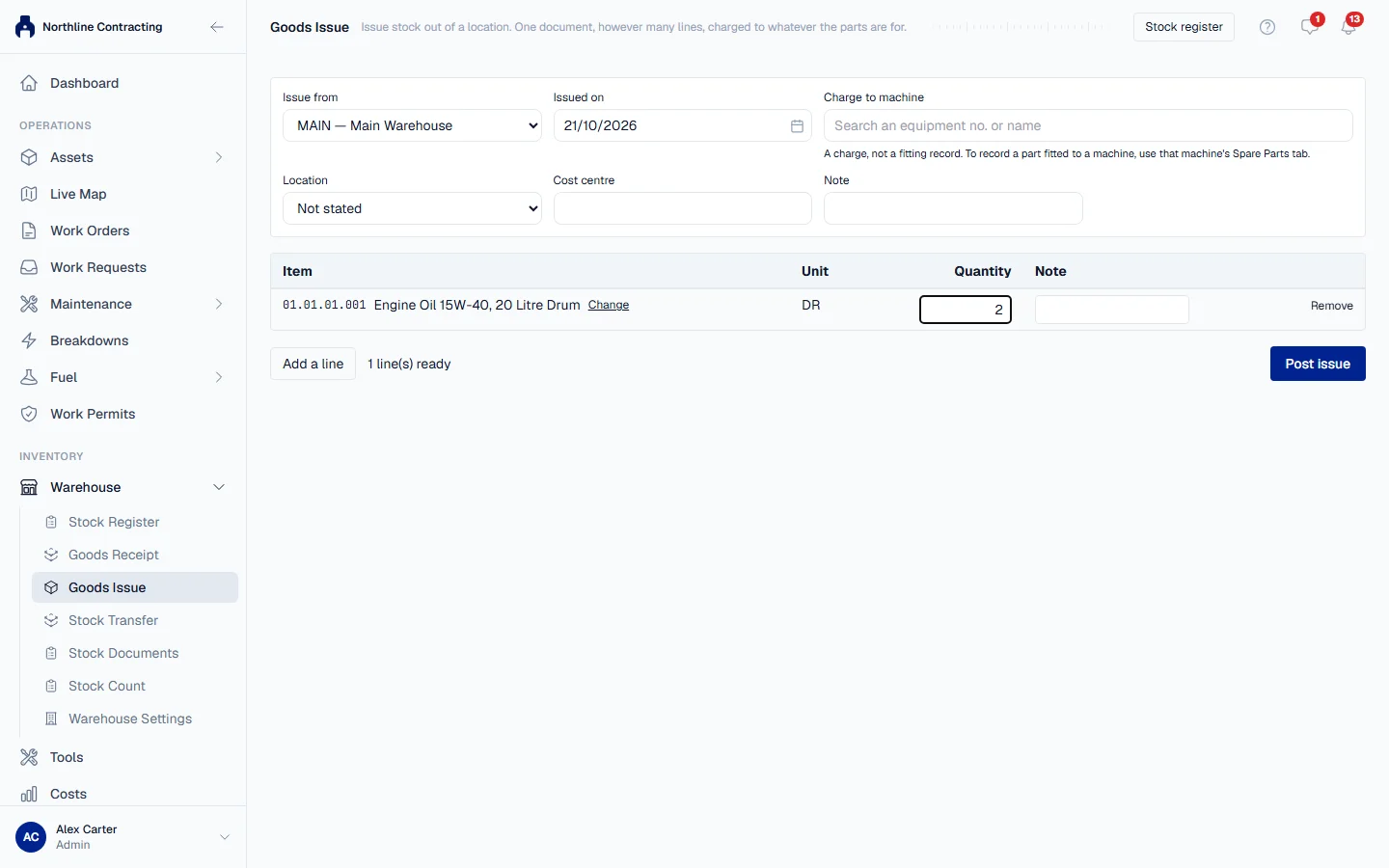
- In the sidebar, open Warehouse > Goods Issue. To issue one part, you can also expand its row on the Stock Register and click Goods Issue; that part is placed on the first line for you.
- In Issue from, choose the storage location the parts come out of. If you have only one store, it is chosen for you.
- Check Issued on. It defaults to today and cannot be a future date.
- Optionally, in Charge to machine, search an equipment number or name and pick the machine.
- Optionally, choose the Location the parts are for. Leave it on Not stated if it does not apply.
- Optionally, enter a Cost centre: your own cost centre code, as free text.
- Add a Note for the whole issue if you like.
- On the first line, search the Item by stock code or description and pick it. Enter the Quantity, and a line Note if useful.
- Click Add a line for each further part.
- Click Post issue.
A green message gives the issue's number, such as ISS-2026-0001, with the number of lines and the total quantity, and the value of the issued stock.
What the issue costs
You do not enter a price. Solmex takes the stock from the oldest delivery first and charges each piece at what that delivery cost. The value goes to Costs, against the machine or Location you chose. An issue charged to a machine also appears on that machine's Costs tab and under Parts History on its Spare Parts tab. See The Costs tab.
Rules worth knowing
- All or nothing. If any line cannot be issued, for example because there is not enough of it, nothing is posted. Fix the line and post again.
- Stock comes from the location you chose, and only from there. The In Stock total on the register may include stock held in other stores. When there is not enough at the chosen location but there is elsewhere, the message says where, so you can issue from there or transfer it first.
- A posted issue cannot be edited. If parts come back to the shelf unused, correct the shelf with a stock count.
- Archived storage locations are not offered. If stock is still recorded at one, move it to an active location with a stock transfer.
Troubleshooting
| What you see | What to do |
|---|---|
| "... has 2 available at Rack 4, not 5" | There is not enough of that part at the chosen location. Reduce the quantity, or receive more first. |
| "... has 0 available at Rack 4, not 2; 12 at Main Store. Transfer it first." | The part is held at another storage location. Choose that location in Issue from, or transfer it to the one you are issuing from. |
| "You do not have permission to issue stock." | Ask an administrator for Warehouse: Edit. |
| Post issue stays greyed out | Choose a location in Issue from, and give at least one line a part and a quantity above zero. |
| The machine search finds nothing | Type at least two characters. If it still finds nothing, your role may not include Equipment: View; leave the machine blank or ask someone who can see it. |
| "... is inactive and cannot be issued" | The part has been made inactive. |
| "A stock document cannot be dated in the future" | Change Issued on to today or earlier. |