
Follow a machine's day track
Draw the route a GPS-tracked machine took on one day, with its distance, stops, gaps in the signal and a playback of the day.
A machine with a GPS tracker reports its position many times a day. The Day track draws those positions as a route on the plan, with the day's distance, moving and standing time, its stops and a playback, so you can see where the machine went and when.
Before you start
- Live Map is switched on per company, not by plan. If you do not see it, contact Solmex.
- You need Live Map: View and Equipment: View.
- The machine needs a GPS tracker connected to it. See Connect GPS trackers.
- The plan must be a map (a georeferenced plan or an imported KMZ). A picture has no coordinates to draw a route on.
Open a day track
- Open Live Map and choose the Location.
- Click the machine on the plan or in the list.
- In its panel, click Day track.
- The newest day with GPS positions opens. Use Older day and Newer day, or the Day list, to choose another.
The route is drawn in the machine's own map colour, with arrows for direction, circles for stops (larger for longer stops), and the start and end marked. Every other machine is dimmed.
Click Play the day to watch the machine move through the day in about 20 seconds, or drag Move through the day to scrub to a time. Widen map gives the route more room; Close track returns to the normal plan.
The link in your browser's address bar includes the machine and the day, so you can send it to a colleague.
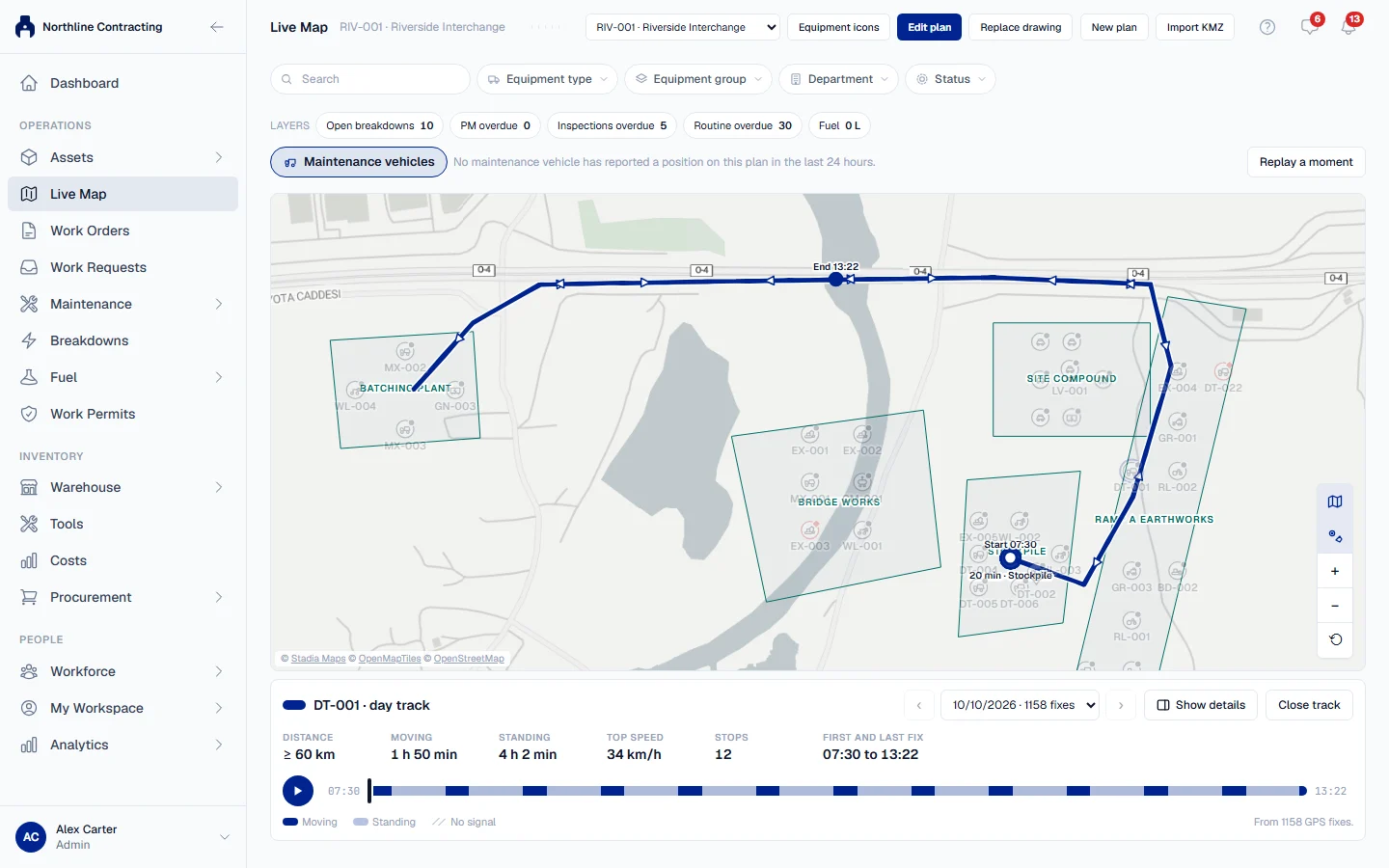
The figures
| Figure | Meaning |
|---|---|
| Distance | Measured in straight lines between GPS positions, so the machine drove at least this far. |
| Moving | Time spent moving between positions. |
| Standing | Time between positions that barely moved. Not engine hours: the tracker sends no ignition signal. |
| No signal | Stretches with no position for over 15 minutes. Counted as neither distance nor time. |
| Top speed | The highest speed on the day's track. |
| Stops | Places where the machine stayed within about 40 m for at least 5 minutes. |
| First and last fix | The times of the day's first and last positions. |
The timeline under the figures is painted moving, standing and no signal by the same rules, so it always agrees with the figures beside it.
Rules worth knowing
- The distance is a lower bound. Positions are joined by straight lines, not matched to roads, so a winding route is longer than the figure.
- A gap is not a journey. Where the tracker went silent for more than 15 minutes, the line is dashed and nothing is counted. If the machine was in the same place before and after, the gap is shown as Silent, not moved: most trackers go quiet with the ignition off, but nobody saw it stay there, so it is not counted as a stop.
- Impossible jumps are ignored and counted. A position that would need a speed no machine can reach is left out, and the panel says how many were.
- The day is your day. Days start and end at midnight in your browser's time zone.
- Positions are kept for 30 days. Older days are not offered in the list, rather than drawn as empty days.
Troubleshooting
| What you see | What to do |
|---|---|
| "This plan is a picture, not a map, so a GPS route cannot be drawn on it." | Open a georeferenced plan of this Location from the Plan list. |
| "This machine has reported no GPS position in the last 30 days, so there is no route to draw." | Bind a tracker to the machine on the GPS feed settings tab. See Connect GPS trackers. |
| "No GPS fixes on this day." | Pick another day from the list. |
| "This day has more GPS fixes than can be read at once, so only the part up to 14:30 is shown." | The figures cover only the part shown. |
| "The track could not be loaded." | Check your connection and try again. |