
Help CenterManaging Purchases and Stock
Raise a purchase order
Order from one supplier with priced lines, either from approved purchase request lines or from scratch, and send it for approval.
A purchase order is the company's commitment to buy: one supplier, priced lines and one total. It usually follows an approved purchase request, but it does not have to. This article raises one and sends it for approval.
Before you start
- You need Procurement: Order. Being able to raise purchase requests is not enough: asking for something and committing the company to pay for it are different authorities.
- The supplier must be on the register. See Suppliers.
- Somebody other than you must hold Procurement: Approve, because you cannot approve your own order.
Raise an order from an approved request
- Open the approved purchase request. Its Ordering panel says how much of each line is already on order.
- Click Raise purchase order. The New Purchase Order page opens with the request's outstanding lines already on it.
- Continue from step 3 below.
Raise an order from scratch
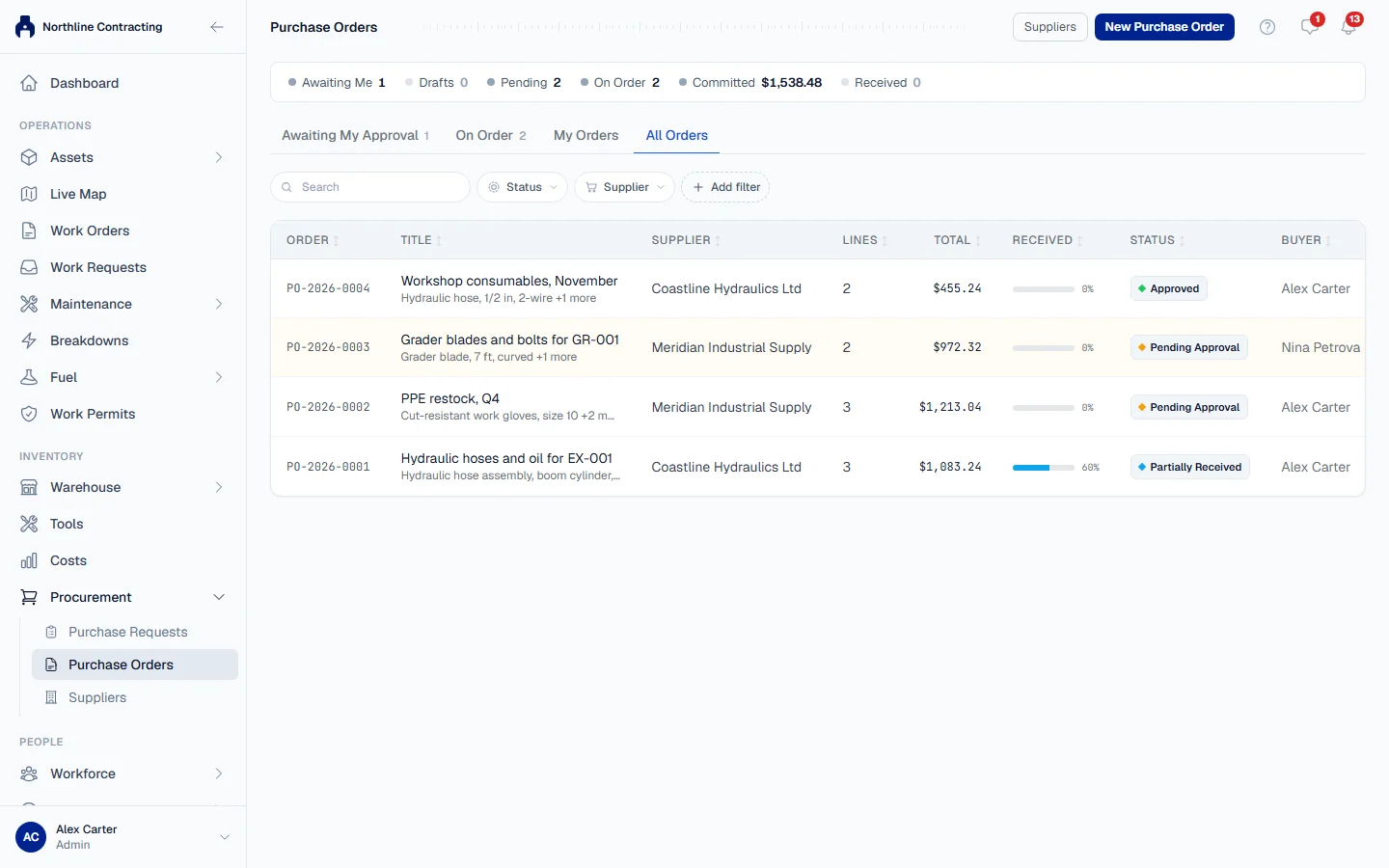
- In the sidebar, open Procurement > Purchase Orders.
- Click New Purchase Order.
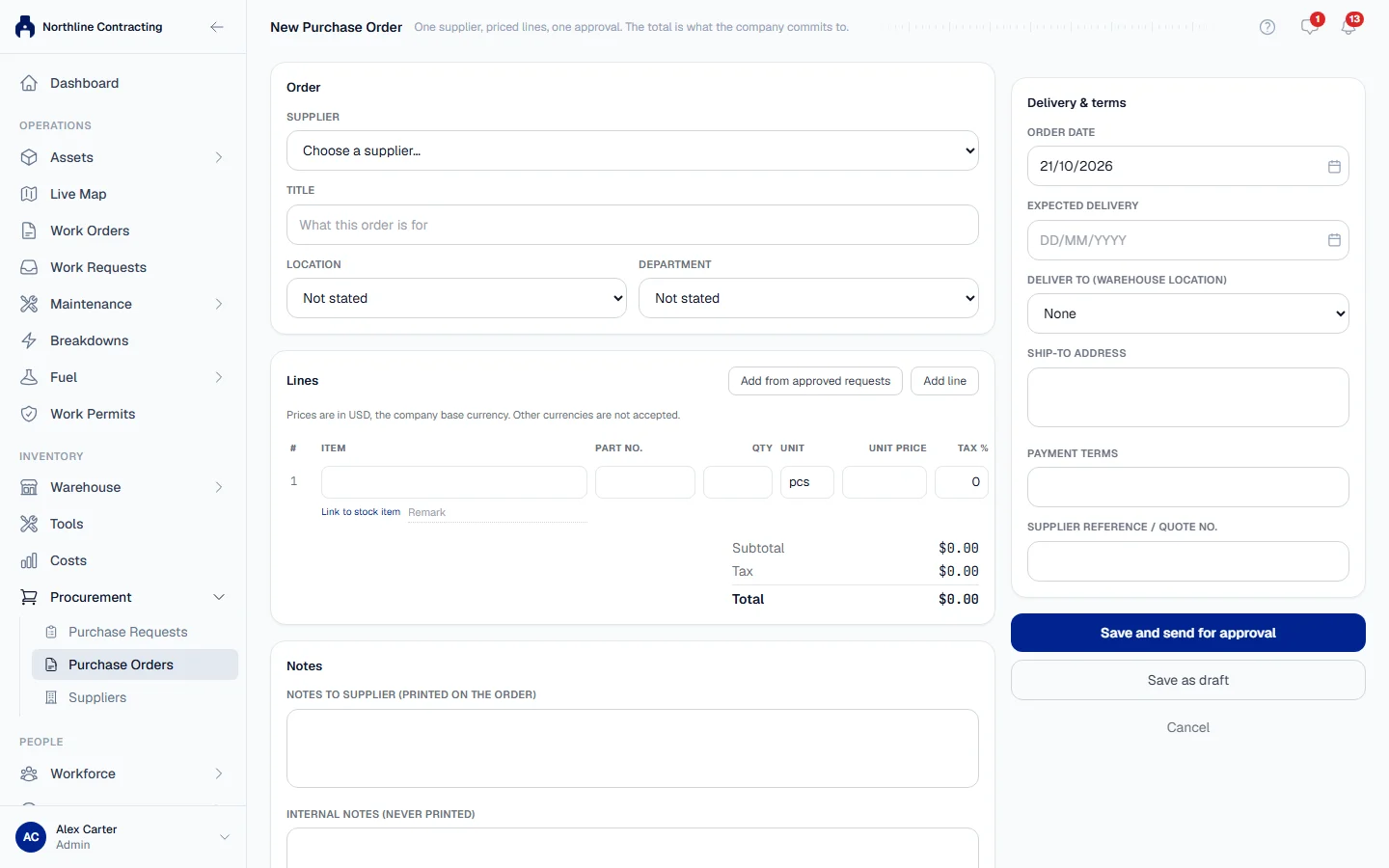
- Under Order, choose the Supplier and give the order a Title saying what it is for. Choose a Location and Department if they apply.
- Under Lines, fill in each line's Item, Qty, Unit and Unit price. The Tax % starts at the supplier's default rate. Add a Part no. and a Remark if useful.
- To bring in lines from approved requests, click Add from approved requests, tick the lines you want and click Add selected. One order can combine lines from several requests.
- To have a line go into the warehouse when it arrives, click Link to stock item on the line and search the parts catalogue. See the note below.
- Click Add line for more lines. The Subtotal, Tax and Total update as you type.
- Under Delivery & terms, fill in Order date, Expected delivery, Deliver to (warehouse location), Ship-to address, Payment terms (copied from the supplier) and Supplier reference / quote no.
- Under Notes, write anything for the supplier in Notes to supplier (printed on the order), and anything for your own team in Internal notes (never printed).
- Click Save and send for approval, or Save as draft to finish later.
What happens next
The order gets a number and waits for approval. Everyone who holds Procurement: Approve, apart from you, is told it is waiting. See Approve a purchase order.
A draft can be changed with Edit and sent with Send for approval from its page.
Linking a line to a stock item
A line is free text by default, which suits things that are not kept in the warehouse, such as an office chair. When a line is a part you keep in stock, link it to the stock item: when the delivery is recorded, the quantity is received into the warehouse at this order's price, in the same step.
The line's unit must be the unit the item is stocked in. If the item is counted in pieces, order it in pieces.
Rules worth knowing
- Prices are in your company's base currency. No other currency is accepted. The currency is set under Settings > Company Settings.
- You cannot order more than was approved. Across every live order, a request line can be ordered up to its approved quantity, and no further. A cancelled order frees its quantity; an order closed short frees what never arrived.
- A refused request line cannot be ordered.
- An order can be edited only while it is a draft, and only by the person who raised it.
- An order carries up to 100 lines.
Troubleshooting
| What you see | What to do |
|---|---|
| "Choose a supplier." | Pick one in Supplier. If the list is empty, click Manage suppliers to add one. |
| "Give the order a title." | Fill in Title. |
| A message that a line's item, quantity, unit and price are required | Complete that line. A price of 0 is allowed. |
| A warning that nobody else holds the Procurement: Approve permission | Ask an administrator to give Procurement: Approve to a second person under Settings > Roles. |
| A message that a request line "has … left to order" | Lower the quantity to what is left, or check the other orders already covering that line. |
| A message that a request "is not approved" | Only approved requests can be ordered from. |
| A message that a line's unit must match the stock item's unit | Change the line's unit to the one named, or unlink the stock item. |
| A message that the supplier "is archived and cannot be ordered from" | Restore the supplier, or choose another. |
| No New Purchase Order button | Your role does not include Procurement: Order. |