
Help CenterManaging the Organisation
Departments, subdivisions, teams and positions
Set up the lists employees are filed under: departments, the subdivisions and teams inside them, and job positions.
Four lists describe how your company is organised. Every employee is filed under them, and the employee list, the organisation chart, timesheets and leave can all be filtered by them. Set them up before you add your people, so you can pick from them rather than come back later.
| List | What it is | Belongs to |
|---|---|---|
| Department | A main division, such as Maintenance or Operations. | Nothing: it is the top level. |
| Subdivision | A part of a department, such as Mechanical or Electrical. | One department. |
| Team | A working crew, such as Night Shift Fitters. | One department, and optionally a subdivision. |
| Position | A job title, such as Senior Mechanic. | Optionally a department. |
Before you start
- You need Employees: Edit. The four pages are in the sidebar under Workforce: Departments, Subdivisions, Teams and Positions.
- Work top down: departments first, then subdivisions and teams inside them.
Add a department
- Open Workforce > Departments and click + Add Department.
- Enter the Department Name and an optional Description.
- Click Create Department.
Add a subdivision
- Open Workforce > Subdivisions and click + Add Subdivision.
- Choose the Department it belongs to, then enter the Subdivision Name and an optional Description.
- Click Create Subdivision.
Add a team
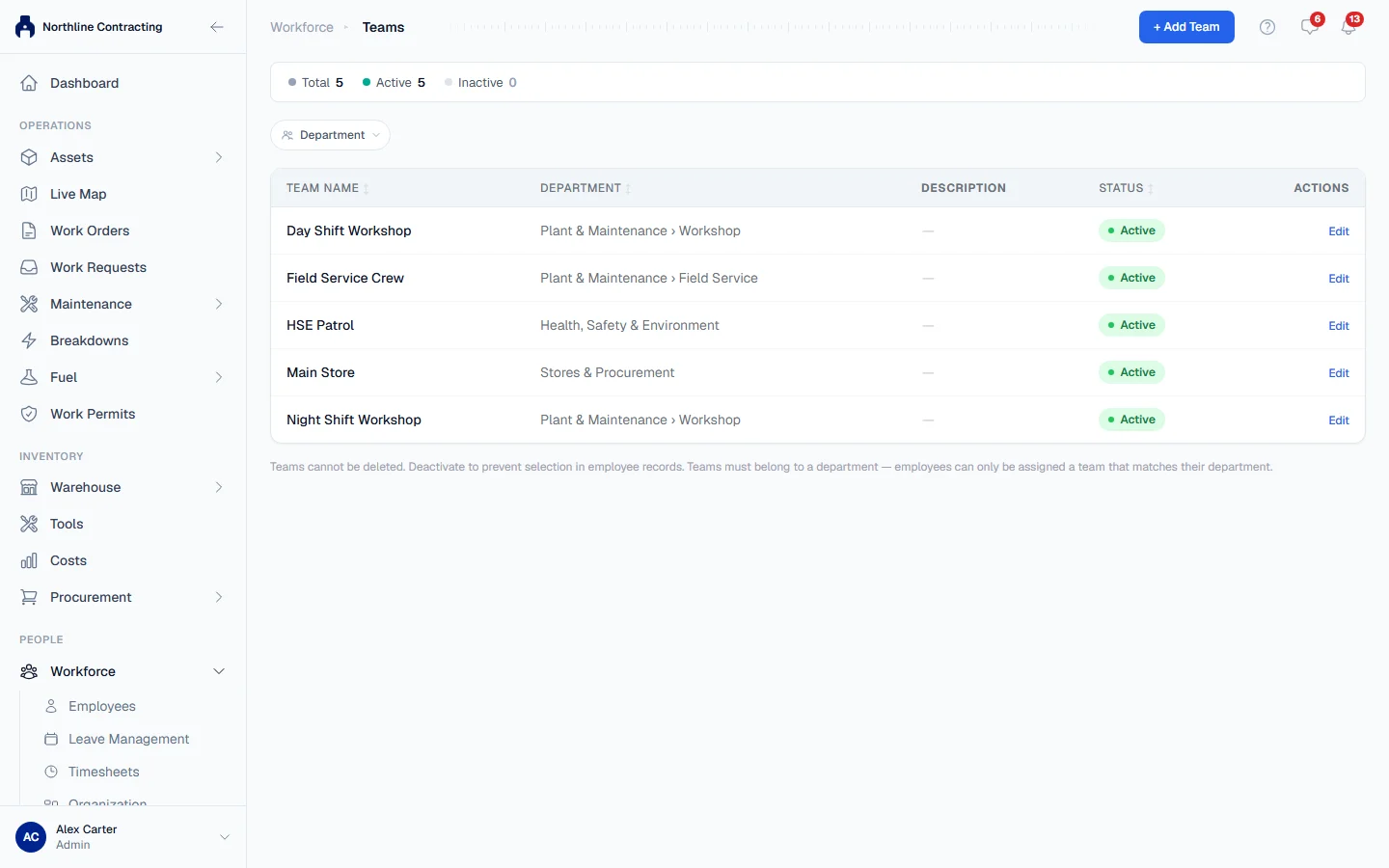
- Open Workforce > Teams and click + Add Team.
- Choose the Department. Then, if you use them, choose a subdivision under Subdivision (optional).
- Enter the Team Name and an optional Description.
- Click Create Team.
Add a position
- Open Workforce > Positions and click + Add Position.
- Enter the Position Title, and choose a department under Department (optional) if the title belongs to one.
- Click Create Position.
Rename, or stop using an entry
Click Edit on the row, change the name or description, and save. To stop using an entry, switch its Status to Inactive in the same window.
Each page counts its Total, Active and Inactive entries, and the subdivision, team and position pages can be filtered by department.
Rules worth knowing
- Nothing on these lists can be deleted. An inactive entry disappears from the pickers for new records, but every employee already filed under it keeps it.
- A subdivision's or team's department cannot be changed after it is created. To move a team to another department, create a new team there and move the people.
- Names must be unique: a department name across the company, a subdivision or team name within its department.
- A team's subdivision must belong to the team's department, and so must an employee's team and subdivision.
Troubleshooting
| What you see | What to do |
|---|---|
| "Department name already exists" | Choose a different name, or edit the existing department. |
| "Team name already exists in this department" or "Subdivision name already exists in this department" | Choose a different name, or reactivate the existing one. |
| "Subdivision does not belong to the selected department" | Choose a subdivision from the team's own department. |
| "Select a department first." | Choose the Department before the subdivision. |
| An entry is missing from a picker | It is inactive. Edit it and switch it back to Active. |