
Raise a work request in the app
Tell maintenance that a machine needs attention. They decide whether it becomes a work order, a breakdown, or needs no work.
A work request is how anyone in your company asks maintenance to look at something. It is not yet a job: nobody has accepted the work. Maintenance reads the request and turns it into a work order or a breakdown, or closes it with a reason you can read.
This article covers raising a request from inside Solmex. People without a login can use the QR label or your public request page instead: see Report a problem without a login.
Before you start
- You need the Work Requests: Edit permission to raise a request, and Work Requests: View to follow it afterwards.
- Both permissions fit a work requester seat, so the people who report problems do not need a full seat. See Invite your team.
- The machine does not have to be on the register. If it is not, you describe it in words.
Raise a request
- In the sidebar, open Work Requests.
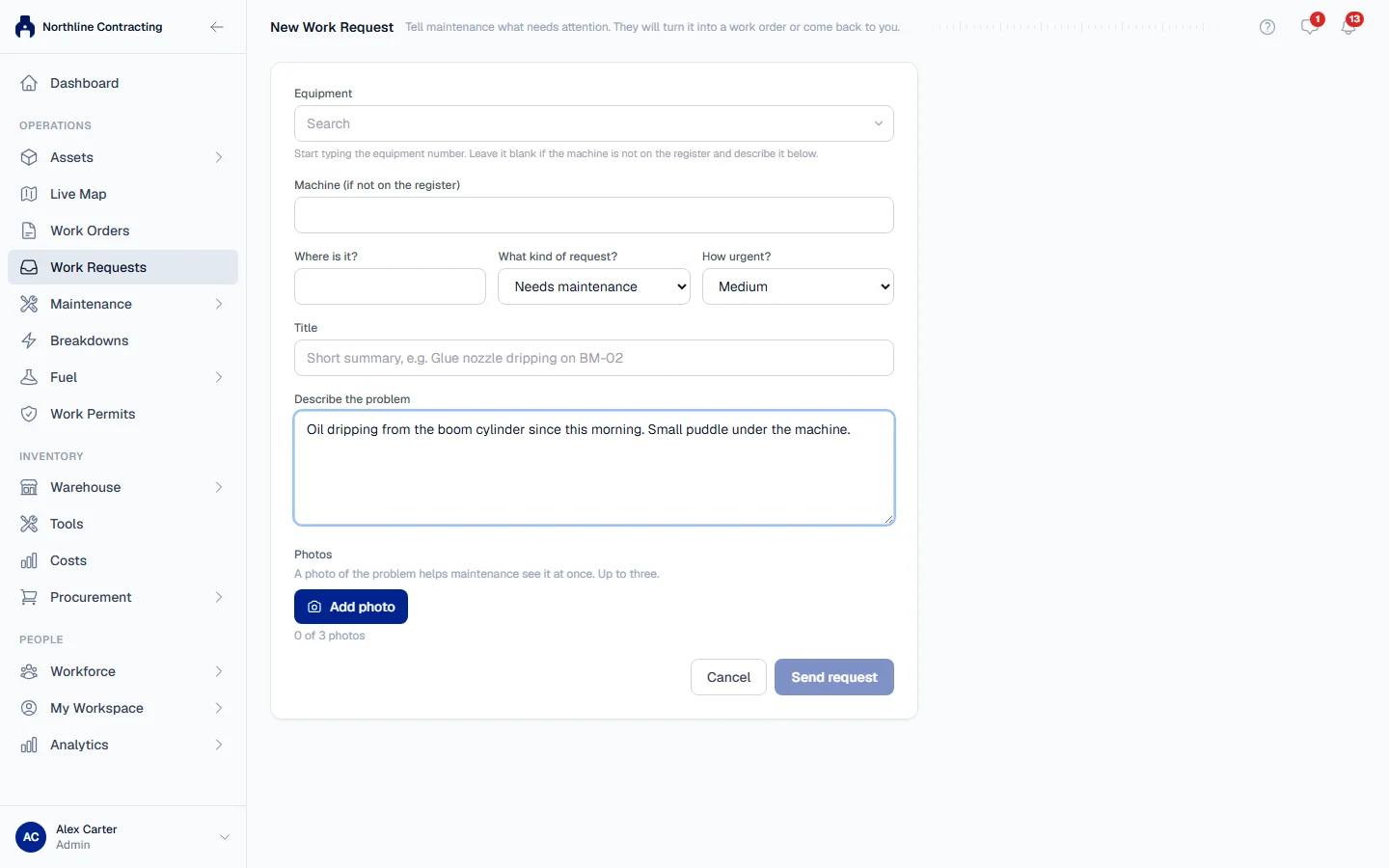
- Click + New Request. The New Work Request form opens.
- Under Equipment, start typing the equipment number and pick the machine from the list.
- If the machine is not on the register, leave Equipment blank and describe it in Machine (if not on the register).
- Optionally, fill in Where is it? so maintenance can find it.
- Choose What kind of request?: Machine is down, Needs maintenance, Safety concern or Other.
- Choose How urgent?: Low, Medium, High or Critical.
- Give it a Title: a short summary, such as "Hydraulic leak on EX-04".
- Under Describe the problem, say what is happening, since when, and what you noticed.
- Optionally, add up to three Photos. A picture of the fault helps maintenance see it at once.
- Click Send request.
Solmex confirms with the request number, such as WR-2026-0001. Click View it to open the request.
What happens next
The people in your company who triage requests are notified straight away. Your request waits on their Open tab until one of them decides:
| Outcome | What it means |
|---|---|
| Converted to a work order | Maintenance has accepted the job and scheduled it. The request links to the work order. |
| Converted to a breakdown | The machine has been recorded as down and goes through the breakdown process. |
| Closed | No work is needed. The person who closed it gave a reason, and you can read it on the request. |
If you have a Solmex account, you are notified when your request is converted or closed. Open Work Requests and the My Requests tab to see everything you have raised.
See Triage work requests for how maintenance makes the decision.
Rules worth knowing
- Photos go with the request when you send it. The request page shows them to maintenance but has no way to add more later, and nothing can be attached once the request has been triaged: what maintenance looked at is what they decided on.
- A request is decided once. It cannot be converted twice, or converted after it was closed. If the problem comes back, raise a new request.
- The machine you typed is kept as you typed it. If maintenance links the request to a register machine later, your original words stay on the request beside it.
Troubleshooting
| What you see | What to do |
|---|---|
| Send request stays greyed out | Fill in Title and Describe the problem. Both are required. |
| No + New Request button | Your role does not include Work Requests: Edit. Ask your administrator. |
| "1 photo could not be uploaded." | The request was sent, without that photo. Describe what the photo showed to the person triaging it, or raise the request again with the photo if it matters. |
| You cannot see other people's requests | Without Work Requests: Triage, you see only the requests you raised. This is deliberate. |