
Help CenterMessaging and Notifications
Discuss a work order
Talk about one job on the work order itself, with photos, replies and mentions, beside its timeline and files.
Every work order has its own conversation, so questions and answers about a job stay with the job rather than getting lost in someone's phone. Anyone who opens the work order later can read what was said, see the photos that were shared, and follow what happened to it.
Before you start
- You need Work Orders: View to read the conversation, and Work Orders: Edit to post in it.
- This conversation is part of work orders, so it is available on every plan. It is separate from Chat, which is part of the Business plan.
Open the conversation
- Open the work order. See The work order page.
- Click Chat in the header. A red number on it shows messages you have not read yet.
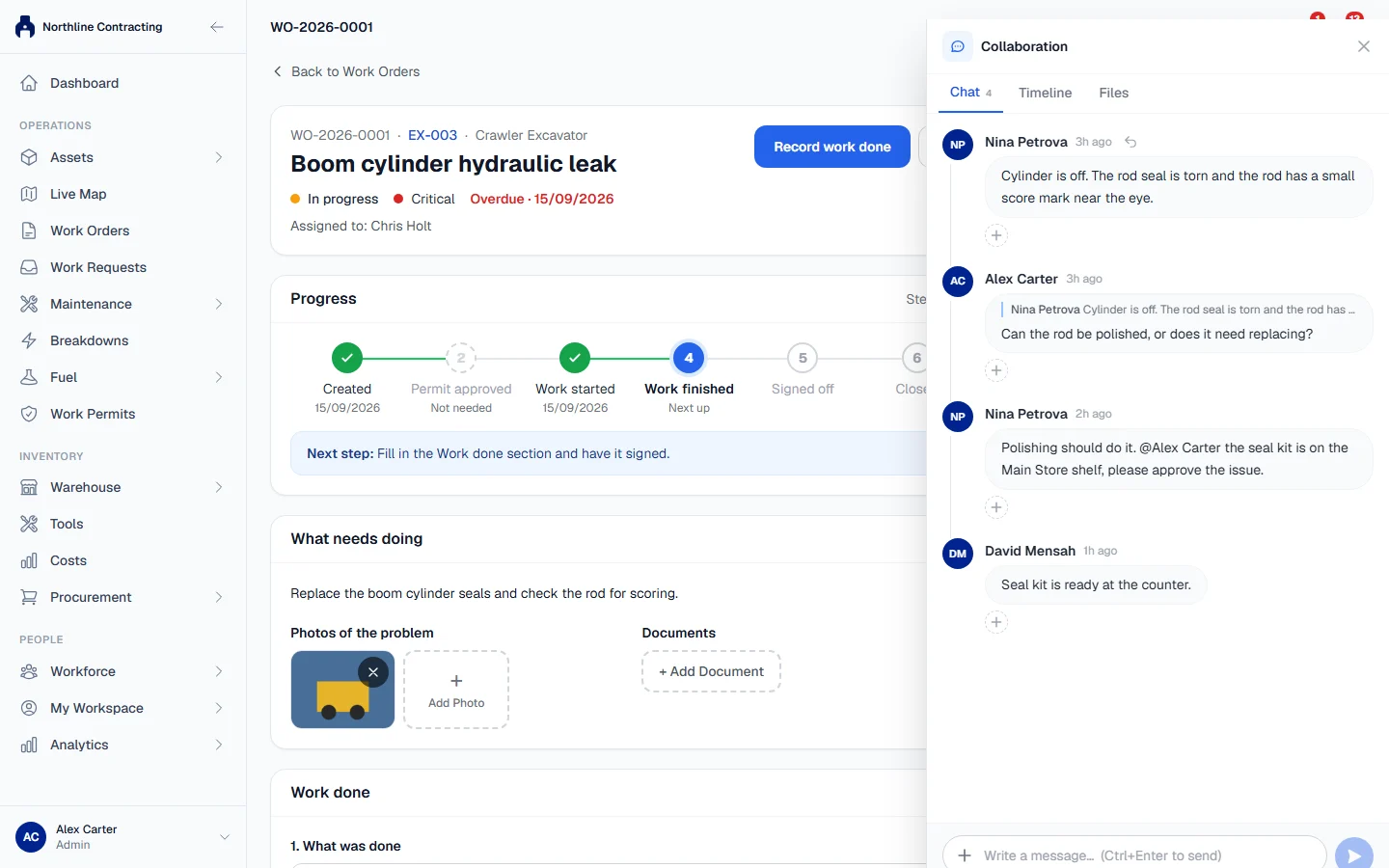
The Collaboration panel opens on the side of the page. You can drag its edge to make it wider. It has three tabs:
| Tab | Shows |
|---|---|
| Chat | Messages people have written about the job |
| Timeline | What happened to the work order: created, assigned, scheduled, completed and so on |
| Files | Photos and files shared in the conversation |
Post a message
- On the Chat tab, type in the box at the bottom. Press Ctrl+Enter to send.
- To include photos, attach them to the message.
- To answer one message in particular, reply to it, so your answer appears under a quote of it.
- To bring someone in, type @ and their name.
What happens next
- A person you mention gets a notification that you mentioned them in this work order.
- The author of a message you reply to gets a notification that you replied.
- Clicking either notification opens the work order with the conversation, at the message in question.
See Notifications.
Troubleshooting
| What you see | What to do |
|---|---|
| You can read the conversation but there is no box to write in | You do not have Work Orders: Edit. Ask your administrator. |
| "No messages yet. Start the conversation below." | Nobody has written about this job yet. |
| "Failed to load activity." | Close the panel and open it again. If it keeps happening, reload the page. |