
Cost and spare parts reports
See where the money went with the Cost Report, and where the parts went with Spare Parts Consumption, over any period.
Two Analytics pages follow what your maintenance consumed. The Cost Report reads your Costs records and shows what was spent, by category, source, machine and Location. Spare Parts Consumption reads what left the warehouse and shows which parts, lubricants and machines used the most. Both work as described in How Analytics works.
Before you start
- For the Cost Report you need Analytics: View and Costs: View.
- For Spare Parts Consumption you need Analytics: View and Warehouse: View.
- A report whose module permission you lack is not shown in the sidebar.
- To export a report to Excel you also need Analytics: Export. Without it there is no Excel button.
- Money is shown in your company's currency. See Set up your company.
The Cost Report
In the sidebar, open Analytics > Cost Report.
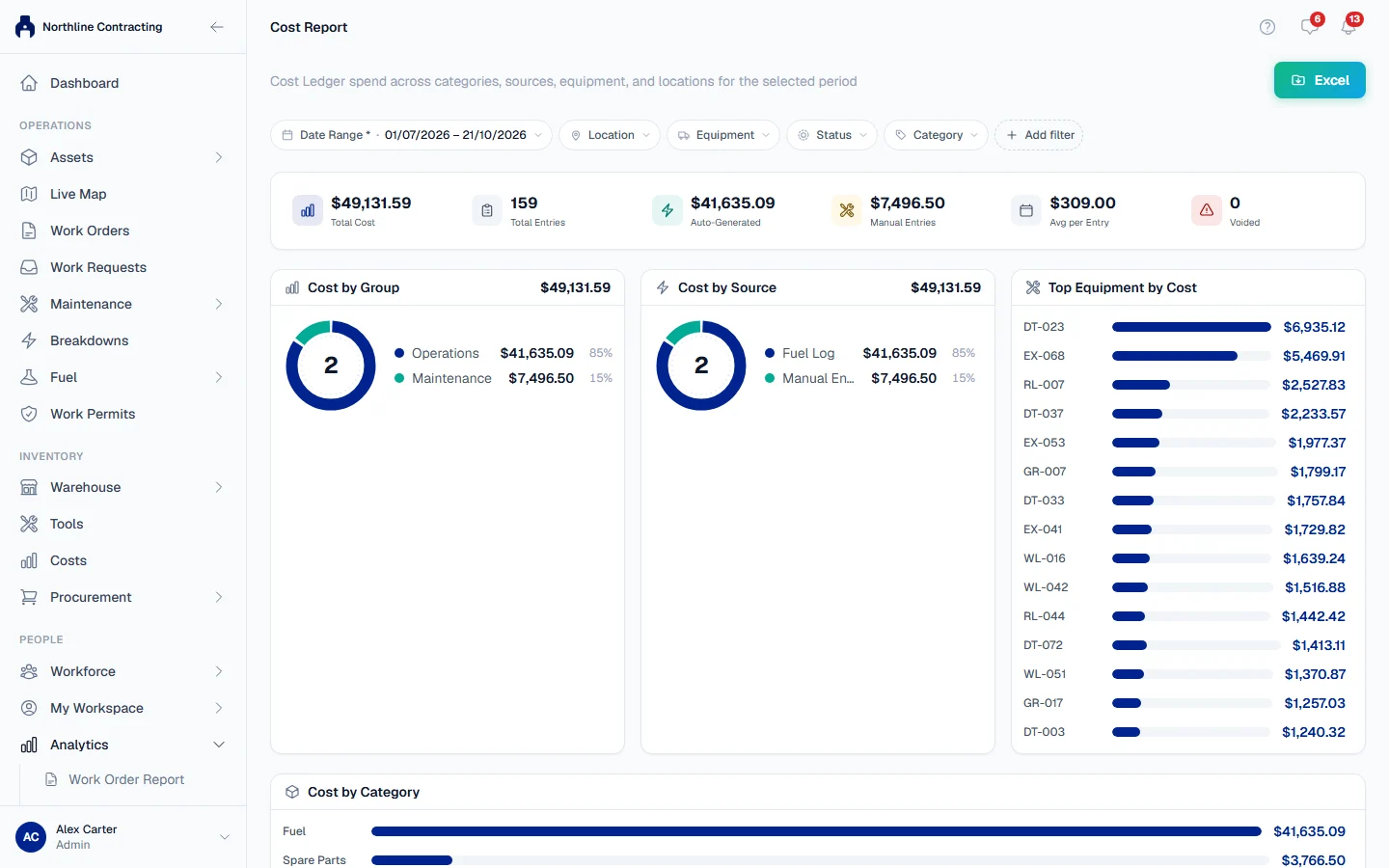
Filters
Location, equipment, category, Source and status. The status filter offers Draft + Posted (the standard view), Posted Only, Draft Only and Voided Only.
What it shows
| Section | What it tells you |
|---|---|
| Total Cost, Total Entries, Avg per Entry | What the period cost and how many entries made it up. |
| Auto-Generated and Manual Entries | How much came in on its own from fuel and parts issues, and how much somebody entered by hand. |
| Voided | How many entries in the view were voided. The standard view leaves voided entries out of every figure; choose Voided Only to see them. |
| Cost by Category, Cost by Group, Cost by Source | Where the money went, three ways. |
| Cost Over Time | Spend across the period. |
| Top Equipment by Cost | The machines that cost the most. |
| Entries | One row per entry: date, category, source, description, machine, Location, work order, amount and status. |
The Cost Report reads the same records as the Cost Ledger, so the two always agree. To understand where an entry comes from, see How costs work. To add, edit or void an entry, see Add, edit or void a cost.
Spare Parts Consumption
In the sidebar, open Analytics > Spare Parts Consumption.
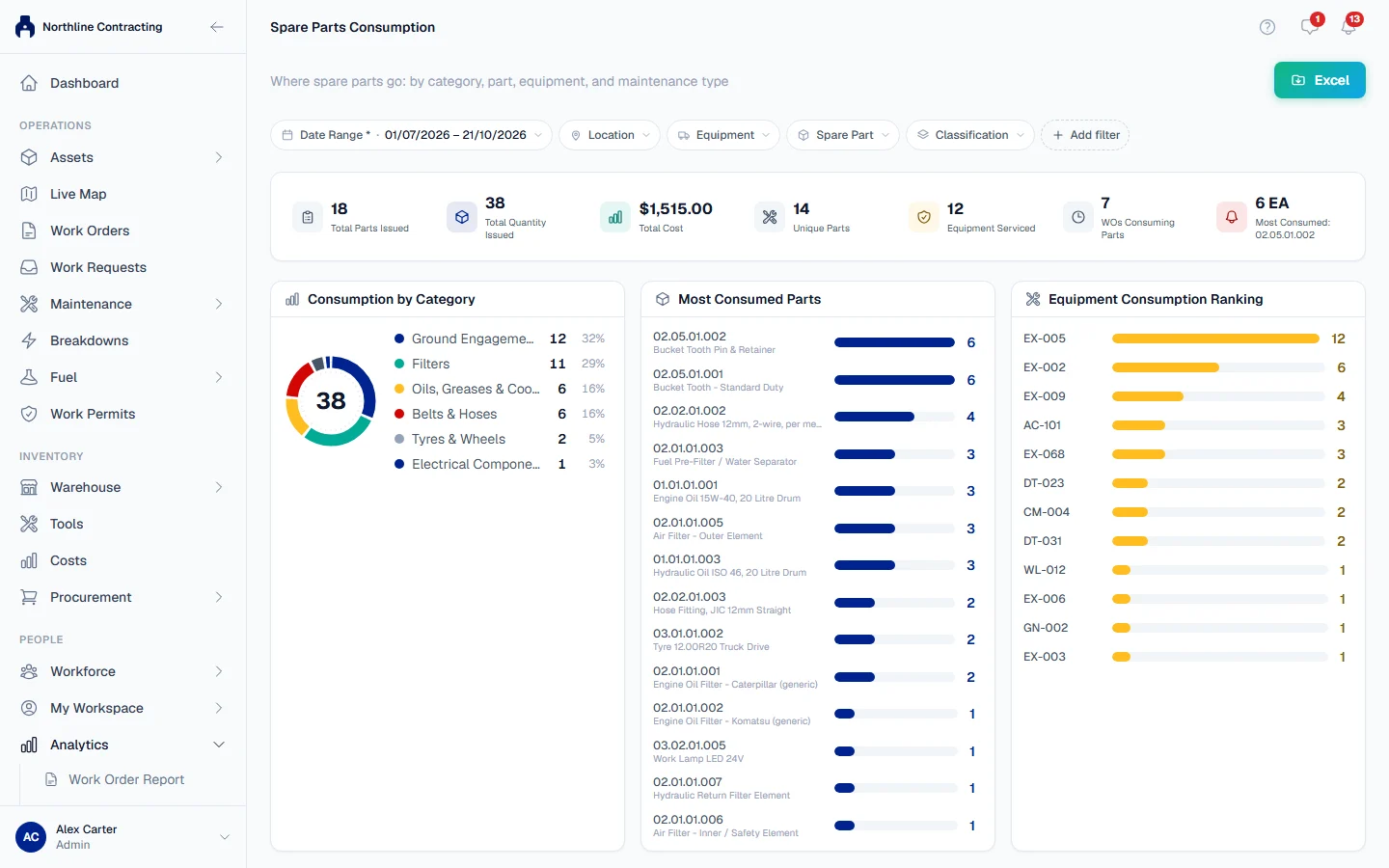
Filters
Location, Classification, Spare Part, Warehouse, Equipment Model, Maintenance Type and WO Number.
What it shows
| Section | What it tells you |
|---|---|
| Total Parts Issued, Total Qty Issued, Unique Parts | How much left the warehouse in the period. |
| Equipment Serviced and WOs Consuming Parts | How many machines and work orders the parts went to. |
| Most Consumed Part and Most Consumed Parts | The parts used most. |
| Most Consumed Lubricants | Oils and other fluids, listed apart because they are issued in large units that would swamp the parts list. |
| Consumption by Category | Usage by part classification. |
| Equipment Consumption Ranking | The machines that used the most parts. |
| Maintenance Type Distribution | Whether parts went to PM, breakdowns, inspection repairs or manual work. |
| Consumption Trend | Issues over the period. |
| The register | One row per issue: Issue Date, Part, Category, Qty, Unit, Equipment, Work Order, Maintenance Type, Warehouse, Issued By and Cost. |
The maintenance type comes from the work order a part was issued against. A part issued to a machine with no work order has no maintenance type. How parts are issued is covered in Issue parts and Parts on a machine.
Troubleshooting
| What you see | What to do |
|---|---|
| "No costs for this period." | Nothing was recorded in the period. Widen the Date Range. |
| "No consumption for this period." | No parts were issued in the period. |
| "No equipment-linked issues for this period." | Parts were issued, but none to a machine. |
| "Failed to load report." | You need Costs: View for the Cost Report, or Warehouse: View for Spare Parts Consumption, as well as Analytics: View. |