
Follow a team's route
See where each maintenance team's service vehicle drove and stopped, which machines were nearby, and how the period compares with the one before, from the vehicle's GPS tracker.
When a maintenance team drives a service vehicle with a GPS tracker, the Routes tab shows where that vehicle went each day: how far it drove, where it stopped, which machines were near each stop and what work the team recorded there. Use it to see whether the crews reach the places they are responsible for.
Before you start
- The Routes tab appears only when your company has Live Map, and only for people with Live Map: View and Equipment: View as well as access to Daily Maintenance.
- The team's service vehicle must be picked From the asset register on the team, not typed in by hand. See Set up maintenance teams.
- That vehicle must have a GPS tracker connected to it in Solmex.
Open the routes
- In the sidebar, open Maintenance > Daily Maintenance.
- Click the Routes tab.
- Choose All teams or one team, and the Period.
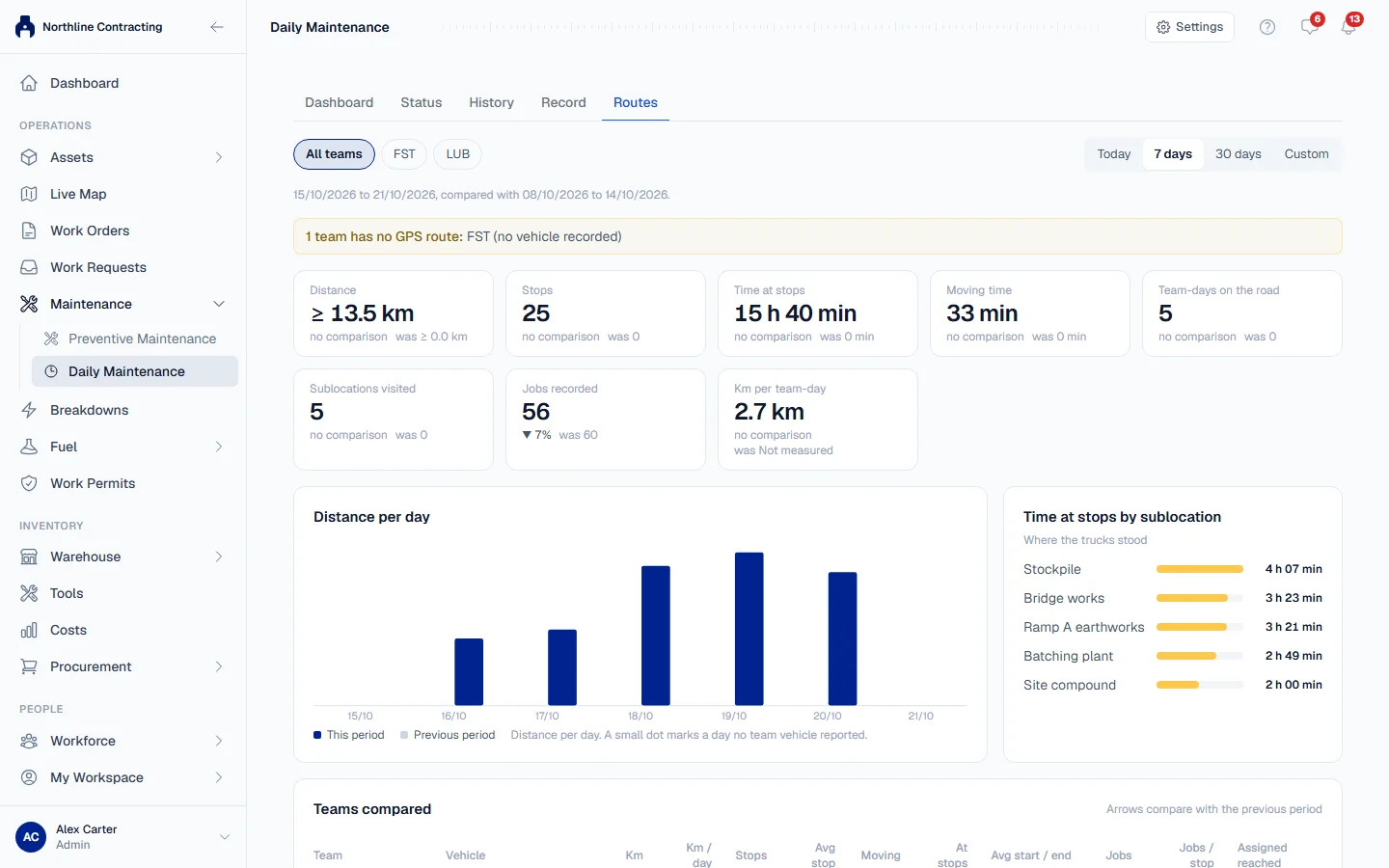
The figures compare the period with the period of the same length just before it. Arrows show which way each figure moved.
The period at a glance
| Figure | Meaning |
|---|---|
| Distance | Total distance driven. |
| Stops | Places the vehicle stood still. |
| Time at stops and Moving time | How the day was spent. |
| Jobs recorded | Daily jobs the team recorded in the period. |
| Team-days on the road | Days a team vehicle moved or stopped. |
| Sublocations visited | Places with at least one stop. |
| Km per team-day | Distance divided by team-days. |
Below the figures:
- Distance per day: a chart against the previous period. A small dot marks a day no team vehicle reported.
- Time at stops by sublocation: where the vehicles stood.
- Teams compared: one row per team, with distance, stops, average stop, start and end times, jobs per stop, and Assigned reached (how many of the team's covered Sublocations had a stop).
- Days on the road: one row per team per day. Click Open day to see that day in detail.
One day in detail
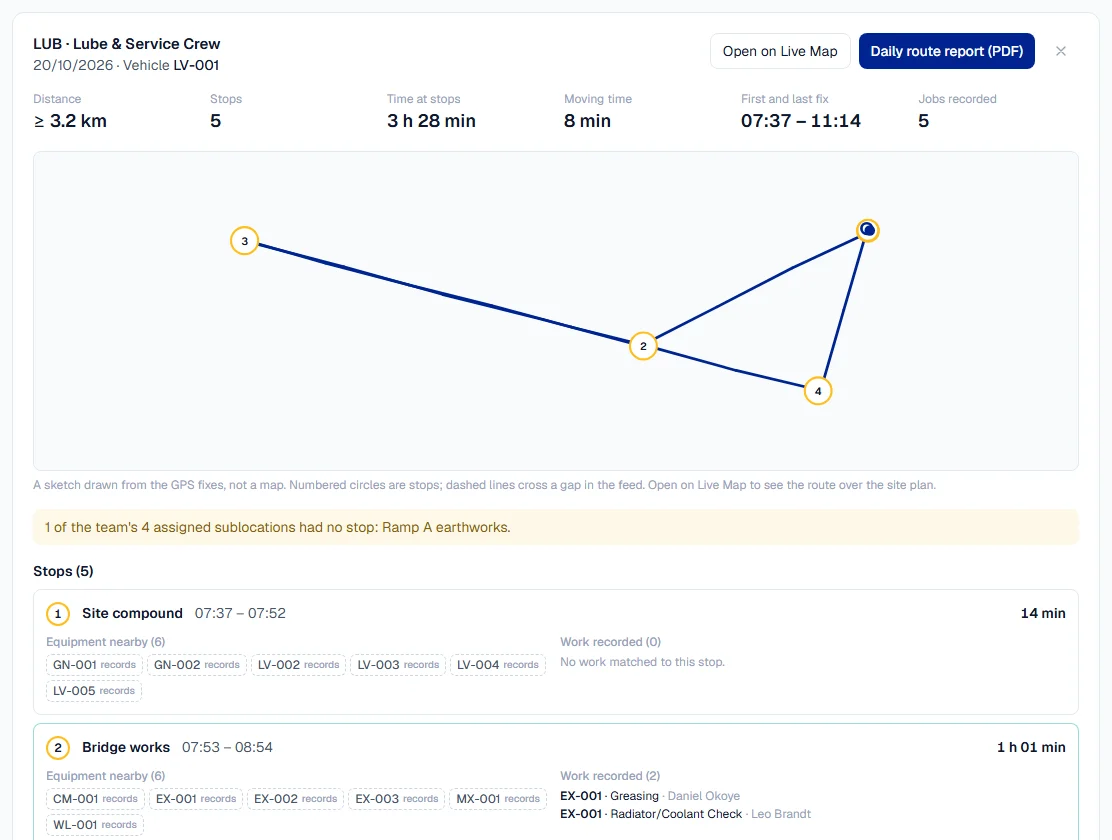
The day view shows:
- A sketch of the route with numbered stops. It is drawn from the GPS positions, not a map. Click Open on Live Map to see the route over the site plan.
- Each stop, with Equipment nearby and Work recorded there.
- Any work the team recorded that day that could not be matched to a stop.
- Whether every Sublocation the team covers had a stop.
Click Daily route report (PDF) to download the day as a printable report.
How the figures are worked out
- Distance adds up straight lines between GPS positions, so it is a minimum. The real road distance is at least this.
- A stop is where the vehicle stayed within 40 m of one spot for 5 minutes or more. It does not mean the engine was off.
- Stretches when the tracker was silent are not counted as driving.
- Equipment nearby is a machine whose own GPS put it close to the truck during the stop, or, marked "records", a machine whose records placed it in that Sublocation at the time.
- Work is matched to a stop by machine or by Sublocation. Daily jobs are recorded by day, not by time, so the match is the likeliest stop, not a timestamp.
Troubleshooting
| What you see | What to do |
|---|---|
| No Routes tab | Your company does not have Live Map, or you do not have Live Map: View and Equipment: View. |
| "This team has no service vehicle recorded." | Edit the team and pick its vehicle From the asset register. |
| "This team's vehicle was typed in by hand rather than picked from the asset register, so no GPS tracker can be bound to it." | Add the vehicle to the Equipment Register, then pick it on the team. |
| "The team's vehicle has no GPS tracker bound to it." | Connect the vehicle's tracker in Solmex. |
| "The vehicle's tracker reported no position on this day." | The tracker was off or out of signal. Nothing can be shown for that day. |
| "This day's GPS fixes have been cleared and no summary was kept." | The day is older than 30 days and has no stored summary. |