
Use Solmex on a phone
Solmex works in your phone's web browser. How the screen changes at phone width, and what to expect until the mobile app is available.
You do not need a separate app to use Solmex on a phone or tablet. Open your company's Solmex address in the phone's browser, sign in as you would on a computer, and the same pages rearrange themselves to fit a small screen. This article covers what changes and how to get around.
Before you start
- Use your company's own Solmex address, the same one you use on a computer.
- Use an up-to-date browser, such as Safari on iPhone or Chrome on Android.
- To scan labels from inside Solmex, the browser needs permission to use the camera. It asks the first time.
What changes at phone width
| On a computer | On a phone |
|---|---|
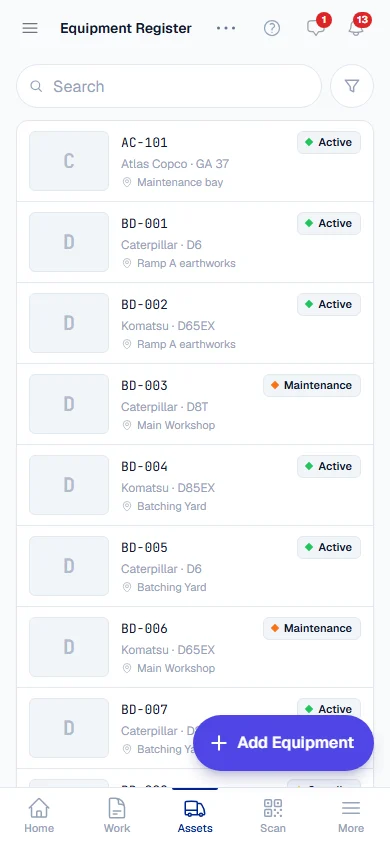
| The sidebar on the left | A tab bar at the bottom: Home, Work, Assets, Scan and More. More opens the full sidebar. |
| The filter row above a list | A full-width search box, a Filters button that opens every filter on one screen, and the active filters as removable chips with Clear all. |
| Tables with columns | Each record shown as a card. Column choice and resizing are desktop features. |
| Lists that load more as you scroll | A Load more button at the end of the list. |
| Page actions in the header | The most used actions stay; the rest move into a menu at the top right. |
| The main button on a record | On some records, such as a work order, the next step sits in a bar pinned to the bottom of the screen, within reach of your thumb. |
What the tab bar shows depends on your role. If you cannot open work orders it shows Requests instead of Work, and if you cannot see equipment it shows My Leave instead of Assets. On a work requester seat it shows Home, Report, Scan and More. See Find your way around.
Things that work well on a phone
- Scanning a label. Press Scan and point the camera at any Solmex label to open the machine, tool, part or storage location. See Labels and QR codes.
- Taking photos. Where a page asks for a photo, choose Take photo to use the camera, or Choose from library for a photo you already have. iPhone photos are converted so everyone can open them. See Photos and documents.
- Reporting a problem. A work request takes a minute from a phone. See Raise a work request.
- Daily rounds. Meter readings, fuel fill-ups, inspections and daily maintenance can all be recorded on the spot.
- Dark mode for working at night: choose Dark under Appearance in the user menu. See Language, dates and appearance.
The mobile app
A Solmex mobile app for technicians is coming soon, with offline working and push notifications. It is not yet in the App Store or Google Play. Until it is, everything you need works in the phone's browser. See The Solmex mobile app.
Troubleshooting
| What you see | What to do |
|---|---|
| "Camera access is blocked" when scanning | Allow the camera for your company's Solmex address in the browser's settings, then press Try again. |
| "This browser cannot read labels from the camera" | Use the phone's own camera app: point it at the label and it opens the right page. Or type the number under the barcode. |