
Your first job: from request to closed work order
Follow one problem through Solmex. Someone reports it, maintenance turns it into a work order, a technician records the work, it is signed off and closed.
This walk-through follows one real job end to end, so you can see how the pieces connect. Try it with a machine from your own register.
Work request  →  Work order  →  Work done recorded  →  Signed off  →  Closed
(anyone) (maintenance) (technician) (signatories) (supervisor)Before you start
- At least one machine on the register. See Add equipment.
- To raise a work order you need Work Orders: Edit. To start and close one you need Work Orders: Close, usually a supervisor. To record the work, sign and finish you need Work Orders: Execute, usually the technician. Administrators have all three.
1. Someone reports a problem
Anyone can report a problem as a work request, with or without a Solmex login:
- In the app: open Work Requests and click New Request. Choose the Equipment, say what kind of request it is and how urgent, give it a Title, describe the problem, add up to three photos, and click Send request.
- Without a login: scan the QR label on the machine and press Report a problem, or open your company's public request page (
yourcompany.getsolmex.com/request). Fill in the form and press Send to maintenance.
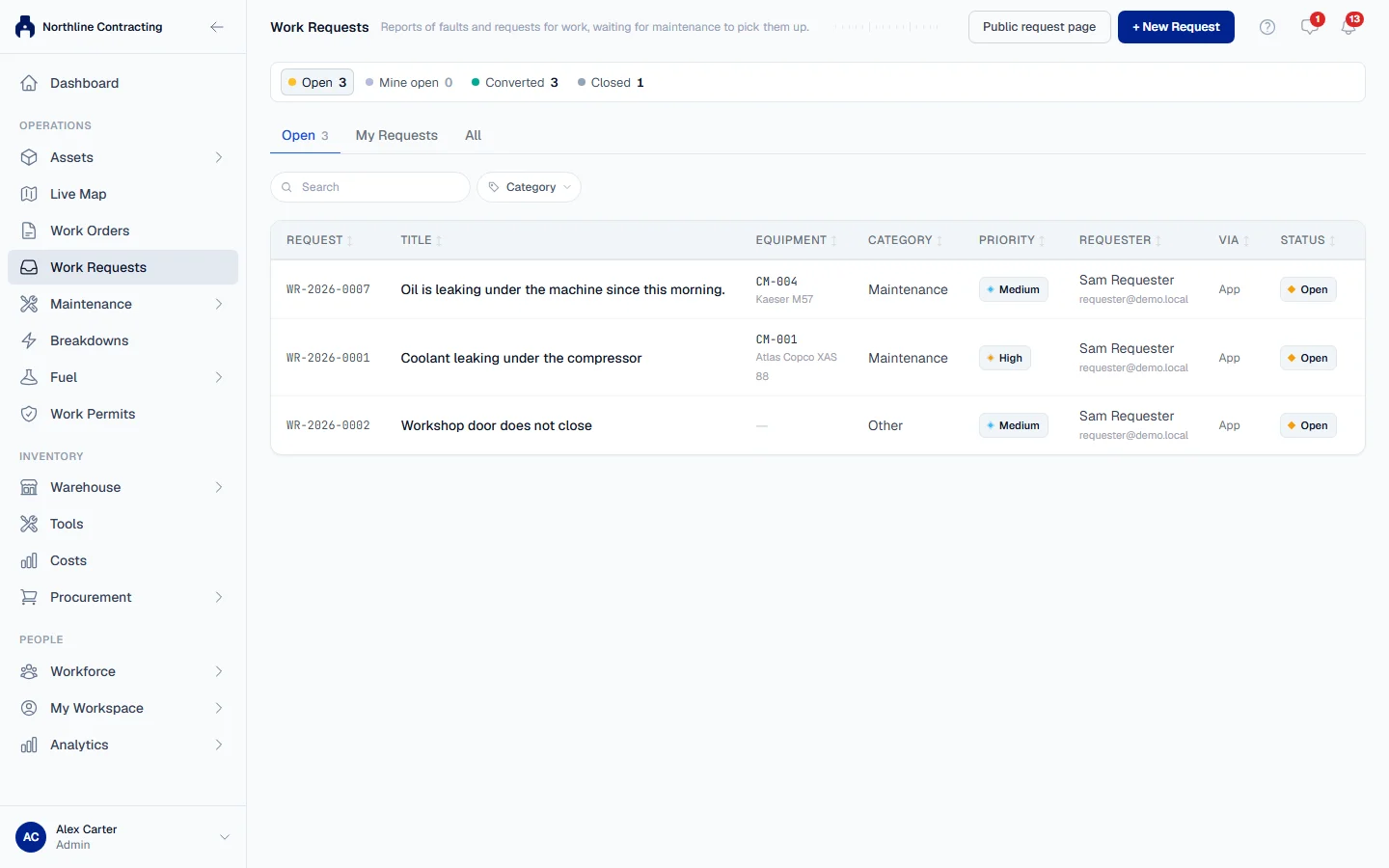
Each request gets a number such as WR-2026-0001, and the person who sent it can check its status. See Raise a work request and Report a problem without a login.
2. Maintenance turns it into a work order
- Open Work Requests. New requests are on the Open tab.
- Open the request and click Convert.
- Choose Work order, then fill in the Work order title, Type, Priority, Assign to and Scheduled date. You can leave a note for the requester.
- Click Create work order.
The request is marked Converted and points to the new work order. If no work is needed, use Close without work instead and give a reason: the requester sees it. When the machine is actually down, the request can be recorded as a breakdown instead: see Triage work requests.
3. The work is started and recorded
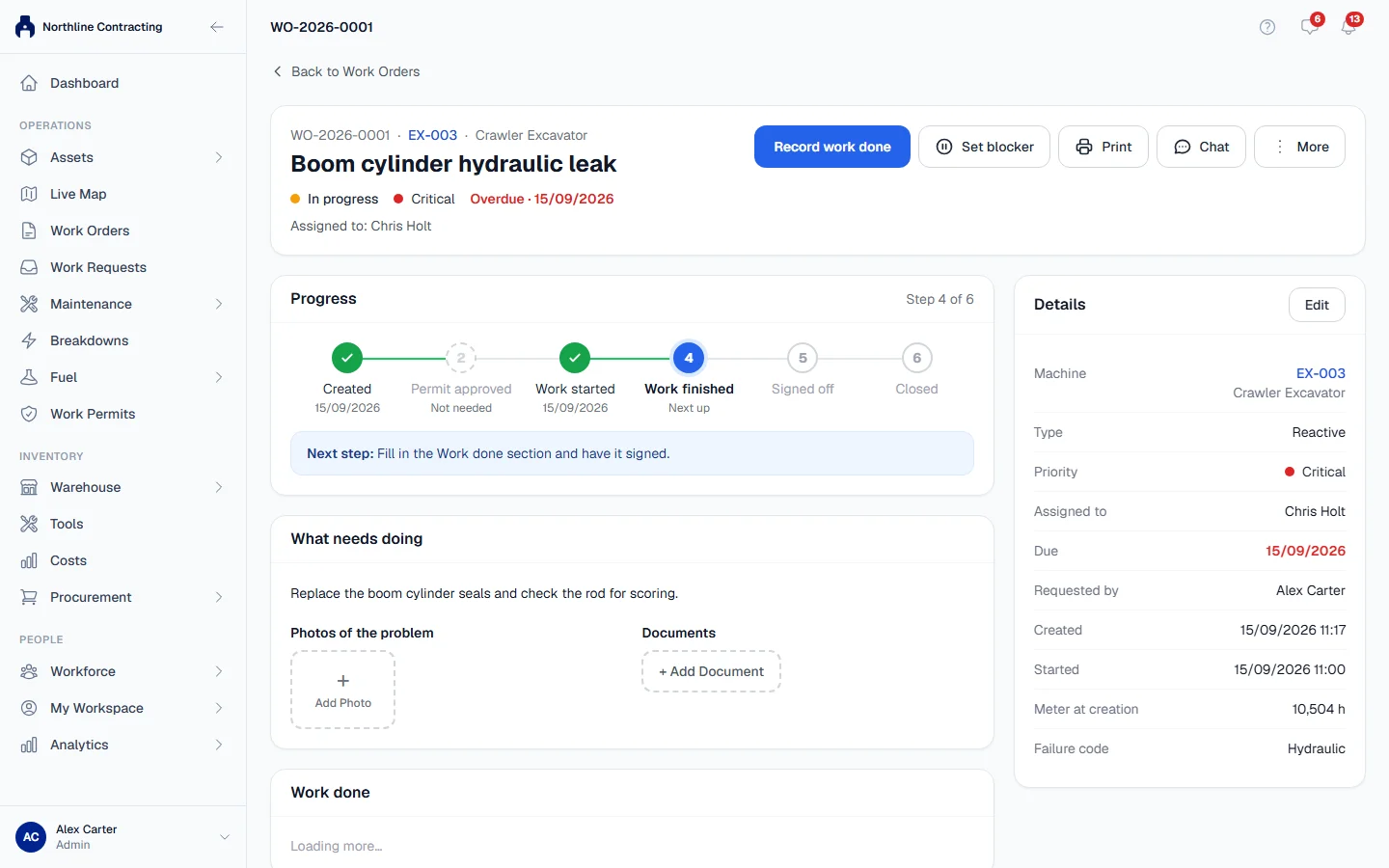
Open the work order. The large button at the top always names the next thing to do.
- A supervisor clicks Start work. The status becomes In progress. (A technician who cannot start the job sees Record work done instead, and can record the work straight away.)
- The technician scrolls to the Work done section and fill in What was done, Who did the work, any Parts used, the Time spent and photos of the finished job.
- Click Save work record. See Record the work done.
If the job is stuck, click Set blocker and say what it is waiting for, such as spare parts or a permit. The work order shows a "Blocked" banner until you clear it. See Set and clear a blocker, and for hazardous jobs Work orders that need a work permit.
4. Sign off and close
- Each person asked to sign does so in the Signatures boxes of the Work done section.
- Click Finish & sign off. The work order becomes Finished, awaiting closure and the record is locked.
- A supervisor with closing rights clicks Close work order.
The job now appears in the machine's history, on its Work Orders tab, with everything that was recorded. See Sign off a work order and Close, cancel or reopen work.
What the statuses mean
| Status | Meaning |
|---|---|
| Not started | Raised, nobody has started yet. |
| In progress | Work has started. |
| Finished, awaiting closure | Work recorded and signed off; a supervisor still has to close it. |
| Closed | Done and accepted. |
| Cancelled | Not going ahead. |
Next
- Invite your team so technicians can record their own work.
- Working at the machine: Solmex works in your phone's browser today, and the mobile app is coming soon.
- The work order page, for every step of a job in detail.
- Configure sign-off roles to choose who signs the work.
- Report a breakdown when a machine stops working.