
Daily Maintenance history
List every daily job done in a period, see which were on time and which were late, export the list, and withdraw an entry recorded by mistake.
The History tab lists every daily job recorded in a period, one row per job done. Use it to check what a crew did last week, to see which jobs ran late, or to correct an entry made by mistake.
Before you start
- You need Routine Maintenance: View to see the history.
- To withdraw your own entries you need Routine Maintenance: Edit. To withdraw anyone's, you need Routine Maintenance: Manage.
Open the history
- In the sidebar, open Maintenance > Daily Maintenance.
- Click the History tab.
- Choose the Period. It is shared with the Dashboard tab.
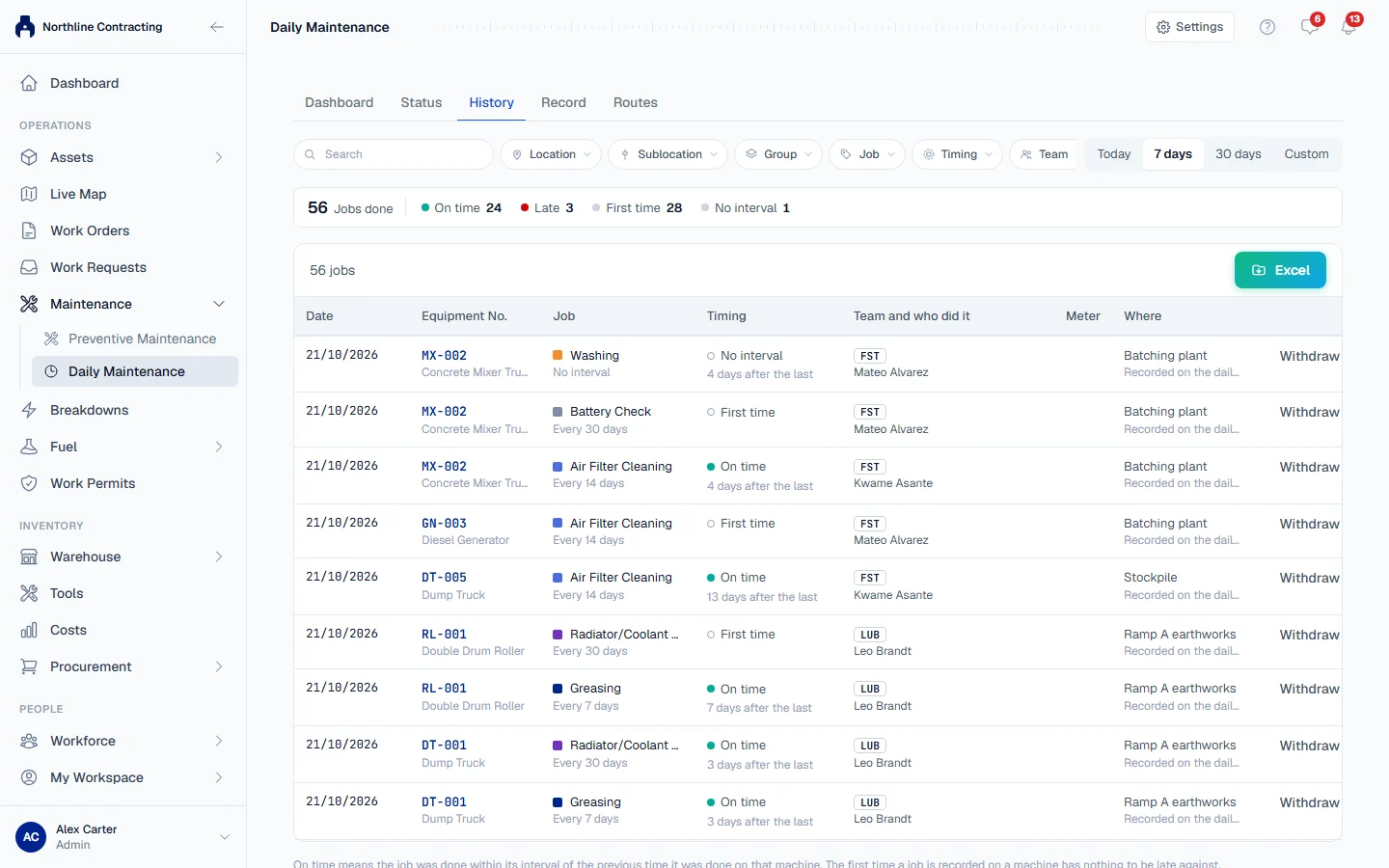
The filters at the top are shared with the Dashboard and Status tabs, so the three tabs always describe the same machines.
Read a row
| Column | What it shows |
|---|---|
| Date | The day the work was done. |
| Asset No. | The machine. |
| Job | What was done. A job since removed from the job list is marked "archived". |
| Timing | Whether it was on time, late, the first time, or untimed. See below. |
| Team and who did it | The team and the name typed in Done by. |
| Meter | The meter reading recorded with the work, if any. |
| Where | The Sublocation recorded with the work, if any. |
Timing
| Timing | Meaning |
|---|---|
| On time | Done within the job's interval of the previous time it was done on that machine. |
| Late | Done after that. The row says by how many days, such as "Late by 3 days". |
| First time | The first time this job was recorded on this machine, so there is nothing to be late against. |
| No interval | The job has no Remind after, so it is never judged. |
Timing looks at the machine's whole history, not just the period on screen. The first entry you see in a period is judged against the one before it, even if that one is older.
Filter the history
- Job, Timing and Team are on the filter bar. Team includes No team recorded.
- Under Work: Done by (the name typed), Entered through (Logged on the machine, Record tab, Imported or WhatsApp) and Withdrawn entries.
Withdrawn entries are hidden unless you ask for them with Withdrawn entries set to Show withdrawn.
Withdraw an entry
- Find the entry and click Withdraw.
- In Why is it being withdrawn?, type the reason.
- Click Withdraw to confirm.
The entry stays on the history, struck through and marked Withdrawn, and stops counting towards the machine's schedule. If it was the latest time that job was done on the machine, the machine's state on the Status tab is worked out again from the entries that remain.
A meter reading saved with the entry is not removed when you withdraw it, because the meter did read that figure. Correct a wrong reading on the machine's meter readings.
Export
Click the Excel button to download the history as filtered. You can choose the columns and their order before the file is written.
Troubleshooting
| What you see | What to do |
|---|---|
| "No jobs in this period match these filters." | Widen the Period or remove a filter. |
| "A reason is required." | Type why the entry is being withdrawn. |
| "Only the person who logged this entry (or a routine maintenance manager) can withdraw it" | Ask the person who recorded it, or someone with Routine Maintenance: Manage. |
| "This entry has already been withdrawn" | It was already withdrawn. Turn on Show withdrawn to see it. |
| No Withdraw button on a row | You did not record this entry and do not have Routine Maintenance: Manage, or the entry is already withdrawn. |