
Choose, arrange and resize columns
Pick which columns a register shows, put them in your own order, set their widths, and keep the column headings in view while you scroll.
A register such as the Equipment Register or the Breakdowns list can carry far more columns than fit on a screen. You decide which ones you see, in what order, and how wide. Solmex remembers your choice in this browser.
Before you start
- Columns can be chosen on registers that have a Columns button in the toolbar above the table, such as the Equipment Register and the Breakdowns list. On other pages the columns are fixed.
- Columns are a desktop and tablet feature. On a phone, records are shown as cards and there is no column choice.
Choose and order columns
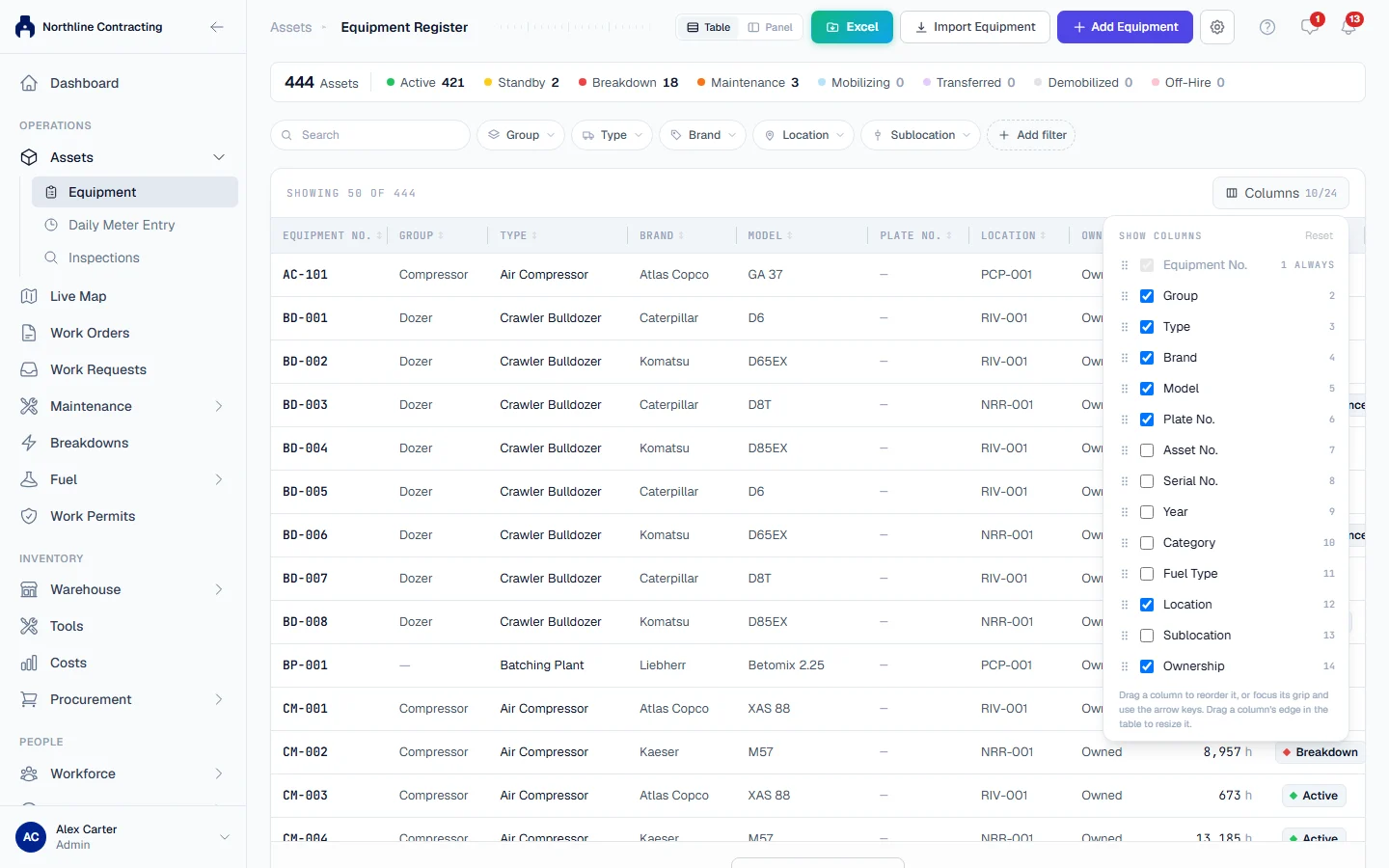
- Above the table, click Columns. The Show columns list opens.
- Tick a column to show it, untick it to hide it. A column marked Always cannot be hidden, because the list would make no sense without it.
- To change the order, drag a column by its grip to a new position. You can also focus the grip with the keyboard and use the up and down arrow keys.
- Click outside the list to close it. The table updates as you go.
Reset puts back the standard columns, the standard order and the standard widths together.
Resize a column
- Point at the right edge of a column heading. The pointer changes and a hint reads "Drag to resize. Double-click to reset."
- Drag the edge to make the column wider or narrower.
- Double-click the edge to return that one column to its standard width.
From the keyboard, focus the edge and use the left and right arrow keys; hold Shift for bigger steps. Each column can only be made so narrow or so wide, so nothing is ever dragged out of sight.
Column headings stay in view
On a long list, the column headings stay pinned at the top of the table while the rows scroll under them, so you never lose track of which figure is which. When you scroll sideways on a wide table, the headings move with their columns.
Table and panel views
The Equipment Register has a second way to read it: panel view, where the list sits on the left with a photo for each machine and the selected machine's own page opens on the right. It is a good way to check the same tab on several machines in a row. See Table and panel view.
What is remembered, and where
| What | Where it is kept |
|---|---|
| Columns shown, their order and widths | This browser, per register |
| Columns chosen for an Excel export | This browser, per register, separately from the screen |
| Filters, search, sort and tab | The page address, so it can be shared |
Because columns are kept in your browser, a new computer or a different browser starts with the standard set. Your colleagues' choices never change yours.
Rules worth knowing
- Hiding a column hides nothing from the record. The data is still there on the record's own page and in the export.
- The export has its own column choice. What you hide on screen is still offered when you export, and the reverse. See Export to Excel.
- A private window forgets. In a private or incognito window, or if your browser clears site data, your columns return to the standard set.
Troubleshooting
| What you see | What to do |
|---|---|
| Your columns went back to the standard set | You are on a different browser or computer, or site data was cleared. Choose them again; they will be remembered from now on. |
| There is no Columns button | This page has a fixed set of columns, or you are on a phone, where records show as cards. |
| A column will not get any narrower | It has reached its smallest width. Hide it under Columns instead. |