
Help CenterManaging the Organisation
My Workspace
Your own corner of Solmex: your profile and picture, your leave requests and balance, your recorded attendance, your notifications and anything waiting for your approval.
My Workspace is where each person looks after their own affairs: request leave, check what is left of it, see the hours recorded for them, and decide anything that is waiting on them. It needs no special permission, so it works for work requesters as well as full users.
Before you start
- Your user account must be linked to your employee record. Until it is, My Profile, My Leave and My Timesheets show "No employee profile linked". An administrator links it from your employee profile: see Add and manage employees.
- In the sidebar, open My Workspace. Its pages are My Profile, My Leave, My Timesheets, Notifications and My Approvals.
My Profile
Shows your name, employee number, status, department and position. Click your picture to add or change your profile picture; it appears beside your name across Solmex. Other details are changed by HR in the Workforce module.
Request leave
- Open My Leave and click Request leave.
- Choose the Leave type, the Start date and End date. The form counts the calendar days.
- Add a Reason, and a Supporting document such as a sick note if you have one.
- Click Submit request.
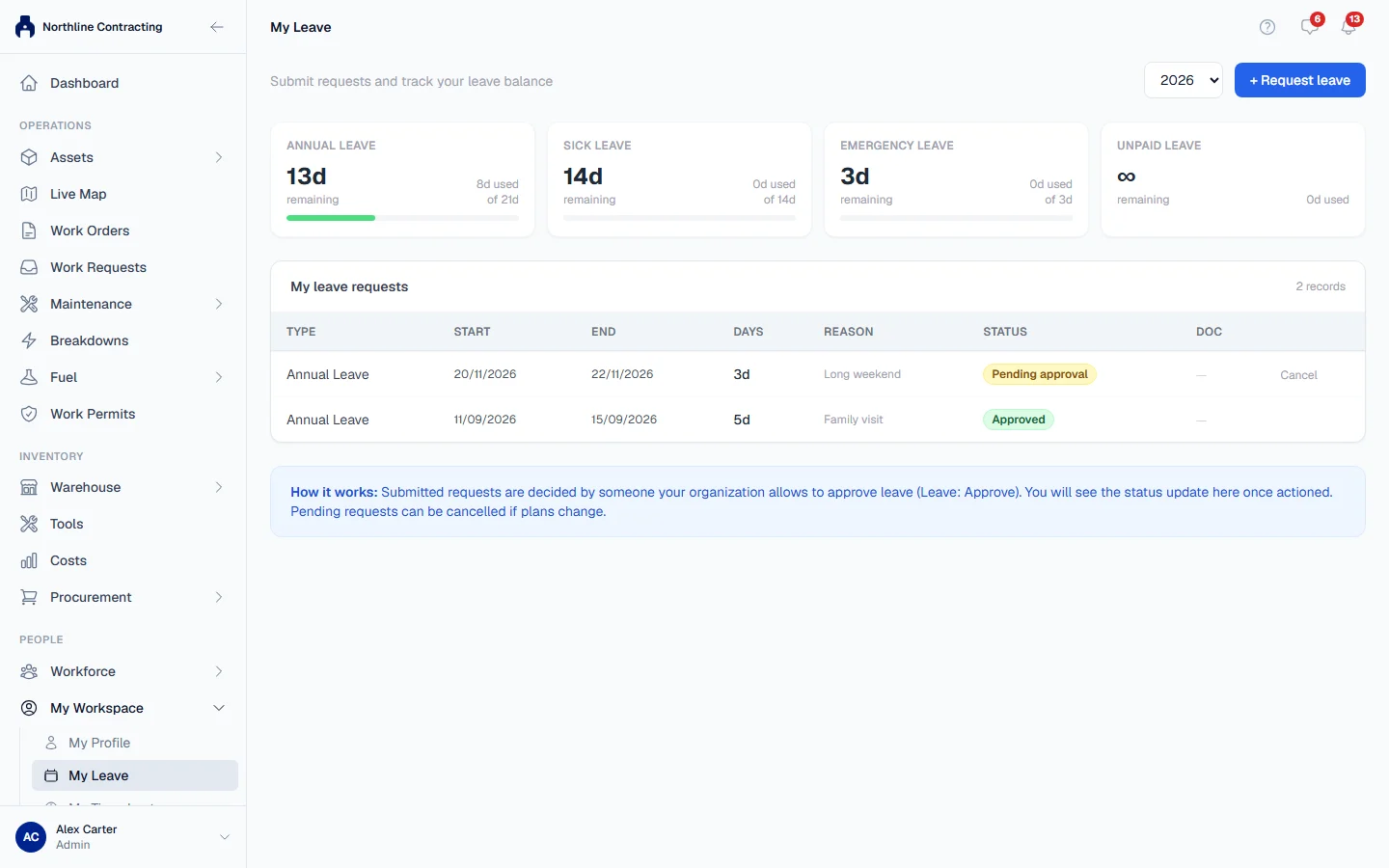
The request appears under My leave requests as Pending approval. Anyone your company allows to approve leave (Leave: Approve) decides it, not necessarily your manager, and its status changes here. At the top, a card for each leave type shows how many days you have remaining, how many you have used, and your entitlement. A type with no entitlement shows No limit.
Cancel a request
While a request is still pending, click Cancel on it, add a reason if you like, and click Cancel request. Click Keep request to leave it as it is.
My Timesheets
Shows your attendance and hours as recorded by whoever keeps the roll, one month at a time. Choose the Month and Year. The cards total your Total hours, Overtime and Days recorded.
You cannot change your own timesheet. If a day is wrong, ask the person who records attendance to correct it.
My Approvals
Lists everything waiting for your decision:
- Leave requests, if you can approve leave. Click Decide on the Leave page to approve or reject them. See Leave requests and approvals.
- Purchase requests where you are the next approver. Click one to open it and decide.
If you approve neither, the page says "Nothing to decide".
Rules worth knowing
- Pending days already count against your balance, so two requests cannot spend the same days. Cancelled and rejected requests give them back.
- Only a pending request can be cancelled. To change approved leave, ask HR.
- A terminated employee cannot submit leave requests.
- You never approve your own leave, even if your role allows approving. It waits for someone else.
Troubleshooting
| What you see | What to do |
|---|---|
| "No employee profile linked" | Ask an administrator to link your account to your employee record. |
| "Select a leave type." or "Start and end dates are required." | Fill in the missing field. |
| "End date must be on or after start date." | Correct the dates. |
| "Only pending requests can be cancelled" | The request has already been decided. Ask HR. |
| "Nothing recorded for this month." | No attendance has been saved for you that month. Ask whoever keeps the roll. |