
Yardım MerkeziOrganizasyonu Yönetme
Bu makale henüz Türkçeye çevrilmedi. Aşağıda İngilizce sürümünü okuyabilirsiniz.
Limit a user to Locations
Choose which Locations a user can see, what that limit covers today, and the rules for administrators who are limited themselves.
On a company with several Locations, a site manager often needs only their own site's picture. Location access records which Locations a user may see. This article explains exactly what that limit does today, because it is being extended one part of Solmex at a time and the honest answer matters more than the promise.
Before you start
- You need Users: Edit.
- You cannot change your own Location access. Another administrator does it for you.
- Archived Locations cannot be given to anyone, so restore a Location first if you need it.
Limit a user
- Open Settings > Users and click Locations on the person's row. The window is called Location access with their username.
- Choose Only these Locations and tick the Locations they may see. At least one must be ticked.
- Read the statement under the list. It says which parts of Solmex the limit applies to on your company today.
- Click Save changes.
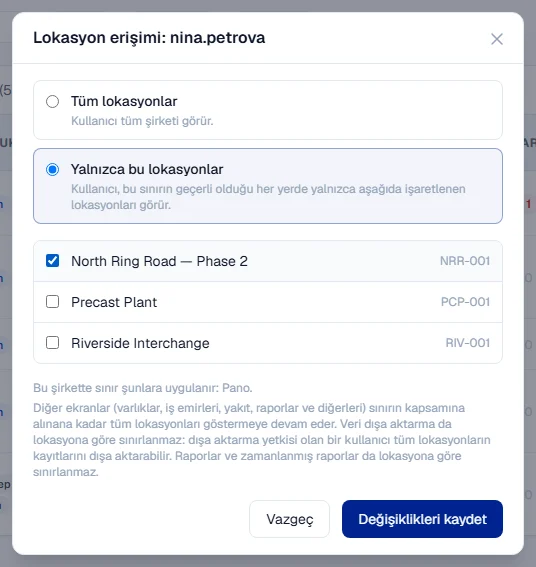
To lift the limit, open the same window and choose Every Location. That is how every user starts.
The Locations column on the user list now shows All or the Locations they have.
What the limit covers today
On your company the limit applies to the Dashboard. A limited user's dashboard:
- Opens on one of their Locations, with a picker that offers only their Locations and no "All locations" choice. With one Location, the picker becomes a fixed label: "Your dashboard shows only this Location".
- Hides the stock and tools figures, because stock and tools belong to the whole company rather than one Location. The card says so instead of showing a number.
- Shows no change-since-yesterday figures, because those are kept for the whole company.
Everything else still shows every Location to a limited user: assets, work orders, breakdowns, fuel, inspections, preventive maintenance, the warehouse, costs, reports and the rest. Data export and automatic reports are not limited either: a user who may run a data export can export every Location's records. If that matters, do not give limited users Data Export: Run or Analytics: Schedule. The dialog repeats this so nobody relies on a boundary that is not there yet.
Administrators who are limited themselves
An administrator can be limited too. They can still manage users, within their own Locations:
- They can give a user only Locations they hold themselves, and never Every Location.
- They can only change users whose Locations are all inside their own. Accounts that see more, including every user who sees every Location, are out of their reach: no role, email, password, invitation or status change.
- A user they create starts limited to their Locations.
- They can change a role's permissions only when everyone who holds that role is within their reach.
Rules worth knowing
- "Only these" with nothing ticked is refused, never read as "everything".
- Changing someone's Locations signs them out of their open sessions, so the new limit applies at once on every device, including the mobile app.
- Releasing a user back to Every Location forgets their list. If you limit them again later, tick the Locations afresh.
- A user can be given at most 200 Locations.
Troubleshooting
| What you see | What to do |
|---|---|
| "Tick at least one Location, or allow every Location." | Tick a Location, or choose Every Location. |
| "You cannot change your own Location access" | Ask another administrator. |
| "You can only see some Locations, so you cannot give another user every Location." | Ask an administrator who sees every Location. |
| "You cannot give access to a Location you do not have access to yourself." | Untick that Location, or ask an administrator who holds it. |
| "You cannot change a user who can see Locations you cannot see." | Ask an administrator who sees every Location. |
| "An archived Location cannot be given to a user: ..." | Restore the Location, or untick it. See Add Locations and Sublocations. |
| A limited user's dashboard says "You have been limited to Locations that no longer exist" | Give them an active Location. |