
Yardım MerkeziOrganizasyonu Yönetme
Bu makale henüz Türkçeye çevrilmedi. Aşağıda İngilizce sürümünü okuyabilirsiniz.
Employee documents and certifications
Keep each employee's passport, visa, licences and contracts, record their certifications, and see at a glance what has expired or is about to.
An employee's profile holds two kinds of paperwork. Documents are files you must have on record, such as a passport, visa or contract. Certifications are qualifications the person holds, such as a crane operator ticket or first aid, each with its own number, issuer and expiry date. Both show their expiry in colour, so a lapsed permit is seen before it matters.
Before you start
- Employees: View shows documents and certifications. Employees: Edit adds, edits and removes them.
- The largest file you can upload is set in Company Settings. See Company settings in depth.
- Open the person's profile from Workforce > Employees.
Upload a document
- On the profile, open the Documents tab and click + Upload Document.
- Choose the Document Type: Passport, National ID, Visa, Work Permit, Medical Certificate, Driving License, Employment Contract or Other.
- Enter the Expiry Date. It is required for a visa, work permit, medical certificate and driving licence, and optional for the rest.
- Add Notes if useful, and choose the File: a PDF, Word document or photo (JPG, PNG, WEBP or HEIC).
- Click Upload.
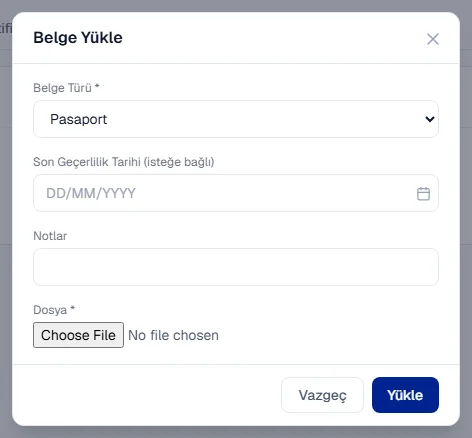
The document appears in the list with its expiry date in colour:
| Colour | Means |
|---|---|
| Red | Expired. |
| Yellow | Expires within 30 days. |
| Green | Valid for more than 30 days. |
Click Download to open a document, or Delete to remove it.
Record a certification
- On the profile, open the Certifications tab and click + Add Certification.
- Enter the Certification Name (required), and the Certificate Number, Issuing Authority, Issue Date and Expiry Date if you have them.
- Add Notes, and attach a scan of the certificate under Attachment (optional).
- Click Add.
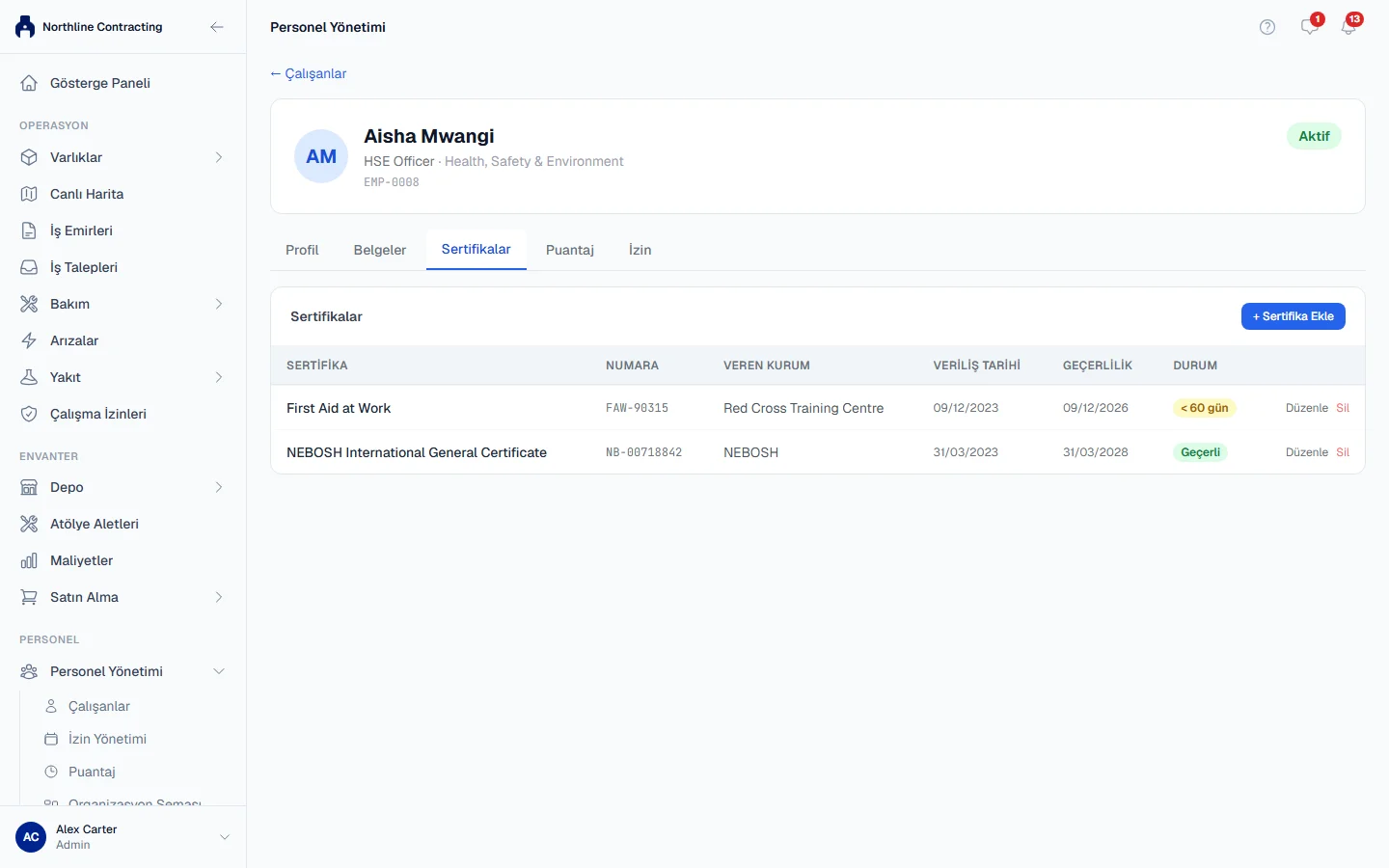
Each certification shows how long it has left:
| Badge | Means |
|---|---|
| Expired | The expiry date has passed. |
| < 30 days | Expires within 30 days. |
| < 60 days | Expires within 60 days. |
| < 90 days | Expires within 90 days. |
| Valid | More than 90 days left. |
| No Expiry | No expiry date was entered. |
When anything has expired or expires within 30 days, a red banner at the top of the tab counts them, such as "1 expired · 2 expiring within 30 days".
To change a certification, click Edit, update it and click Save. To renew one, edit its expiry date and attach the new certificate, or add the renewal as a new certification if you want to keep the old one listed.
Rules worth knowing
- Leave the expiry date blank only when there truly is none. A blank reads as No Expiry, never as expired, so a certificate whose date you simply did not enter will not warn you.
- Removing a document or certification takes it off the profile. You are asked to confirm first.
- Photos are compressed when they are stored, so a phone photo of a passport takes far less space than the original. A HEIC photo from an iPhone is converted to JPEG so every browser can open it.
Troubleshooting
| What you see | What to do |
|---|---|
| "Unsupported file type" | Use a PDF, Word document or a JPG, PNG, WEBP or HEIC photo. |
| A message that the expiry date is required | Visas, work permits, medical certificates and driving licences must have one. Enter it. |
| The file is refused as too large | Reduce the file, or ask an administrator to raise the limit in Company Settings. |
| "Download failed." | Check your connection and try again. |